
Metaverse Learning is a global leader in the transformation of education, learning and assessment through the use of Extended Reality (ER) including Virtual Reality (VR), Virtual Environments (VE) and Augmented Reality (AR). https://metaverselearning.co.uk/
See the video:
Igloo Integration
This integration is built by the Metaverse Learning development team supported by the Igloo application integration team. The integration enables the 360 video output to be displayed in a suitable format for Igloo immersive spaces.
Demo Scene
A web-based demo scene is available here: https://mxreality.blob.core.windows.net/demos/esol-igloo-test/index.html
Create a new WebView layer and set the URL to the demo scene link above. Set the WebView to a fixed resolution of 8000 x 4000px and apply the TruePerspective effect.
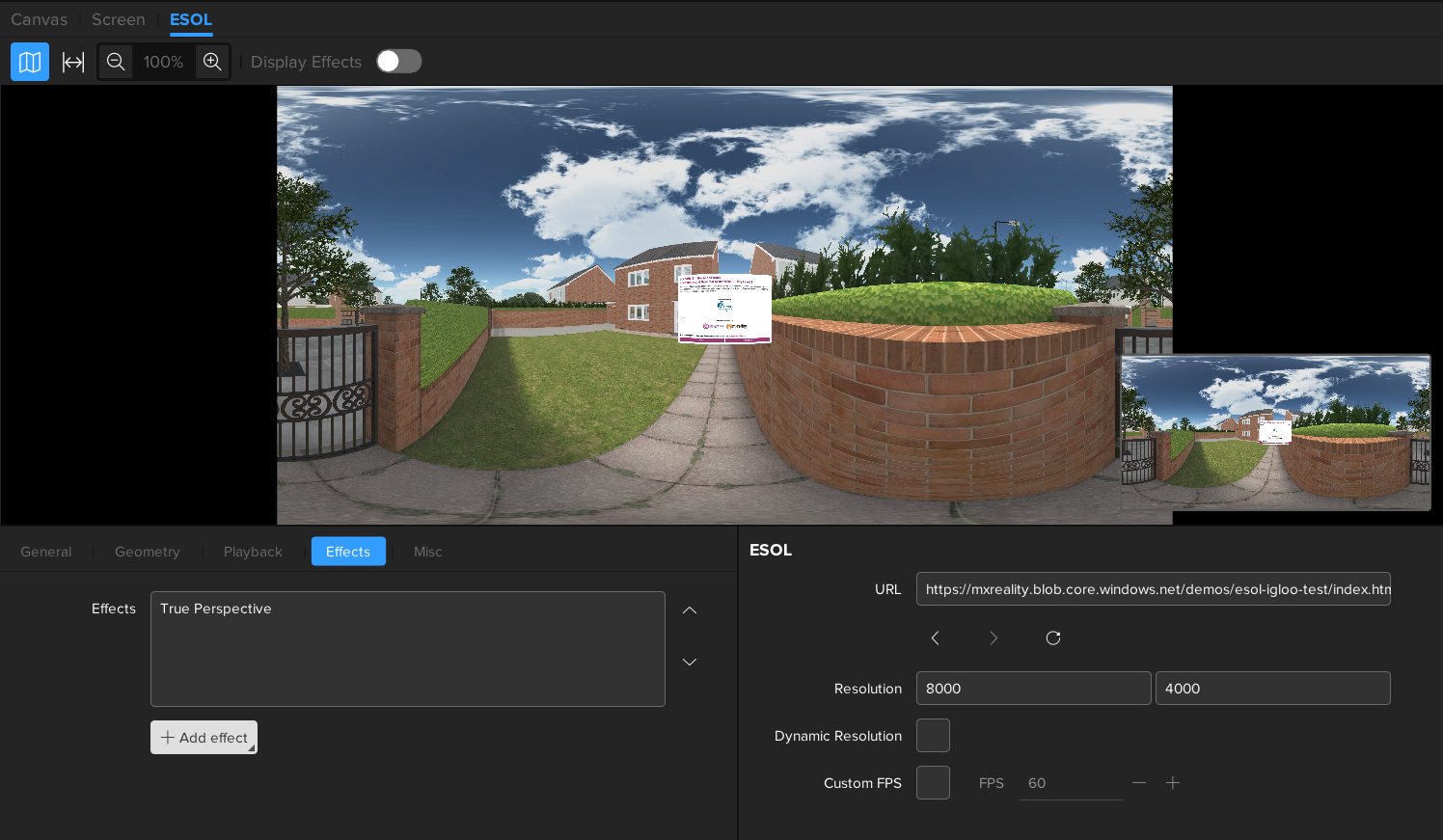
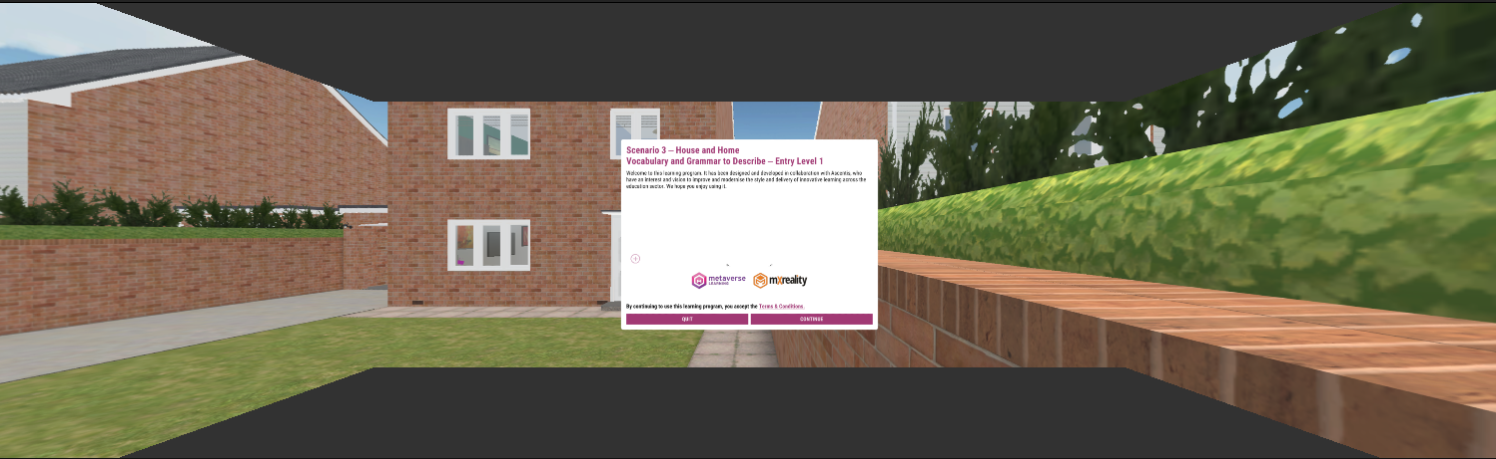
Controller
The content can be navigated and controlled using the ‘Controller’ tab in Igloo Control Panel. Use the A button to select UI buttons in the scene and move the cursor using the gyro.
Launching the server locally
For the smoothest experience, we recommend hosting the server locally. In order to do this, you will need to follow a few steps:
-
Download the Metaverse Learning content (ESOL, Carpentry, etc)
-
Download some server hosting software of your choice (https://github.com/greggman/servez/releases/tag/v1.11.0 - This one is extremely straight forward) and run the installer.
-
In Igloo Core Engine
-
Create a WebView layer, add the True Perspective effect, and set the resolution to 8000 x 4000 (same as above for the web-based scene)
-
In the ‘Misc’ tab -> ‘On Add Batch’ section, enter the following:
-
start /d “ABC” servez.exe -- --port=8060 "XYZ" - where ABC is the folder path containing the Servez application, and XYZ is the file path of the Metaverse Learning content.
-
For example, in my case, this would be:
start /d "C:\Users\DuncanStables\AppData\Local\Programs\Servez" servez.exe -- --port=8060 "C:\ProgramData\Igloo Vision\IglooCoreEngine\example content\Carpentry_S01_RC6_IglooDemo"
-
-
-
In the ‘On Remove Batch’ section, paste the following (this does not need to be modified):
-
taskkill /im servez.exe /f
Please see below for how this should look in Igloo Core Engine:
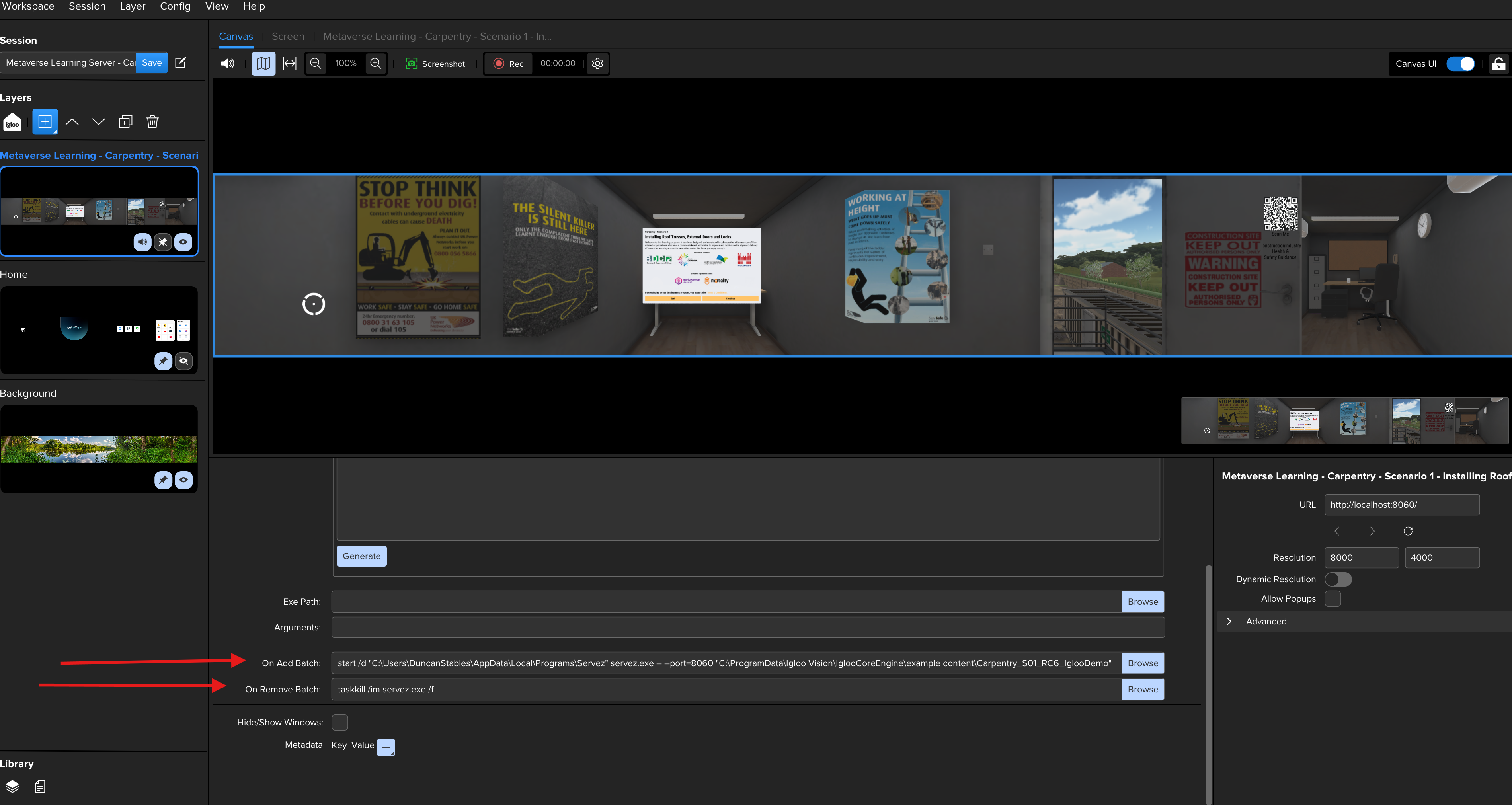
Save the session with a suitable name in Igloo Core Engine so you can access at a later date. You’re now ready to go!
Controls
Click through the first few dialogue boxes, and then swap to a controller or the ‘Controller’ tab of Igloo Control Panel to navigate and play through the scene.
With the above steps, can we delete the below highlighted in pink?
Servez can also be launched from a Batch file once it’s been installed.
An example file has been included as part of the igloo installation, called Server.bat.
A corresponding StopServer.bat is also included.
Only the server.bat will need adjusting to ensure that the paths are correct.
These can then be used via the Misc tab for the Web layer to start and stop the servers as the app is opened and closed via an Igloo Core Engine session.
Server.bat
start C:\Users\Igloo\AppData\Local\Programs\Servez\Servez.exe -- --port=8080 D:\Interactive\ESOL_S05_Igloo
The above code starts Servez, which outputs on 127.0.0.1:8080
I have an Issue!
For issues with the Metaverse Learning integration, please contact myadvocate@igloovision.com or use the help desk. A ticket will be generated for you, and an appropriate member of our tech support team will contact you as soon as possible to assist you with your problem.