
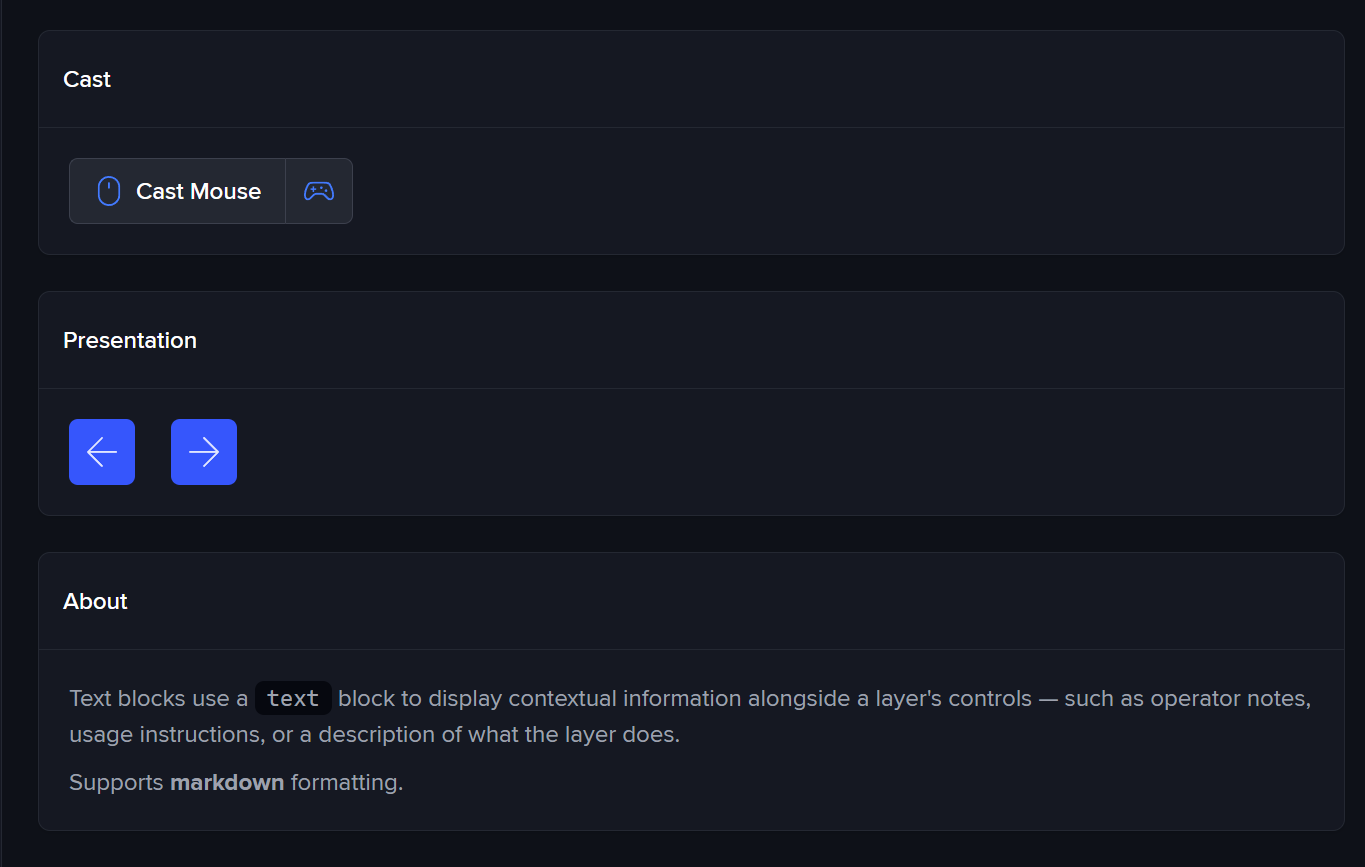
You can modify most aspects of a layer’s UI in Igloo Control Panel using layer metadata Misc | Metadata
Why?
Some layers are better controlled using custom UI rather than the default controls.
You may also want to:
-
Simplify the UI for end-users
-
Hide controls that shouldn’t be modified
-
Provide a custom interface tailored to a specific workflow
Metadata allows you to control exactly what is shown in the Control Panel.
What can be done?
-
Hide a layer from the Control Panel layer list
-
Modify what elements of a layer’s UI are displayed (the right hand side of the screen on desktop)
-
Create and display new blocks within the layer’s UI.
Blocks
Three types of blocks can be created:
-
web-
Display a webpage
-
e.g. a control page (Streetview, etc.)
-
-
image-
Display an image from Igloo Core Service’s
public/directory -
e.g. button map for a layer that uses a controller
-
-
builtin-
Display some additional predefined UI component on any layer type
-
e.g. presentation controls on a WebView showing slides.com or similar
-
-
text-
Display formatted text content using markdown
-
e.g. instructions for how to use the layer with description and links to external documentation
-
How?
See the Igloo Core Engine metadata documentation Misc | Metadata for information on how to add/edit metadata.
These are the available options in brief:
{
  "hideFromLayerList": false,
  "hideEverything": false,
  "hideTopRow": false,
  "hideName": false,
  "hideMoveToRegion": false,
  "hideDelete": false,
  "hideLayerTypeUi": false,
  "hideLayerProperties": false,
  "hideGeneral": false,
  "hideGeometry": false,
  "hideTruePerspective": false,
  "block": {
    "streetview": {
      "type": "web",
      "url": "$ics/streetview/control",
      "title": "Streetview"
    }
  }
}
Full documentation is accessible using the JSON schema methods discussed below.
You can provide this configuration to Control Panel in two ways:
JSON
Configuration can be provided as JSON, as demonstrated above, using the metadata key controlPanel.
The available metadata configuration for your version of Igloo Control Panel is provided as a JSON schema. You can make use of this in an editor that supports JSON schema validation by creating a JSON file containing the structure below, ensuring it refers to the address of an accessible instance of the Igloo Core Service. We recommend
{
  "$schema": "http://localhost:800/api/control-panel/metadata-schema.json"
}
Presuming that the text editor is set up correctly, it will provide autocomplete + validation of metadata declaration you’re now writing (including documentation for each of the available properties).
You can view the same information in a browser, without the need for a text editor, using json-schema.app – paste the URL from above into the input field. (This link points to localhost, which will work locally on the media server).
Once you’ve built your configuration, you can copy paste it into the value of a layer metadata field with the key controlPanel.
Flat (individual keys)
Any key from the above JSON format can be provided as a standalone key. This can be helpful when only minimal configuration is needed, or when testing.
Flat keys are merged with the JSON described above (i.e. both can be defined at once and the resulting properties will be merged).
For example, to hide the “move to region” button from a layer, you can provide the metadata key controlPanel.hideMoveToRegion with no value.
web blocks
Two variables are available to blocks with the web type.
-
$icsis replaced with the full URL pointing to theigloo-core-serviceon the machine that Control Panel is connected to (e.g. the equivalent ofhttp://localhost:800/) -
$impis replaced with the IP only of the same machine (e.g. the equivalent ofhttp://localhost) – this allows you to reference other web servers that might be running on that same machine.
Examples
An example session demonstrating the capabilities of custom blocks and metadata is included with Igloo Core Engine.
You can import it from:
C:\ProgramData\Igloo Vision\IglooCoreEngine\example sessions\Blocks Example
This session provides working examples of:
-
Web, image, built-in, and text blocks
-
UI customisation and layout control
-
Practical configurations for real-world use cases
It’s recommended to explore this session alongside the following examples to better understand how the configuration behaves in practice.
Show Only Layer Type Controls
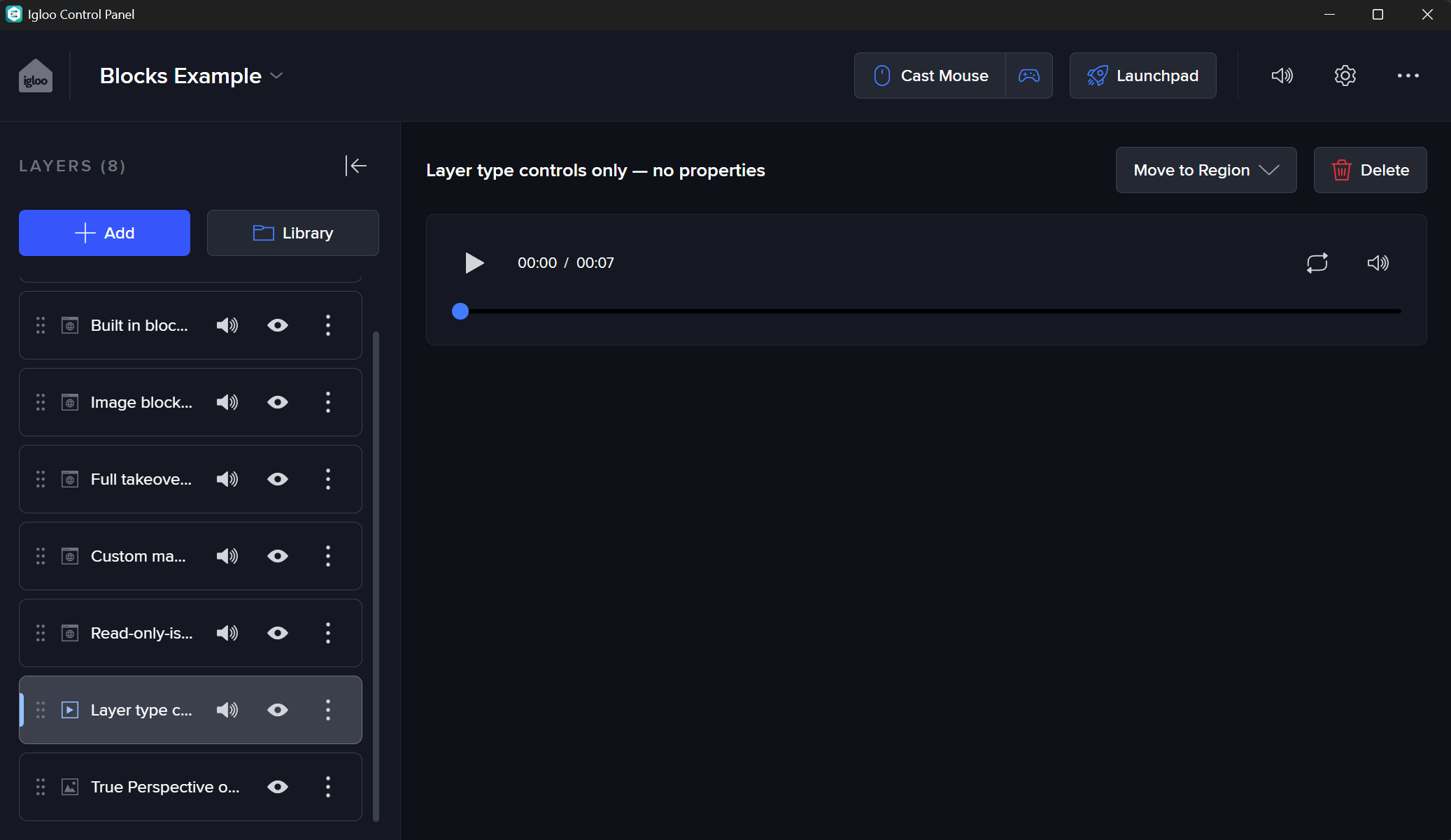
Hide General / Geometry but keep layer-specific controls (e.g. playback, PDF navigation):
{
  "hideLayerProperties": true
}
Flat
The following layer metadata:
|
Key |
Value |
|---|---|
|
|
|
Full UI Replacement (Maximised Web App)
You could embed the control page and hide all other built-in UI for a layer which provides its own frontend interface using the following configuration (using streetview as an example)
JSON
Layer metadata with key controlPanel and the value set to:
{
  "block": {
    "streetview": {
      "type": "web",
      "url": "$ics/streetview/control",
	  "features": {
		"maximisable" : true
	  }
    }
  },
  "hideEverything": true
}
Flat
The following layer metadata:
|
Key |
Value |
|---|---|
|
|
|
|
|
|
|
|
(no value required) |
Button map
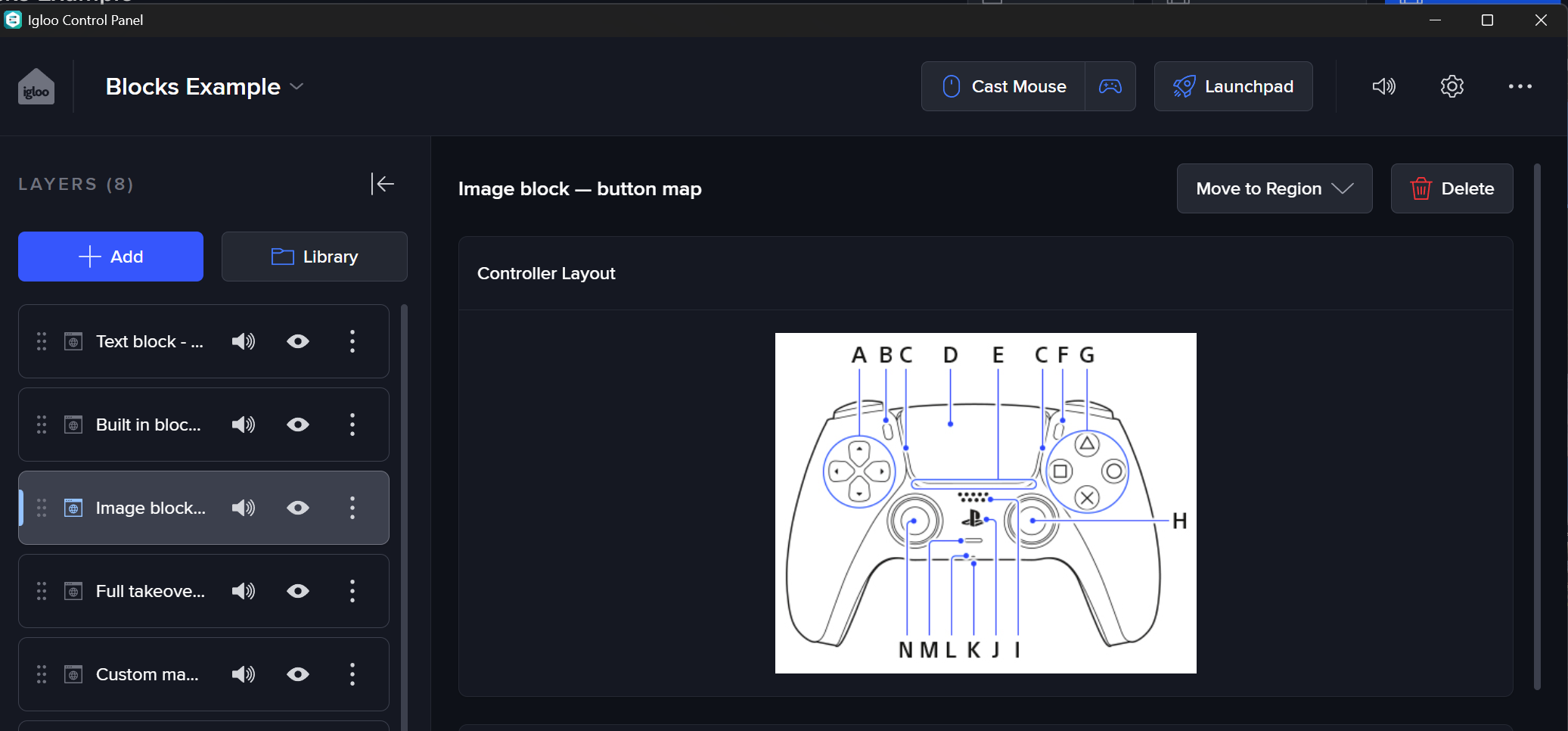
Place your desired button map image in C:\igloo\igloo-core-service\public\ (let’s call it ButtonMap.jpg for now).
This will place the image at the top of the layer UI section, as well as hiding:
-
the layer’s built in UI (e.g. the Spout sender selection controls)
-
the “general” and “geometry” layer property sections (leaving access to the “True Perspective” section)
But leaving everything else intact.
JSON
{
  "block": {
    "button_map": {
      "type": "image",
      "path": "ButtonMap.jpg"
    }
  },
  "hideLayerTypeUi": true,
  "hideGeneral": true,
  "hideGeometry": true
}
Flat
|
Key |
Value |
|---|---|
|
|
|
|
|
|
|
|
(no value required) |
|
|
(no value required) |
|
|
(no value required) |
Presentation Controls for a WebView (maybe displaying slides.com)
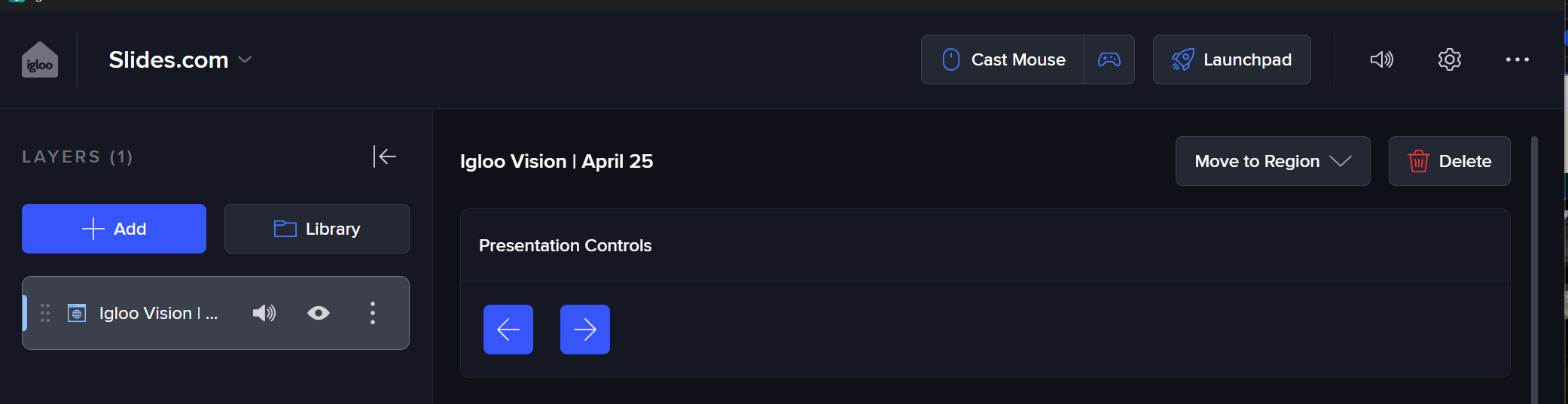
Add the presentation controls, but don’t change anything else about how the layer’s UI is displayed
JSON
{
  "block": {
    "c": {
      "type": "builtin",
      "builtin": "presentationControls"
    }
  }
}
Flat
|
Key |
Value |
|---|---|
|
|
|
|
|
|
Text Instructions Block
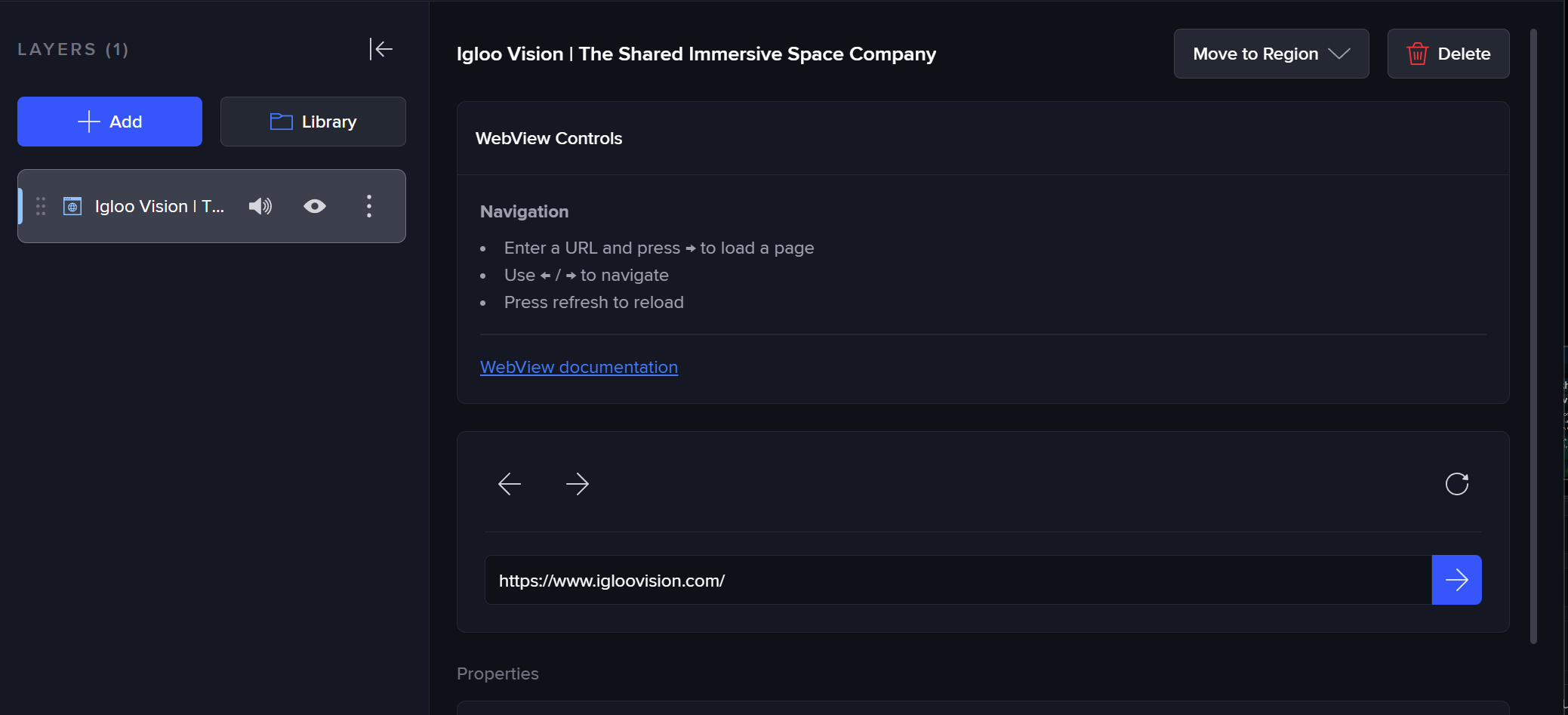
Provide inline instructions for users include link to external documentation@
{
  "block": {
    "info": {
      "type": "text",
      "title": "WebView Controls",
      "body": "**Navigation**\n- Enter a URL and press **→** to load a page\n- Use **←** / **→** to navigate\n- Press refresh to reload\n\n---\n\n[WebView documentation](https://docs.igloovision.com/documentation/current/webview)"
    }
  }
}
Maximisable Web Block with True Perspective
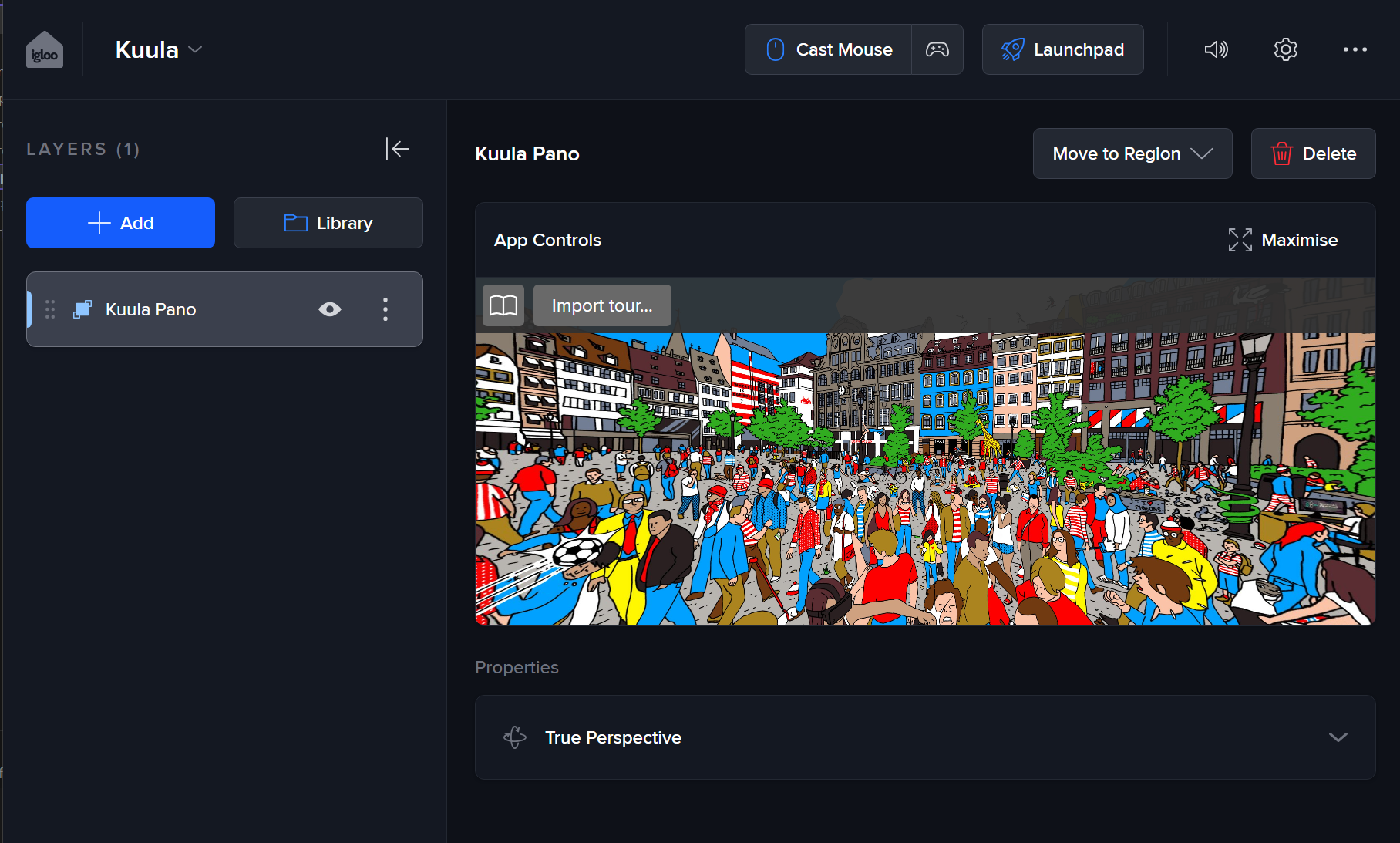
Use this approach when the main control UI should be an embedded, maximisable web block, while still keeping the True Perspective settings available.
This is useful for app-style layers such as Kuula, where the user mostly interacts with the custom web controls but may still need to adjust True Perspective.
Layer metadata with key controlPanel and the value set to:
{
  "hideGeometry": true,
  "hideGeneral": true,
  "block": {
    "controls": {
      "type": "web",
      "url": "$ics/kuula/control",
      "title": "App Controls",
      "features": {
        "maximisable": true
      }
    }
  }
}
This shows the embedded web controls as a maximisable block and hides the General and Geometry sections, leaving True Perspective visible alongside the custom controls.