The cursor control page allows manipulation of Igloo Core Engine’s on-screen cursor from a remote device.
Usage
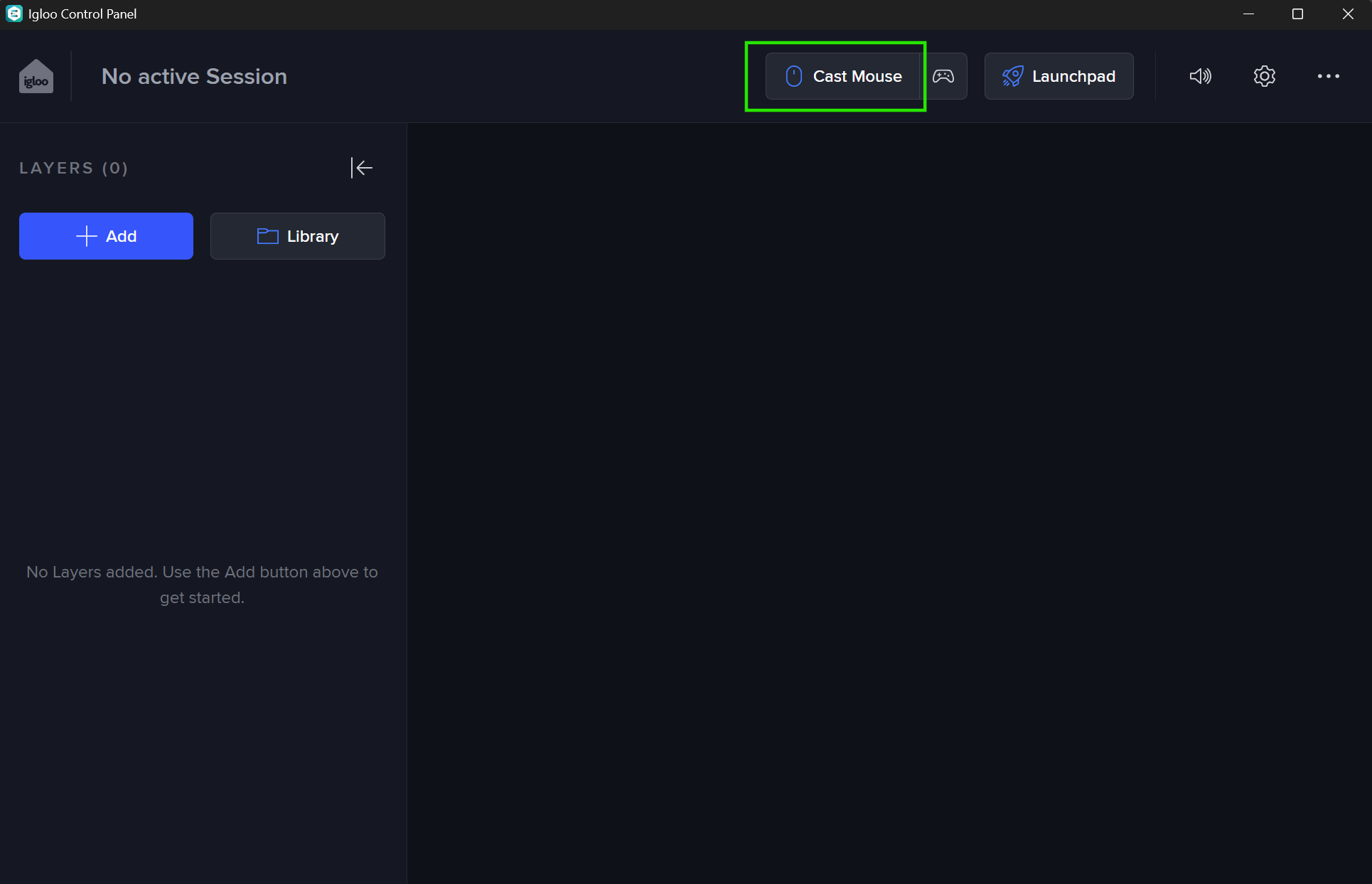
Click or tap the “Start casting” button to begin controlling the cursor.
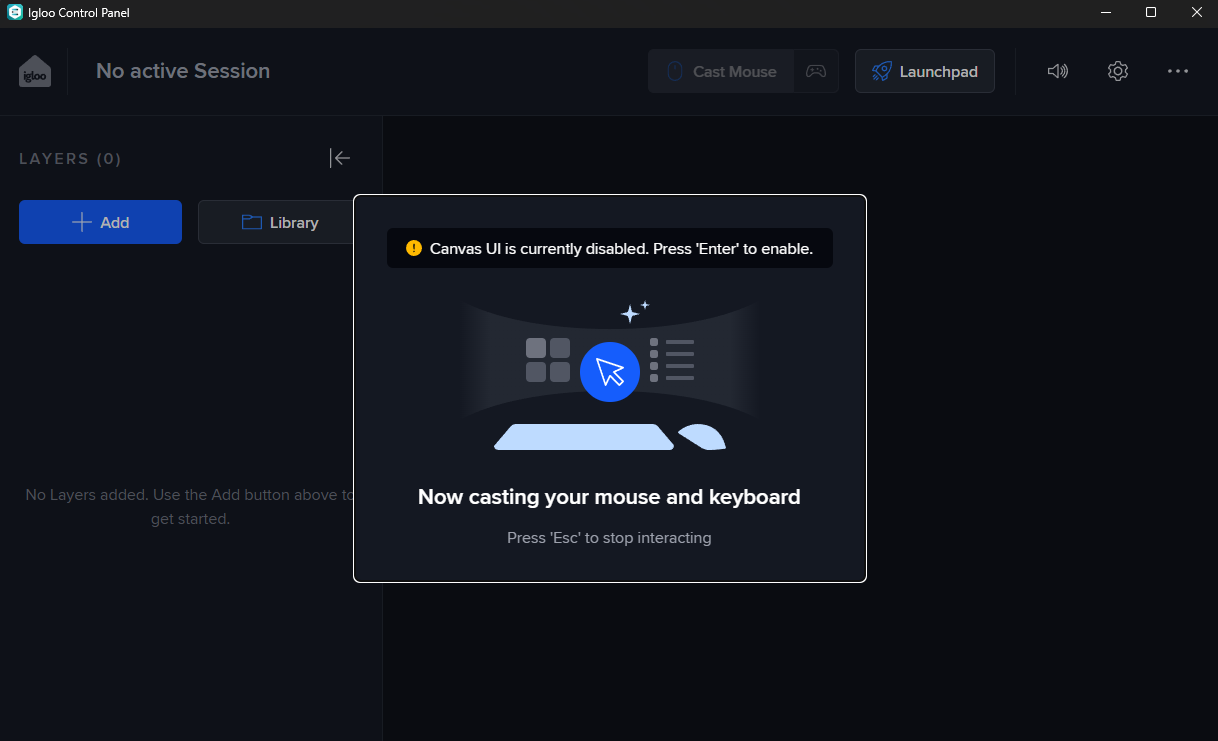
If you’re using a mouse and keyboard, your mouse will be locked to the Control Panel window, and all further mouse movement and keyboard interactions will be forwarded to Igloo Core Engine. Press [Escape] to unlock your mouse and stop controlling the Igloo Core Engine cursor.
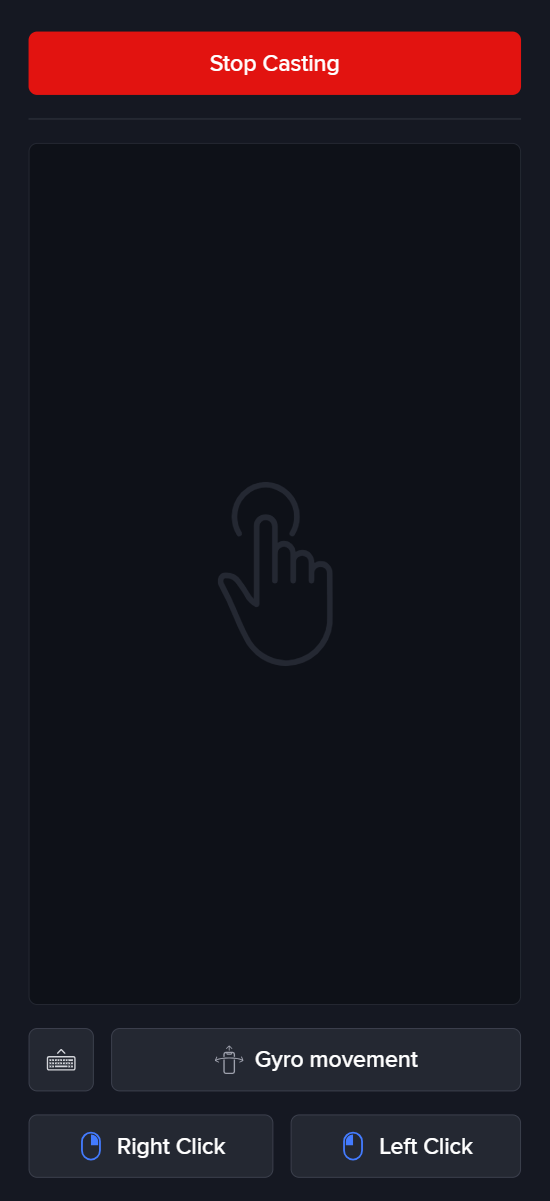
If you’re using a touchscreen, a touchpad will be shown. You can use this like a laptop’s standard touchpad. Press the “Keyboard” (⌨️) button to show your device’s on-screen keyboard if required.
Configuration
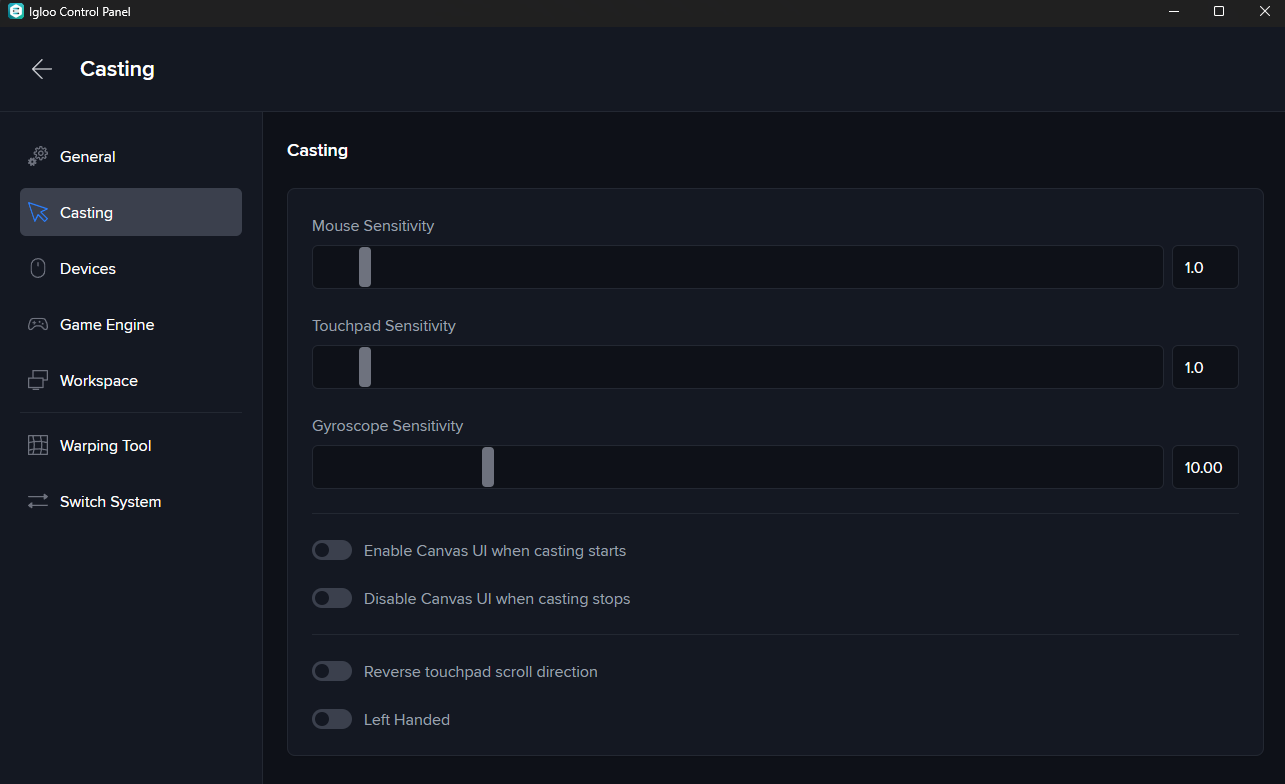
Configuration is accessed through the “Settings” button (or the top-right (⋯) icon on mobile). Configuration is stored on your device, separately for each connected media-server.
Mouse sensitivity
Change the mouse cursor’s speed
Automatic canvas UI management
-
Enable - automatically turn canvas UI on when casting is started
-
Disable - automatically turn canvas UI off when casting is stopped
Pre-requisites
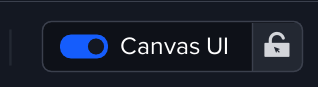
To display any Canvas UI, including the cursor that this page controls, Igloo Core Engine’s Canvas UI setting needs to be on.