
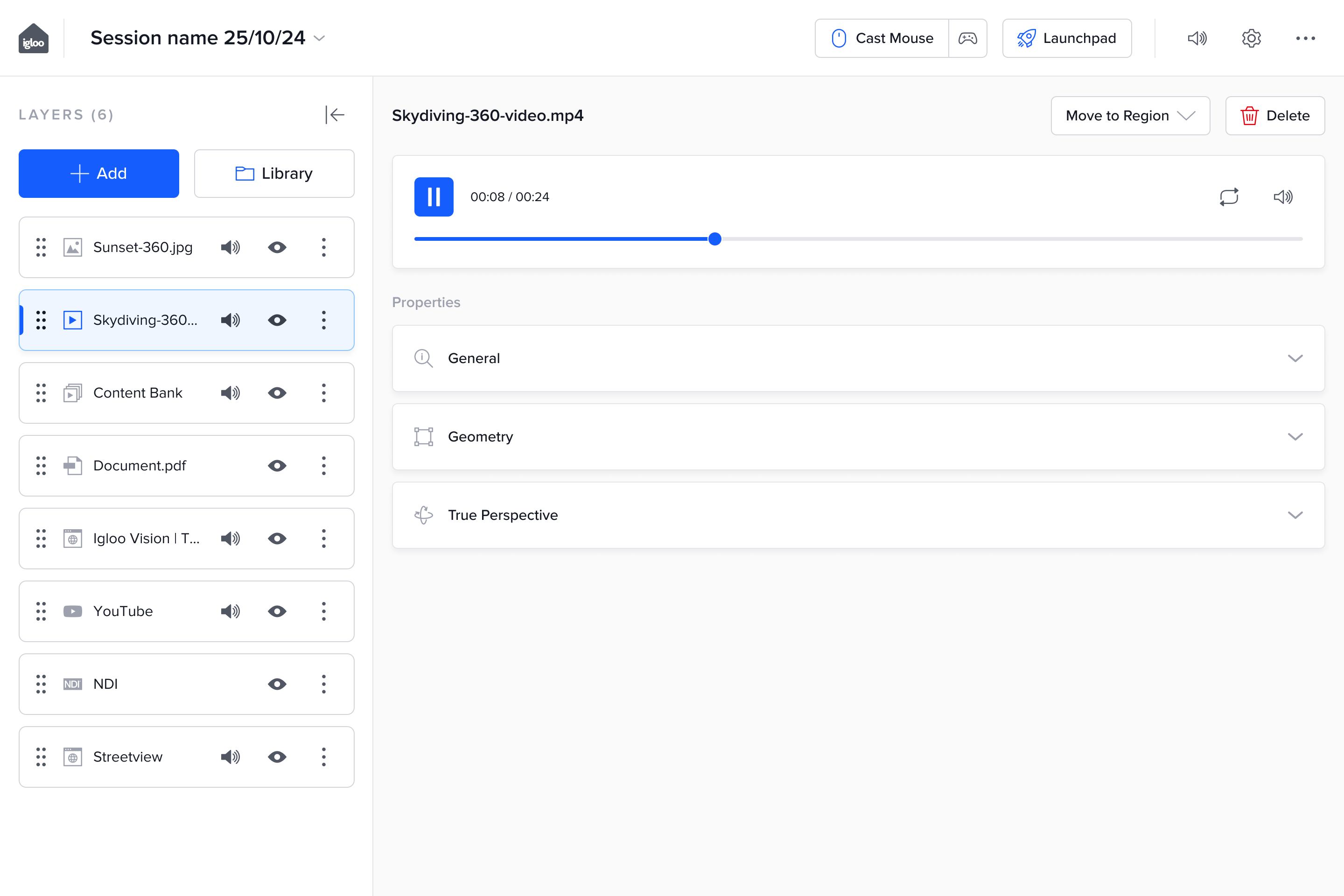
The Igloo Control Panel UI is comprised of three main pieces.
Header
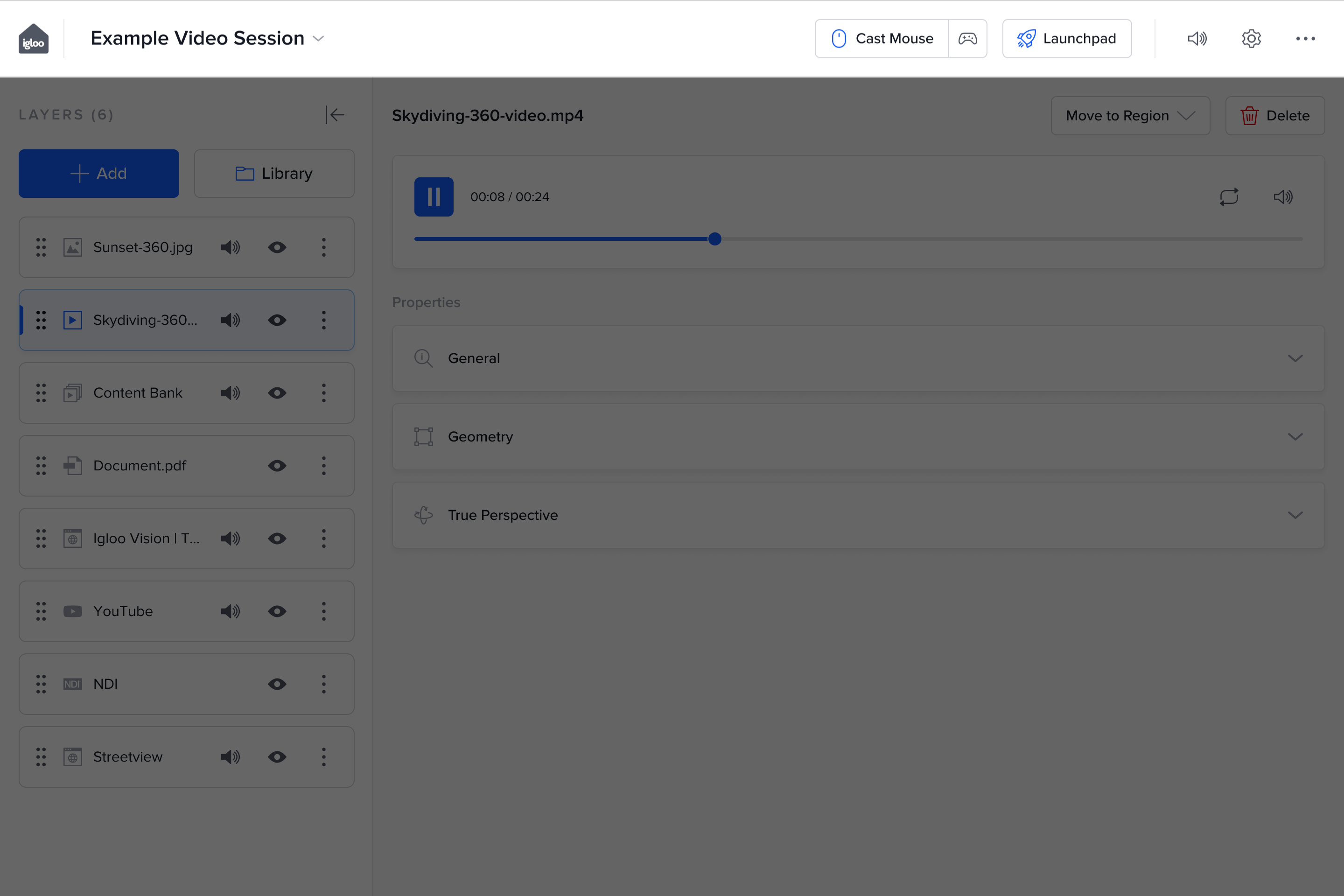
The Header spans the top of the application and provides access to primary functions and menus, as well as information and controls for the current session.
From left to right the header contains the Home link, the name of the current session (which when clicked reveals edit/save options), Casting control buttons, Launchpad button, quick access to system volume and settings, as well as an overflow ellipsis menu.
The ellipsis menu contains links to edit/save the session, browse Apps, or navigate to the Help modal.
Layer List
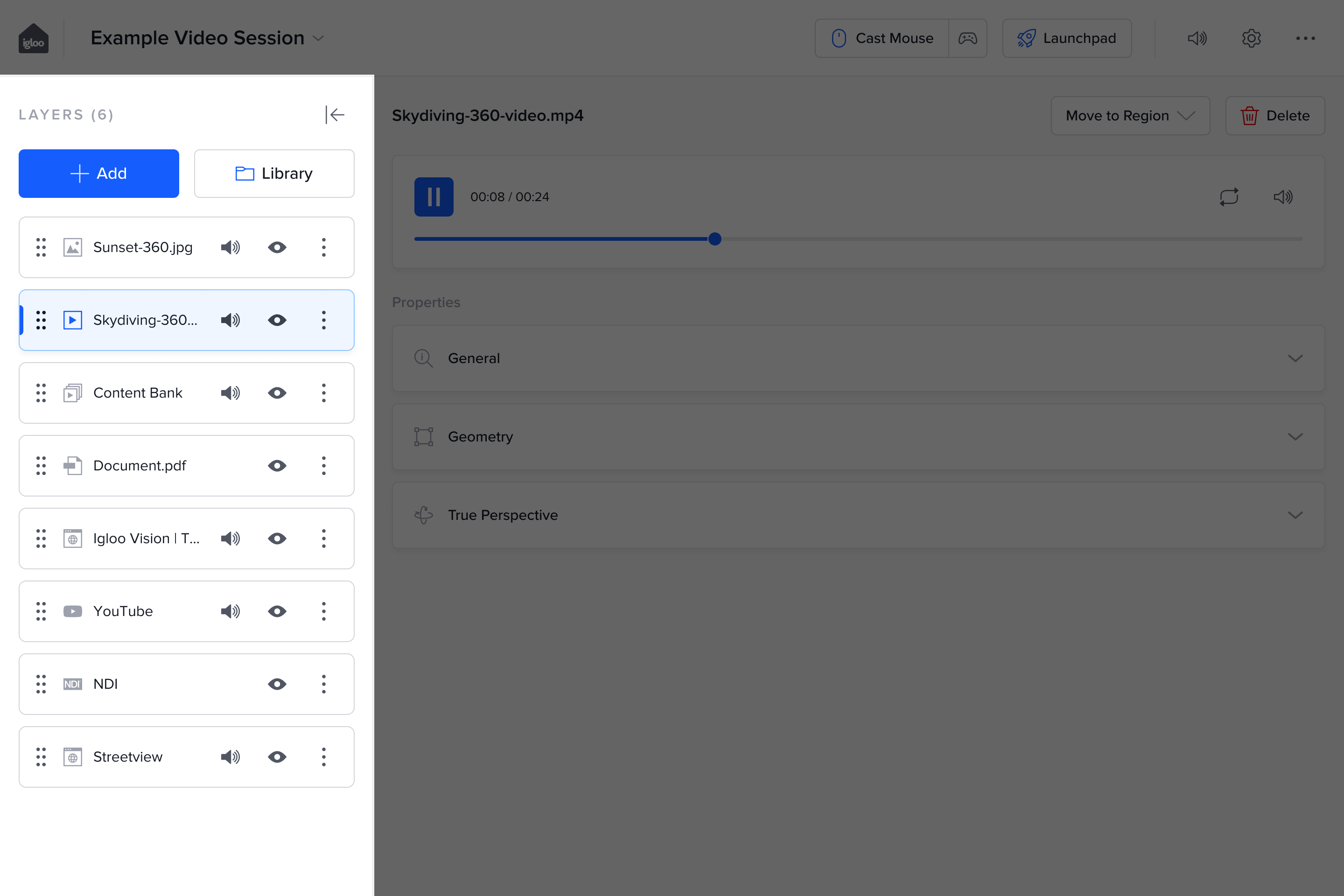
The Layer List manages the content of the session and workspace. It contains a scrolling list of all layer items, where the layer order dictates the drawing order on the Canvas.
Key functions are:
-
Adding Content: The 'Add' button provides a dropdown for new layer types, and the 'Library' button opens the Content Library to access sessions or media files.
-
Layer Interaction: Each layer card contains controls to enable/disable the layer, mute/unmute, and collapse/expand the layer preview. Layers can be reordered by dragging, and clicking the ellipsis icon reveals further options in a context menu.
-
Drag/Drop reordering: Layers can be reordered by dragging and dropping using the grab handle
Layer Controls
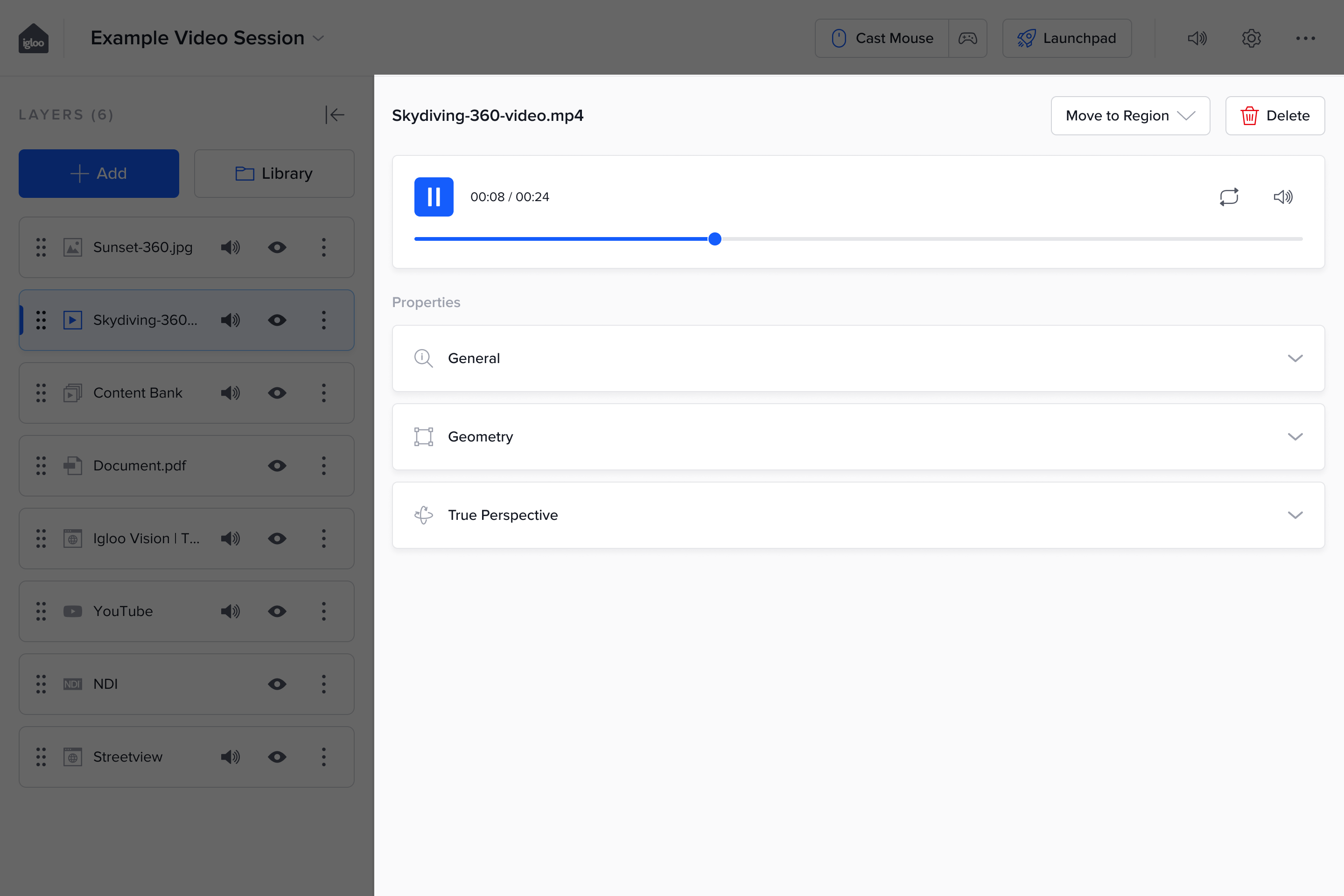
This area contains all the settings for the currently selected layer. The panel contents change dynamically based on the currently selected layer, showing specific fields and controls relevant to that layer type. Below the layer-specific controls are dynamic accordions, for more general layer settings, which cover General layer properties, Geometry settings, as well as True Perspective settings when relevant. There are also quick links in the top right corner of this area to move the selected layer to a region, or to delete it.