
The Content Library allows you to browse and load Sessions and Media Files directly from Igloo Control Panel
Media Files are managed within Igloo Core Engine. For full details on supported formats, file management, and organisation, see the Content Library documentation: Content Library Window
Opening the Content Library
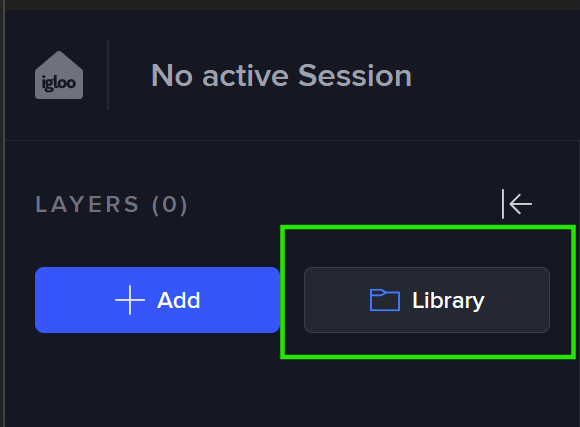
The Content Library can be opened from the Control Panel by selecting Library within the Layer List panel
The library opens as an modal with two tabs
-
Sessions
-
Media Files
Sessions
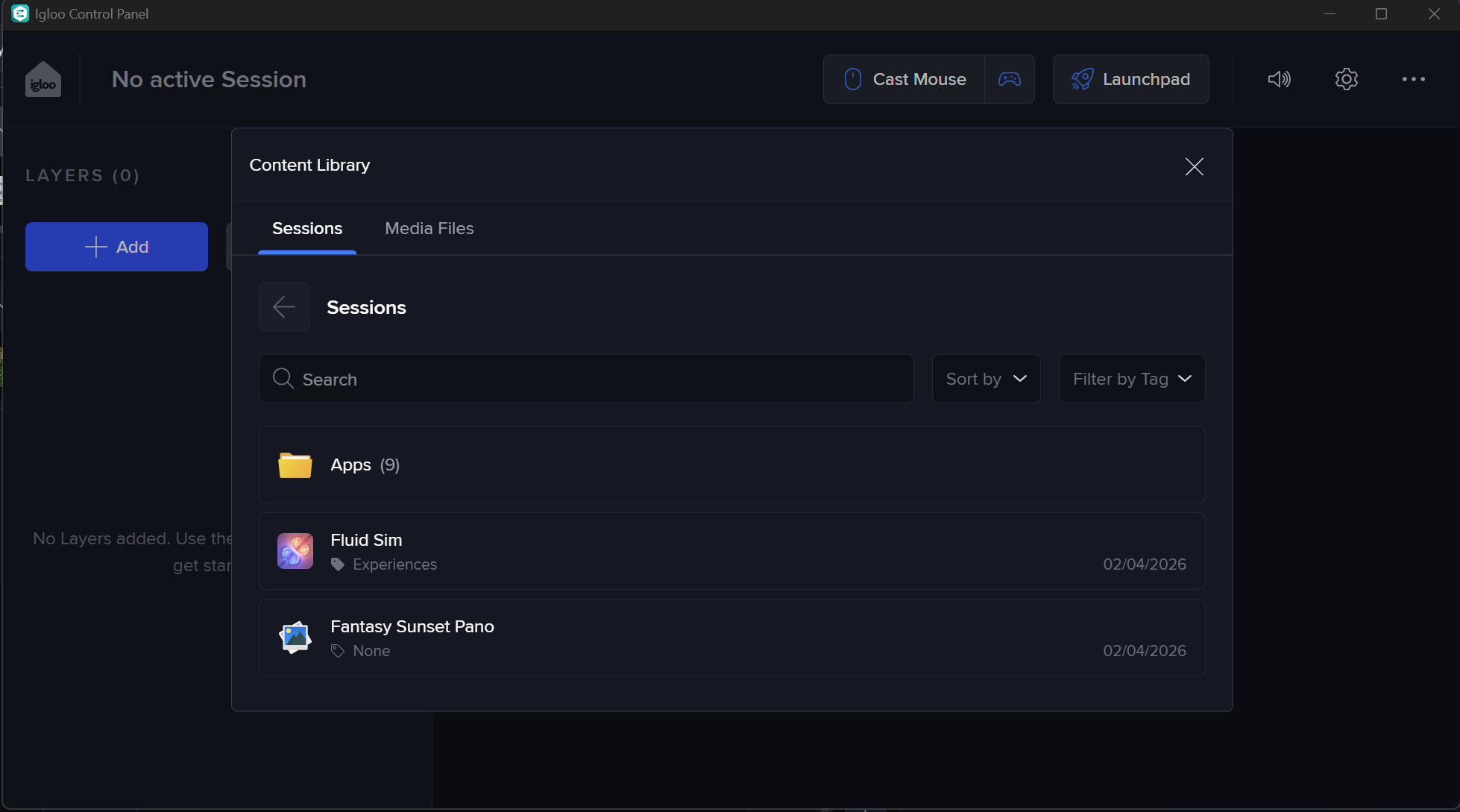
The Sessions tab displays all available sessions that can be loaded into the current workspace.
Loading a Session
To load a session:
-
Click a session, loading will begin immediately
When a session is loaded:
-
All layers in that session are added to the workspace
-
Any currently active session is replaced
Searching and Filtering
To help find content quickly, you can:
-
Use the Search bar to locate sessions by name
-
Use Sort by to organise results
-
Use Filter by Tag to show specific categories (e.g. Experiences)
Session Collections
Sessions may be grouped into collections to make browsing easier.
-
Collections help organise content without duplicating it
-
A session can appear in multiple collections
-
Collections are managed within Igloo Core Engine
Media Files
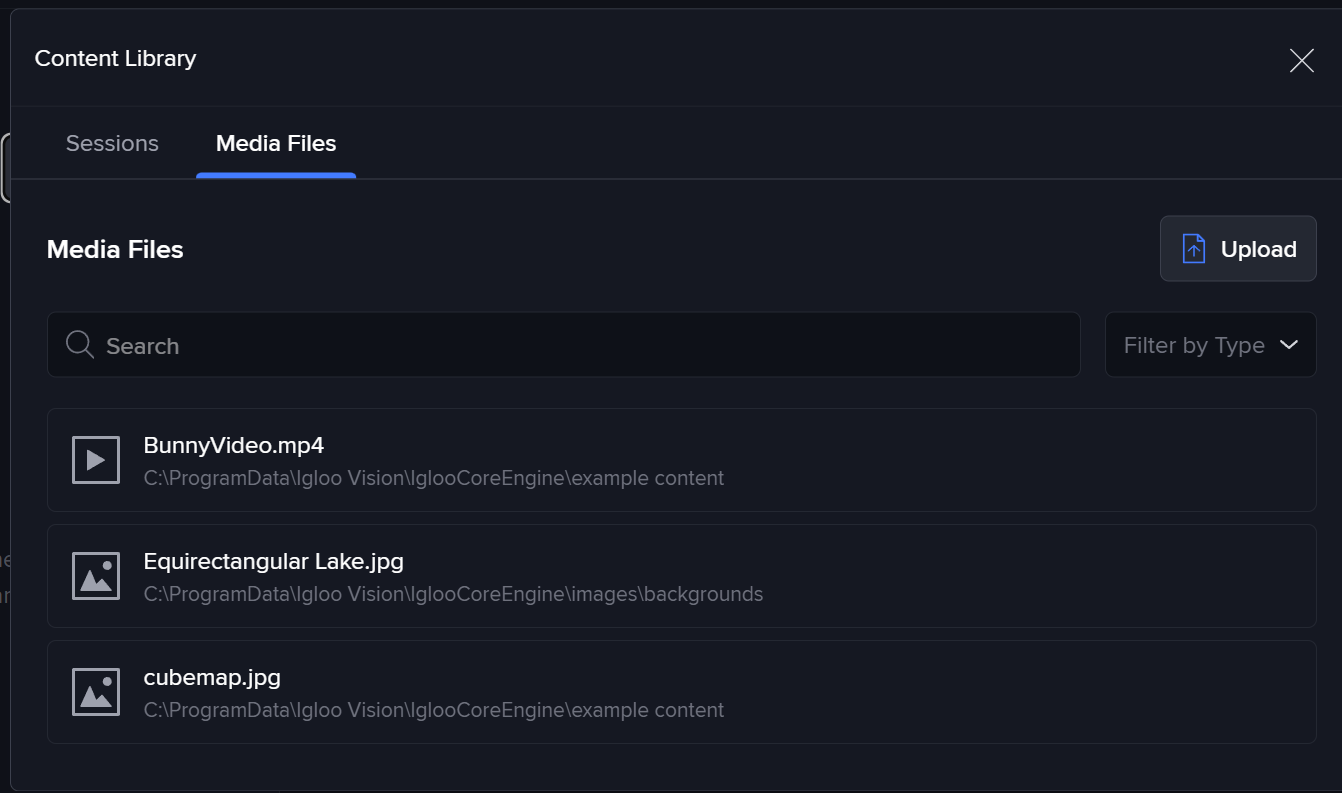
The Media Files tab shows all uploaded media available for use in the Control Panel.
Using Media
Media files can be selected and added to the workspace via supported layer types (e.g. image, video, PDF).
Uploading Media
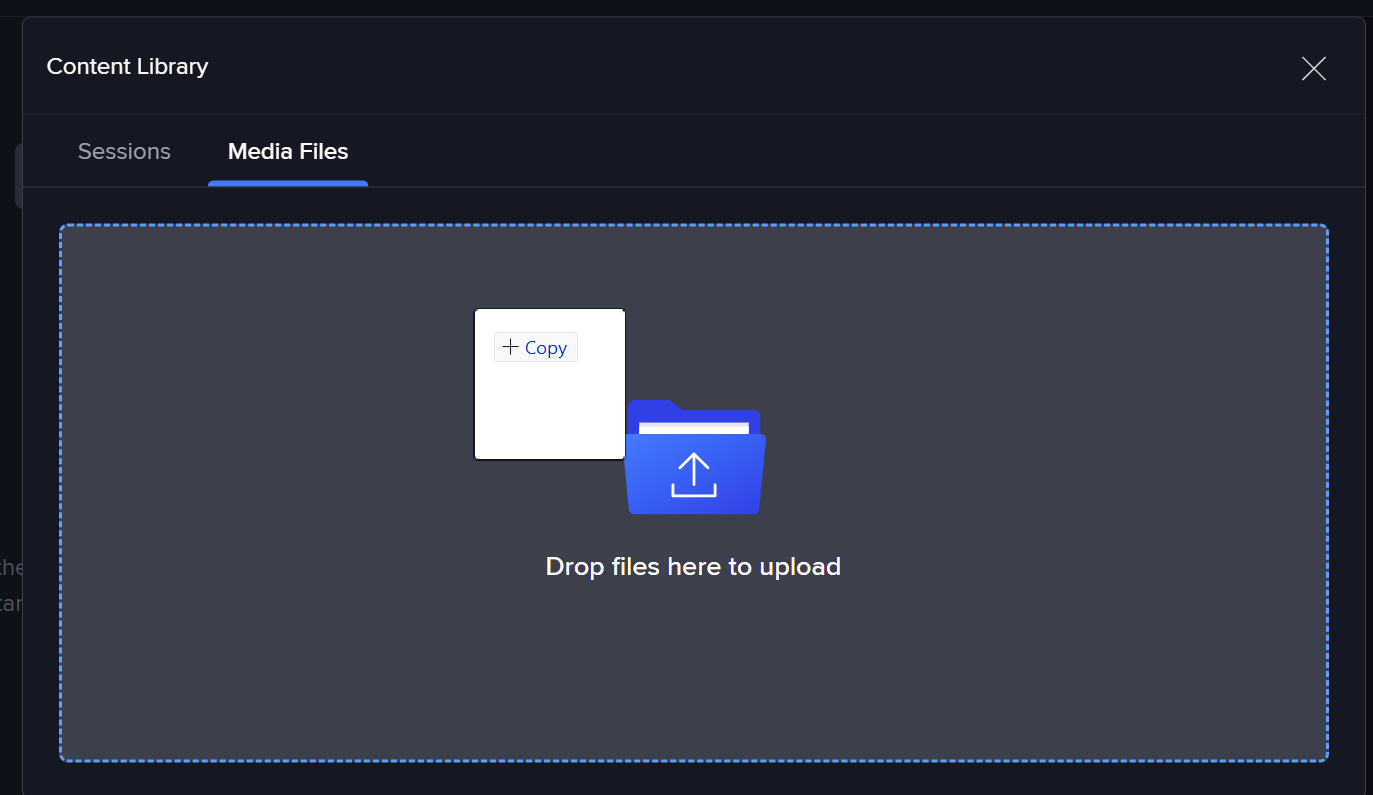
To upload files:
-
Drag and drop files into the upload area
-
Or press the Upload button to open the native file browser for your device
Once uploaded media is added to the Content Library database and becomes available within the media files tab.