
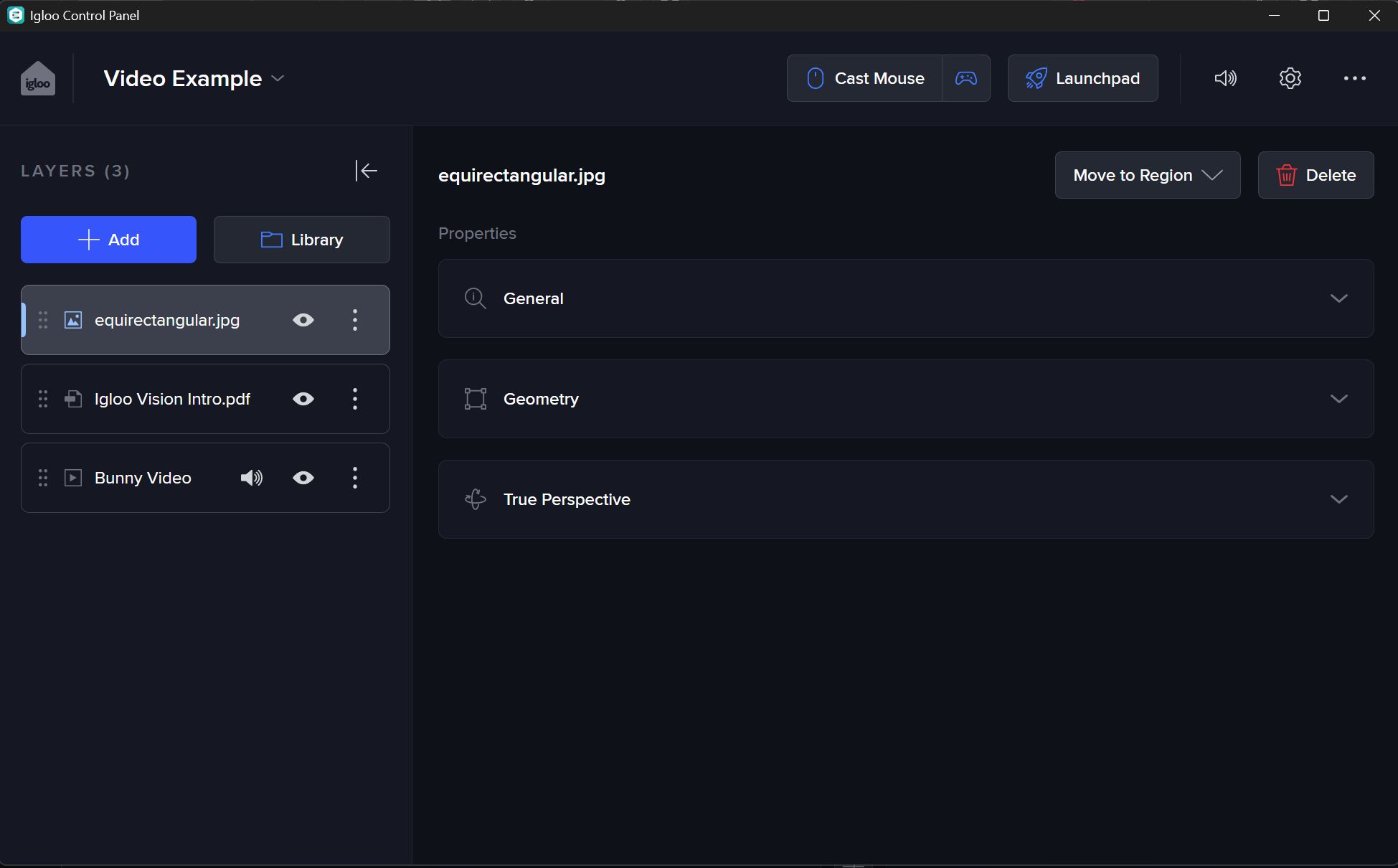
The Control Panel allows you to add, organise, and control layers within the Igloo Core Engine canvas.
Layer List
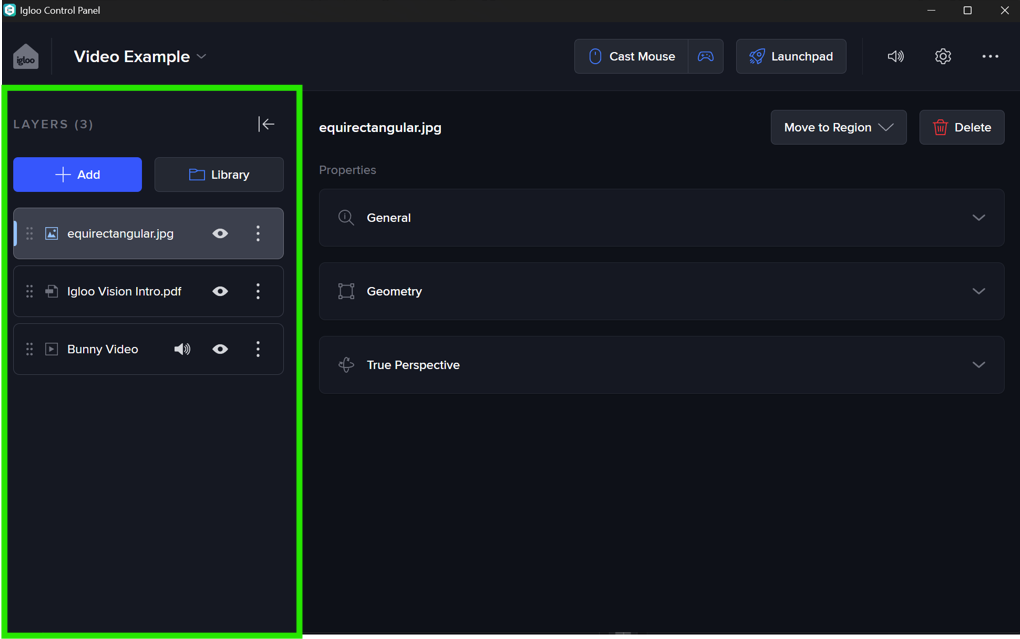
The Layer List displays all layers in the current session and controls their order and visibility.
Adding Content
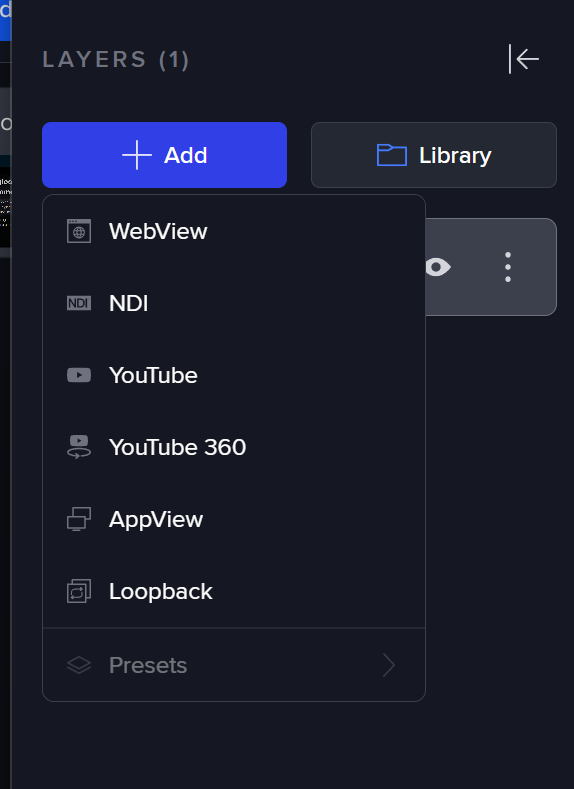
Use Add to create a new layer.
You can select from available layer types such as:
-
WebView
-
NDI
-
YouTube / YouTube 360
-
AppView
-
Loopback
Each layer type is designed for a specific kind of content or workflow.
Alternatively, select Library to load existing content from:
-
Sessions
-
Media files
-
Layer Presets
Layer Presets allow you to save and reuse pre-configured layers. A preset stores a single layer along with its properties, making it easy to quickly add commonly used setups without needing to recreate them each time.
Presets are created and managed within Igloo Core Engine. See the Layer Presets section for more information. Layer Presets
Reordering Layers
Layers can be reordered using drag and drop:
-
Use the grab handle on the left of each layer
-
Drag vertically to change position
Layer order controls rendering:
-
Layers higher in the list appear in front
-
Layers lower in the list appear behind
Visibility and Audio
Each layer includes quick access controls:
-
Enable / Disable (eye icon)
Show or hide the layer on the canvas -
Mute / Unmute (speaker icon) (where applicable)
Control audio playback for media layers
These controls apply instantly without opening layer settings.
Layer Options Menu
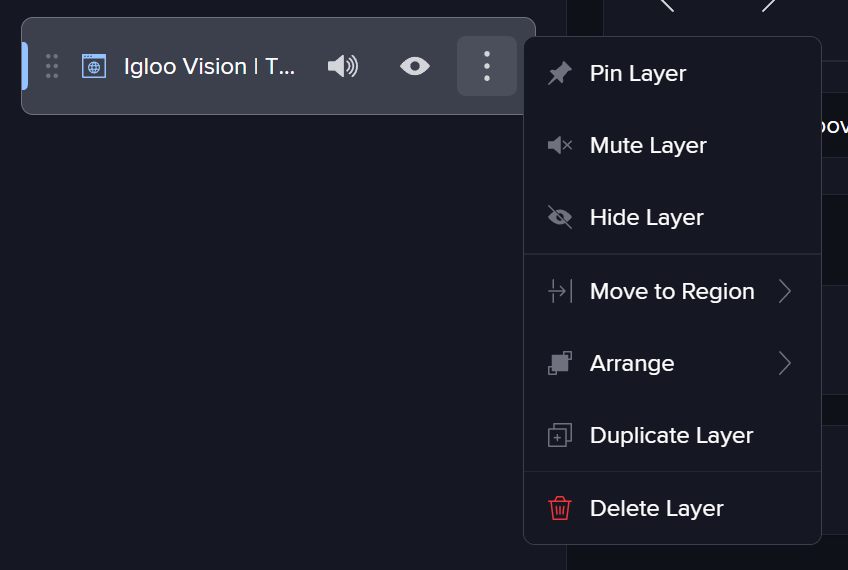
Click the ellipsis (⋯) on a layer to access additional actions:
-
Pin Layer
Pins the layer to the workspace (persists when saving the workspace) and removes it from the current session -
Hide Layer
Disables visibility -
Move to Region
Assign the layer to a specific region of the canvas (e.g. Region 1–4) -
Arrange
Additional layout options (where supported) -
Duplicate Layer
Creates a copy of the selected layer -
Delete Layer
Removes the layer from the session
Layer Controls
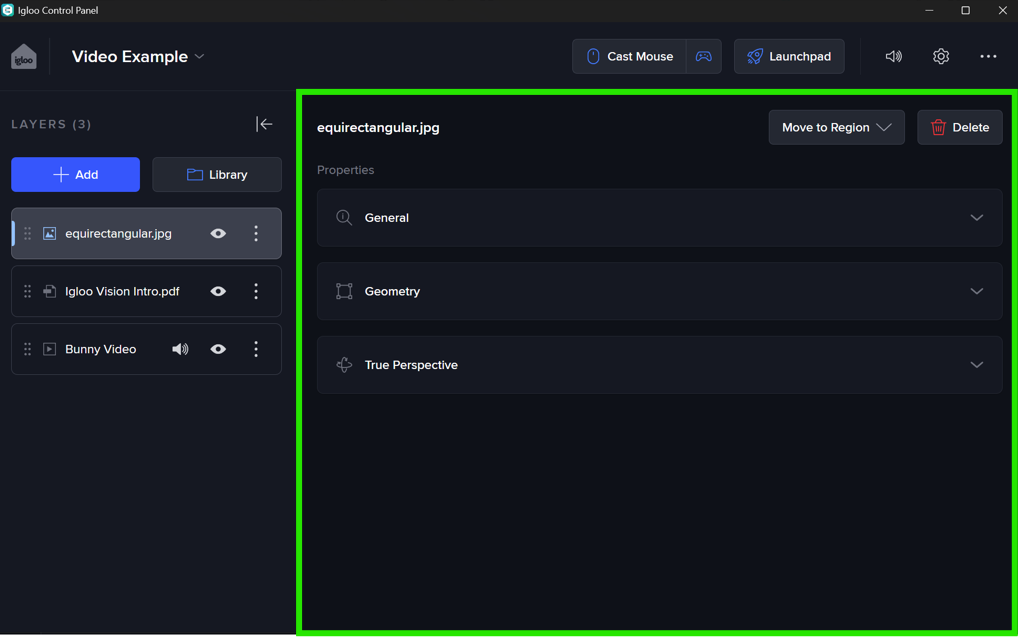
The Layer Controls panel displays settings for the currently selected layer.
Click a layer in the Layer List to select it.
Blocks
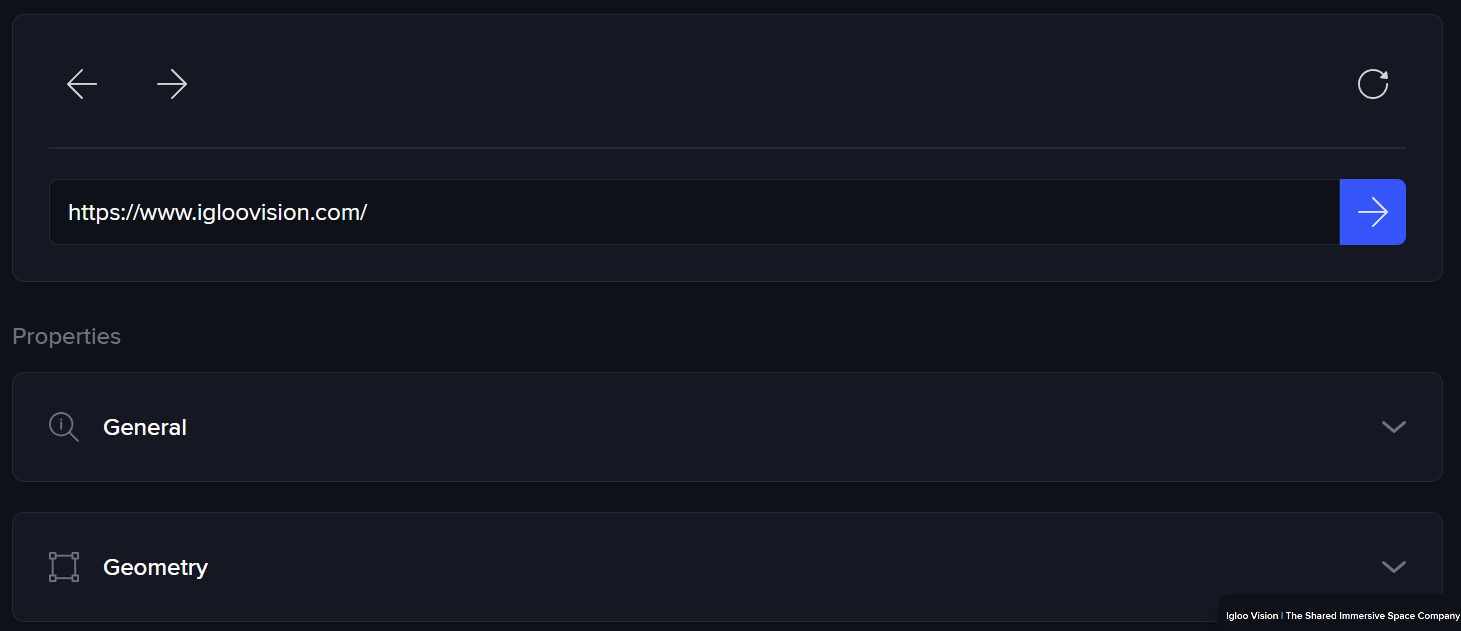
Settings are grouped into expandable sections called blocks.
Working with Blocks
-
Click a block header (e.g. General, Geometry) to expand or collapse it
-
Blocks organise settings into logical groups
-
Multiple blocks can be expanded at once
Built-in Blocks
General Block
-
Rename the layer
-
Enable / disable the layer
-
Lock to front (render above other layers)
-
Enable or disable UI interaction
-
Set stereo mode (e.g. Mono, Left/Right)
Geometry Block
-
Control position, scale, and layout
-
Assign or adjust region placement
-
Modify how the layer appears on the canvas
Additional built-in blocks may appear depending on the layer type and configuration (e.g. media playback, web settings, True Perspective).
Custom Blocks
The Control Panel also supports custom user-defined blocks, configured within Igloo Core Engine using layer metadata.
These allow you to:
-
Add custom UI directly into the Layer Controls panel
-
Simplify or tailor the UI for specific use cases
-
Embed controls or interfaces specific to a layer
Three types of custom blocks are supported:
-
Web – display a webpage (e.g. a control interface)
-
Image – display a static reference image (e.g. button map)
-
Built-in – display additional predefined UI elements (e.g. presentation controls)
Custom blocks appear alongside standard blocks and behave the same way (expand/collapse, repositioned within the panel).
See the Layer Metadata / Custom Blocks documentation for full configuration details. Blocks (Control Panel)
Moving Layers to Regions
Layers can be assigned to predefined regions:
-
Use Move to Region from the layer options menu
-
Or use the Move to Region button in the Layer Controls panel
This allows content to be arranged across different areas of the canvas.