
Layer Presets provide a way to store a single layer (of any type) along with its property values. Presets allow you to quickly add commonly used layers into the workspace without needing to clear or reload a full session.
For example, you might create a Screen Share preset so it can be added on the fly whenever needed.
Creating a Preset
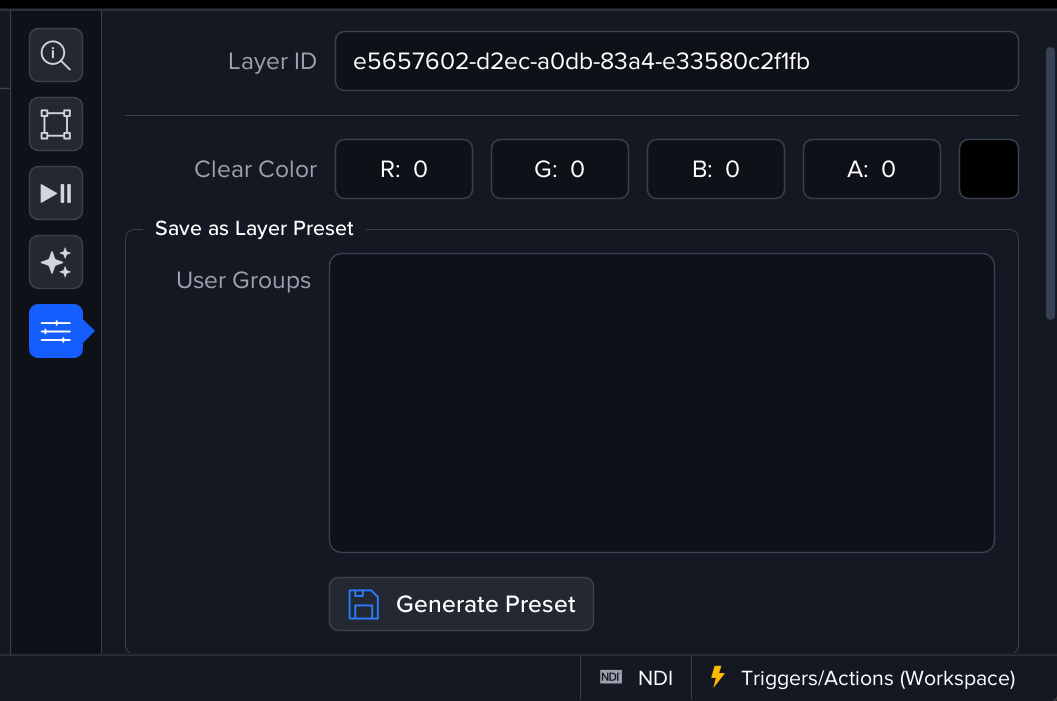
-
Select the layer you want to save as a preset
-
Open the Misc tab in the layer’s properties
-
In the Save as Layer Preset section
-
Select which User Groups should have access to the preset
-
Click Generate Preset
-
-
The preset will be created using the current layer’s name
-
Once saved, the preset will appear in the Layer Presets tab of the Content Library
Opening a Preset
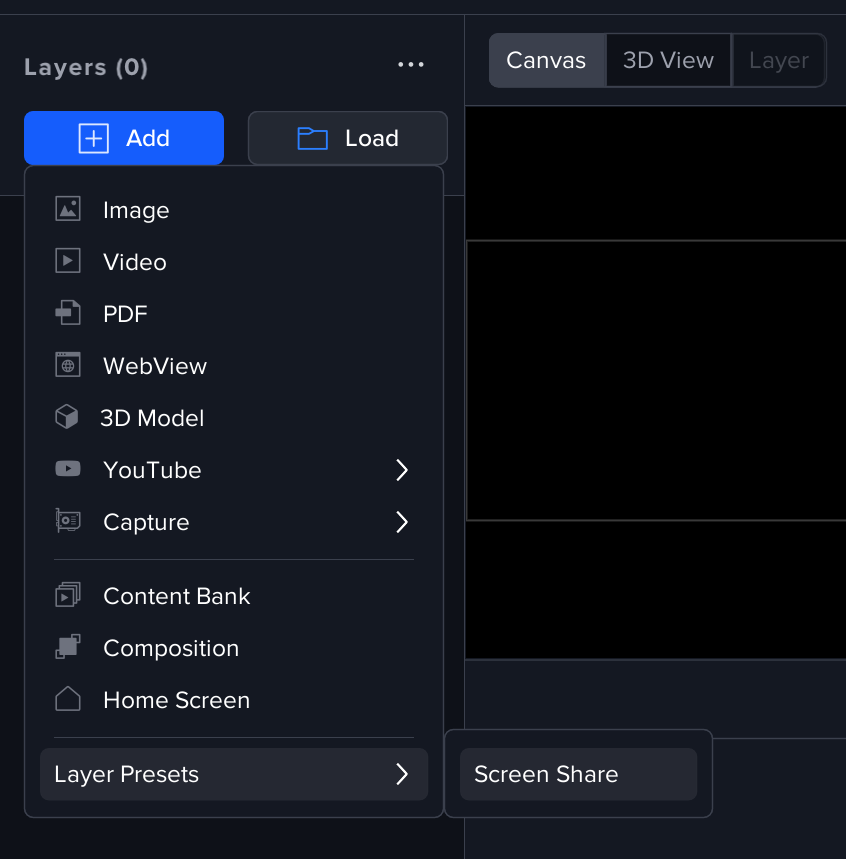
To add a preset layer to your workspace
-
Go to the Layers panel
-
Click Add > Layer Presets
-
Choose your target preset from the list
Alternatively, you can open the Content Library > Layer Presets tab to browse, search, and load available presets.
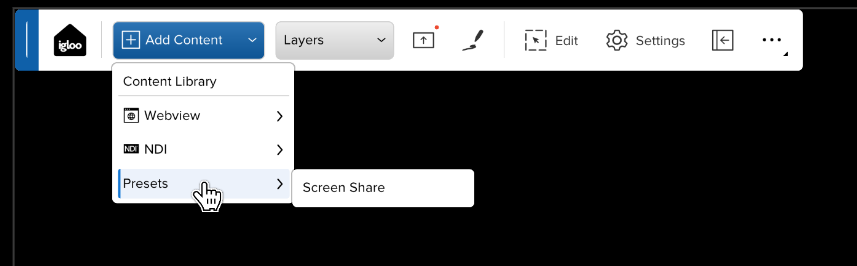
Presets can also be opened via the Canvas UI Toolbar
Managing Presets
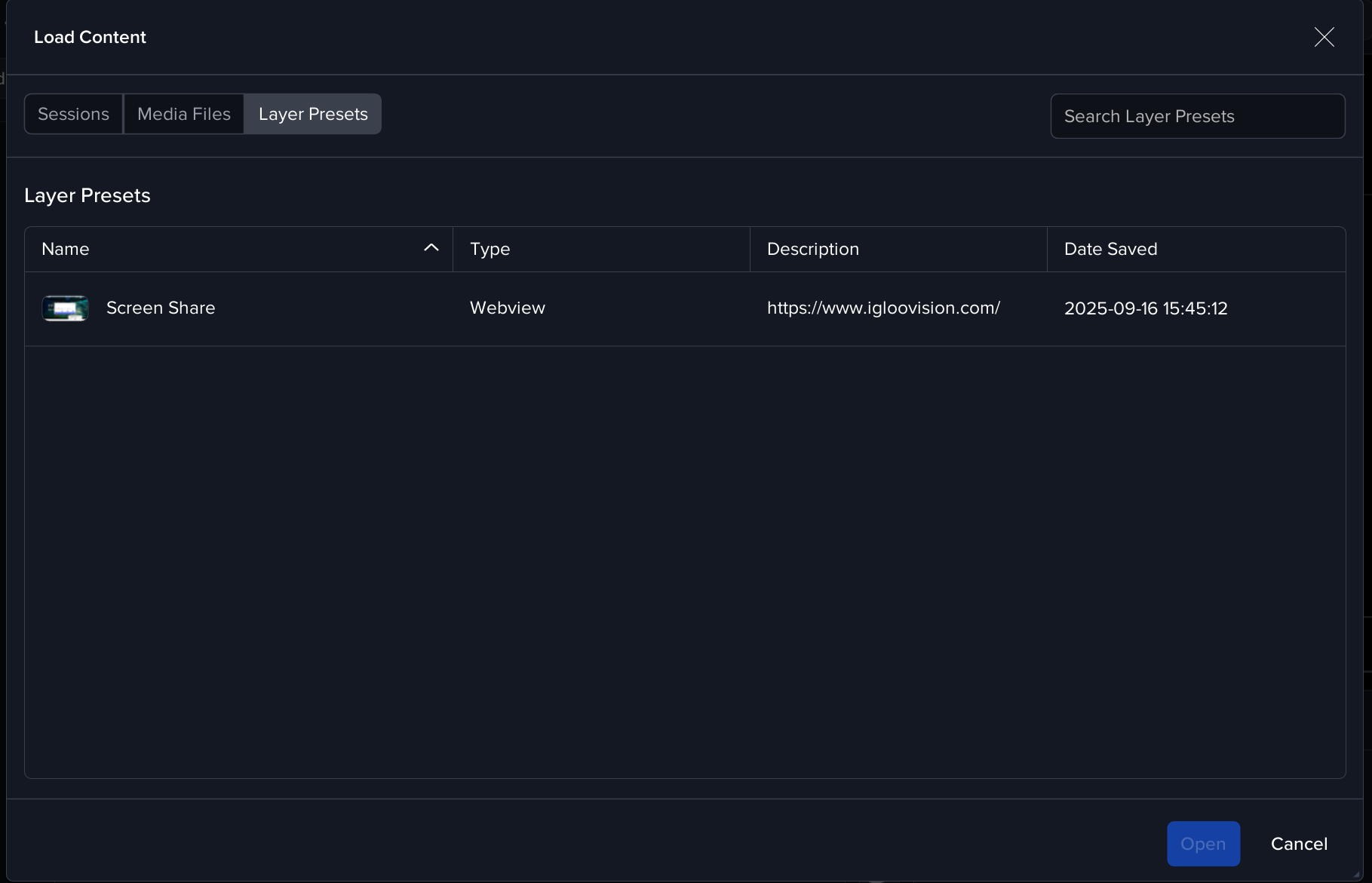
Presets are listed in the Layer Presets tab of the Content Library, where you can
-
Search for presets by name
-
View details such as type, description, and date saved
-
Load a preset into your workspace with a single click