
This beta version is a preview and is subject to change. This feature may be disabled depending on your license - please get in touch if you’d like to request access.
Setup
Before using the AI Asset Generation features, you must configure at least one AI vendor with and API key. Igloo Core Engine supports multiple vendors, each offering one or more models:
Supported Vendors & Models
OpenAI
-
GPT Image
-
DALL·E 2
-
DALL·E 3
-
Gemini 2.5 (Nano Banana)
-
Gemini 3.1 (Nano Banana 2)
Blockade Labs
-
Skybox 3
You may enable as many or as few vendors as you like. Each vendor is optional—if you only have an API key for one service, you can still use that vendor’s models exclusively.
API Key Configuration
To activate a model, you must supply your own API key for its vendor.
-
Locate the file:
AIUserSettings.json
This file is stored in the installation Directory
C:\ProgramData\Igloo Vision\IglooCoreEngine\settings\AIdirectory. -
Open the file in a text editor.
-
Each vendor has a field inside
"apiKeys"configuration block.
Add your API key to the appropriate field. For example:
"appSettings": {
    "apiKeys": {
      "blockadelabs": "YOUR_OPENAI_API_KEY",
      "googleai": "",
      "openai": ""
    },

    ......
]
-
Save the file and restart the application.
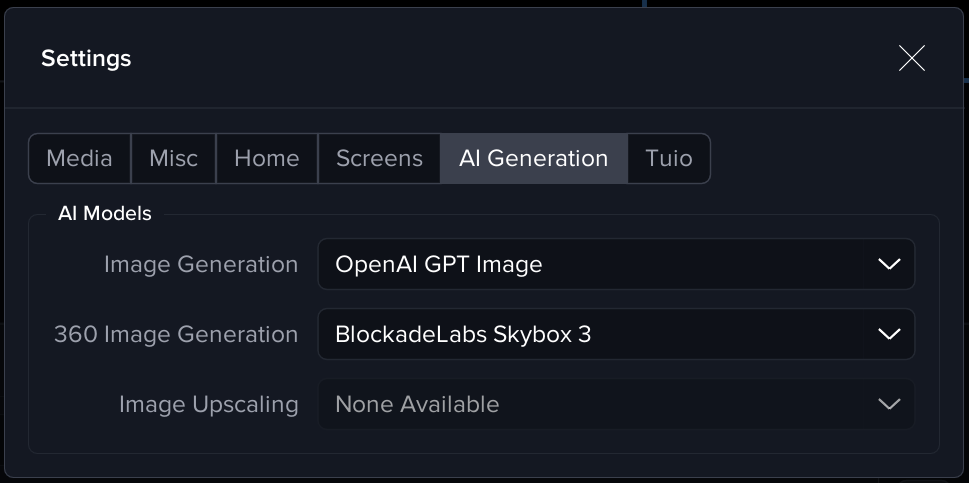
Next: Image Generation
Notes on API Keys
API key generation differs per vendor and must be completed via each provider’s platform:
-
Google AI (Gemini): https://aistudio.google.com/app/apikey
-
Blockade Labs: Integrations (List) | Skybox AI
API usage is typically billed separately from any subscription plans. Ensure billing is enabled on the vendor platform, otherwise requests may fail even if a key is present.