
Setup: AI - Asset Generation (Beta)
AI Generation
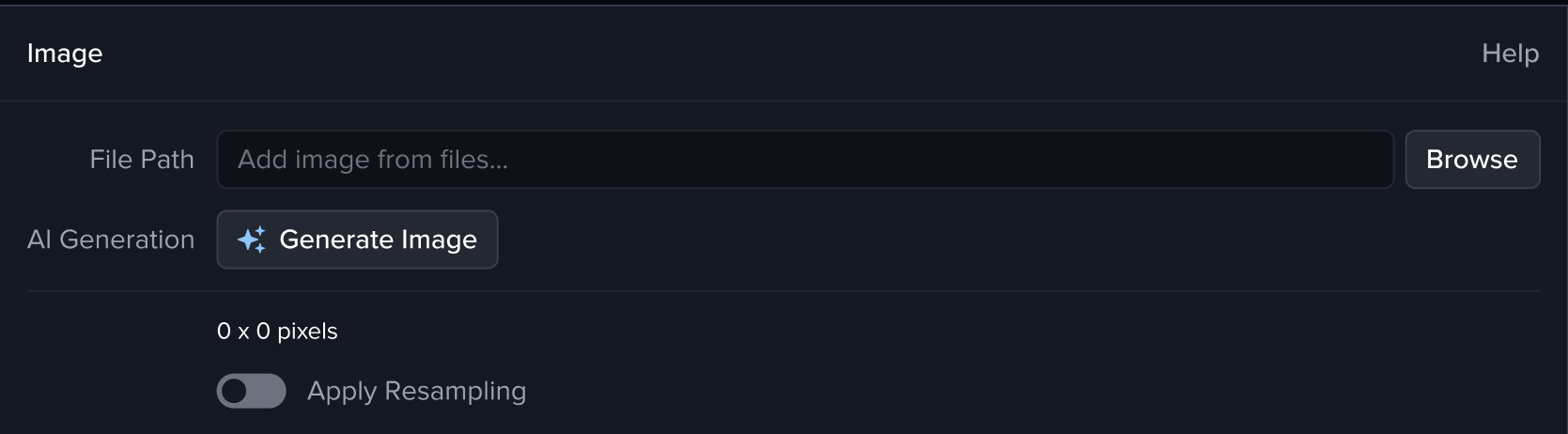
The Image layer includes an integrated AI Generation tool.
Click the “Generate Image" button to open the AI Image Generation window. In this modal, you can enter a prompt, adjust the properties of the selected model, and start generating an image.
After the generation process completes successfully, the application automatically saves the result and updates the File Path field with the location of the newly generated image. The image will then load into the layer just like any other imported file.
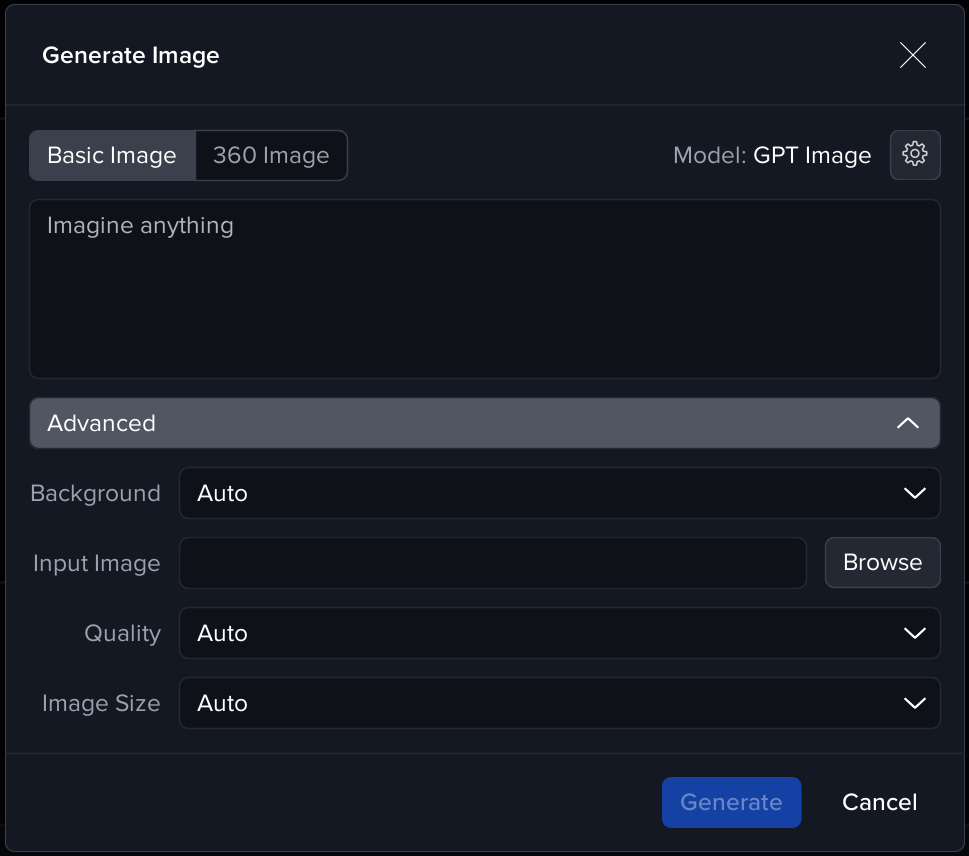
Generate Image Window
The Generate Image window allows you to create AI-generated images for the selected layer. From this window, you can craft standard images, produce 360° imagery, and fine-tune generation settings through model-specific options.
Generation Modes
-
Basic Image
Produces a standard, forward-facing image based on your prompt. -
360 Image
Generates a 360° panoramic image. After generation, the application automatically applies the TruePerspective shader to the layer so the result displays correctly in your scene.
Model Selection
The active model is displayed in the upper-right corner.
Click the settings (⚙️) icon to open the AI model settings window, where you can choose from available AI generation models.
Prompt Input
The large text field is where you enter your prompt.
Describe the scene, objects, style, or any details you want the AI to generate.
Advanced Settings
The Advanced section contains additional generation parameters. These controls vary depending on the selected model and may include options such as:
-
Background — Choose how the model treats the background (e.g., transparent, solid color, auto).
-
Input Image — Optionally upload an image to guide or condition the generation.
-
Quality — Adjust the visual fidelity or rendering strength.
-
Image Size — Specify output dimensions or allow the model to determine the size automatically.
Since each model supports different features, the available advanced controls will change when you select a new model.
Generate / Cancel
-
Click Generate to begin the image creation process.
-
Click Cancel to close the window without generating an image.
Generation in Progress
Once you start an AI image generation task, the AI Generation controls update to show the current progress. The Generate Image button is replaced with a Generating… indicator, along with a Cancel button.
-
Generating…
Displays that the system is currently creating your image. -
Cancel
Stops the ongoing generation. If cancelled, no image is produced, and the File Path field remains unchanged.
During this state, the rest of the Image layer controls remain visible but cannot be used to start another generation on this layer until the current task finishes or is cancelled. You can, however, start another generation task for another layer.

Generation Failure Handling
If an AI image generation request cannot be completed, the AI Generation section will display a failure message. The message includes an underlined description of the error (for example: “Insufficient Parameters”).
-
Error Message Tooltip
Hover over the underlined text to view a detailed tooltip containing additional information about the cause of the failure. -
Retry
Attempts the same generation request again using the previously entered prompt and settings. -
Cancel
Dismisses the error state and returns the panel to its default appearance without retrying the operation.
