Igloo Core Engine Settings
Default Layout
Layouts provide an easy method for restricting the position of a Layer within defined regions of the Canvas. Igloo Core Engine ships with a ‘Default Layout’ which must be configured during setup.
Go to Settings > Layouts & Regions to open the Layouts setting window.
Modify the Default Layout such that it matches the geometry of the room. See the Layouts & Regions Window page for more information.
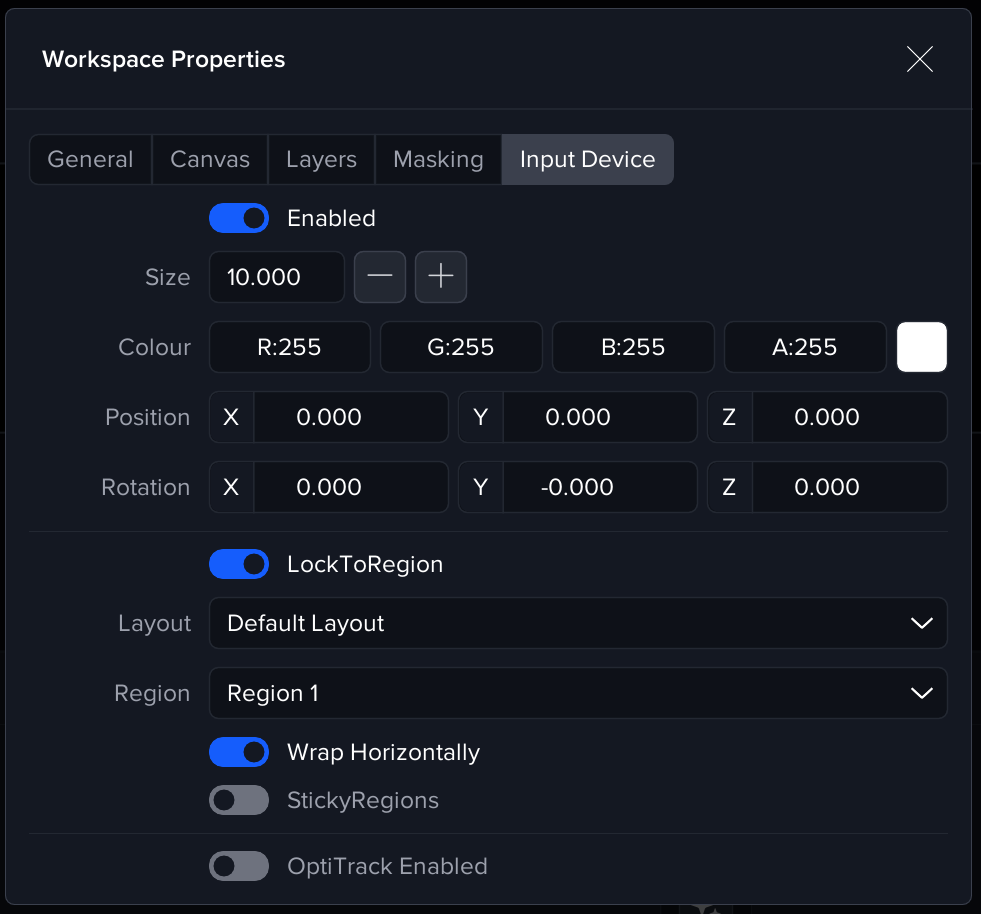
Lock Cursor To Region
Lock to Region provide an easy method for restricting the on screen cursor to a specified region of the Canvas.
System Settings
Nvidia
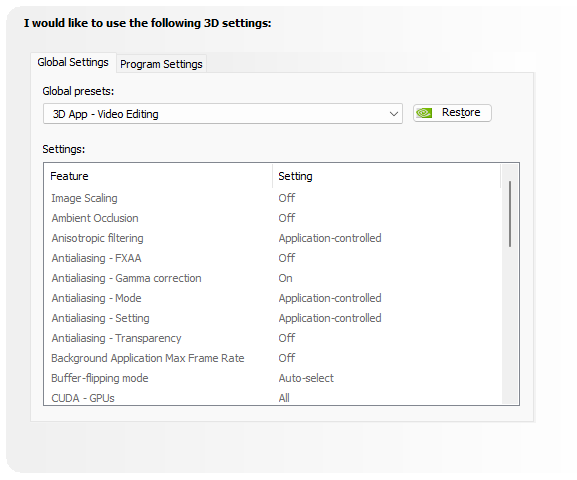
For systems with dual-GPU configurations, an Nvidia Profile must be figured for the Igloo Core Engine application.
Within the Nvidia Control Panel, go to Manage 3D settings and create an override for the Igloo Core Engine executable.
Apply to following settings
Preferred graphic processor
High-performance rendering GPU. This setting will only appear on some systems, typically laptops with dual GPU ‘Optimus’ setups (Intel + Nvidia).
Igloo Core Engine should auto detect Optimus setups and auto select the Nvidia GPU to run on
OpenGL Rendering GPU
Select the same GPU that the primary display (i.e. console) is connected to. In addition, it is strongly recommended to connect the console display to the primary GPU, i.e. GPU 1 in nvidia settings (shows as GPU 0 in Windows task manager). Connecting the console to the secondary GPU can result in WebViews not rendering.
If the wrong GPU is selected then this will result in errors such as blank WebView layers and the Igloo Core Engine Canvas spout sender, enabled by the CanvasShare feature, not being created.
Preferred GPU Profile
-
Disable ‘Threaded Optimisation’
-
For best performance, use the 3D App - Video Editing profile.