
What is a Portable Install?
The installer for Igloo Core Engine has a portable mode which allows you to install and run the application without making system-wide changes. This mode is useful for keeping installations self-contained, allowing multiple versions to exist on the same machine without conflicts.
How Does Portable Mode Work?
-
Portable Mode Flag: Running the installer with the
/portable=1flag triggers custom script logic to modify the installation process. -
No System-Wide Changes: The installer avoids writing registry entries and does not use system folders like
%ProgramData%for storing application data. Instead, all files are placed within a user-specified directory. -
Multiple Test Versions on a Single Machine: Since portable installations do not interfere with each other, multiple versions of Igloo Core Engine can run independently.
How to Install a Portable Version
Step 1: Run the Installer with the Portable Flag
To install portably, execute the installer with the /portable=1 command-line argument. Example:
IglooCoreEngine-v1.5.0.250224-3.exe /portable=1
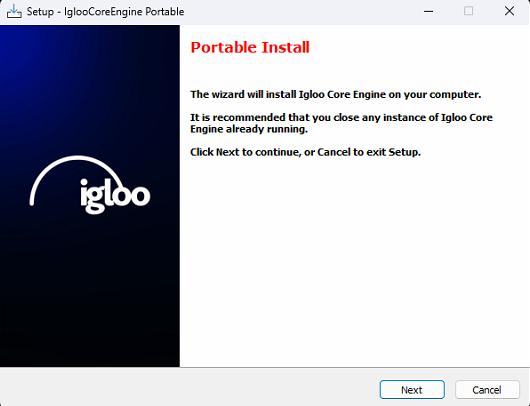
If the installer is running in portable mode, you will see the following
Step 2: Select Destination Folder
This sets the portable folder which should be empty unless you are updating an existing portable version. The installer will create two folders IglooCoreEngine and igloo-core-service and copy all necessary files to these folders.
Step 3: Migrate Data (Optional)
Do not simply copy the entire data folder from C:\ProgramData\Igloo Vision\IglooCoreEngine
The portable version uses its own data, separate from standard installations data folder.
Standard installation data location - C:\ProgramData\Igloo Vision\IglooCoreEngine
Portable installation data location - "YOUR DESTINATION FOLDER\IglooCoreEngine\data
If you wish to copy data from the standard install to the portable install you can do so, however limit this to the following files and folders.
-
ice.db -
\warping -
\models -
\settings\EditorWindowSettings.xml -
\settings\ScreenWindowSettings.xml -
\settings\TruePerspective.xml
How to Use a Portable Version
Step 1: Stop the System Services Version of Igloo Core Service
The system service version of igloo-core-service may already be running in the background. To prevent conflicts, you need to stop it before launching the portable version.
-
Open Task Manager
-
Go to the Services tab.
-
Find igloo-core-service in the list.
-
Right-click it and choose Stop.
Step 2: Start the Portable Version of Igloo Core Service
-
Navigate to the portable installation folder you selected during installation.
-
Open the
igloo-core-servicefolder. -
Run
igloo-core-service.exe.
Step 3: Launch Igloo Core Engine from the Portable Folder
-
Go to the IglooCoreEngine folder inside your portable installation directory.
-
Run
IglooCoreEngine.exedirectly from this folder.
Step 4: Restart the System Service After Use
Once you are done using the portable version, restart the system service
-
Close the portable
igloo-core-servicecommand prompt window -
Restart the system service using Task Manager (Start the
igloo-core-serviceservice)