
In addition to WebViews, Spout and NDI are the most common layer types used to integrate external applications and live content into Igloo Core Engine.
These technologies allow real-time video and graphics to be streamed directly into the canvas from other software, devices, or machines.
Spout Layers (Local Applications)
Spout is a GPU-based texture sharing system for Windows that enables real-time video transfer between applications with near-zero latency.
See - https://spout.zeal.co/
-
Works locally on the same machine
-
Requires sender and receiver to use the same GPU
-
Ideal for high-performance, low-latency workflows
Adding a Spout Layer
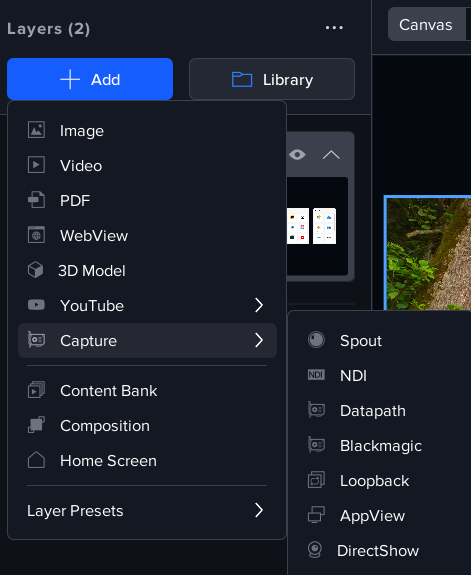
-
Press Add
-
Select Capture > Spout
This creates a new layer acting as a Spout receiver.
Selecting a Spout Source
-
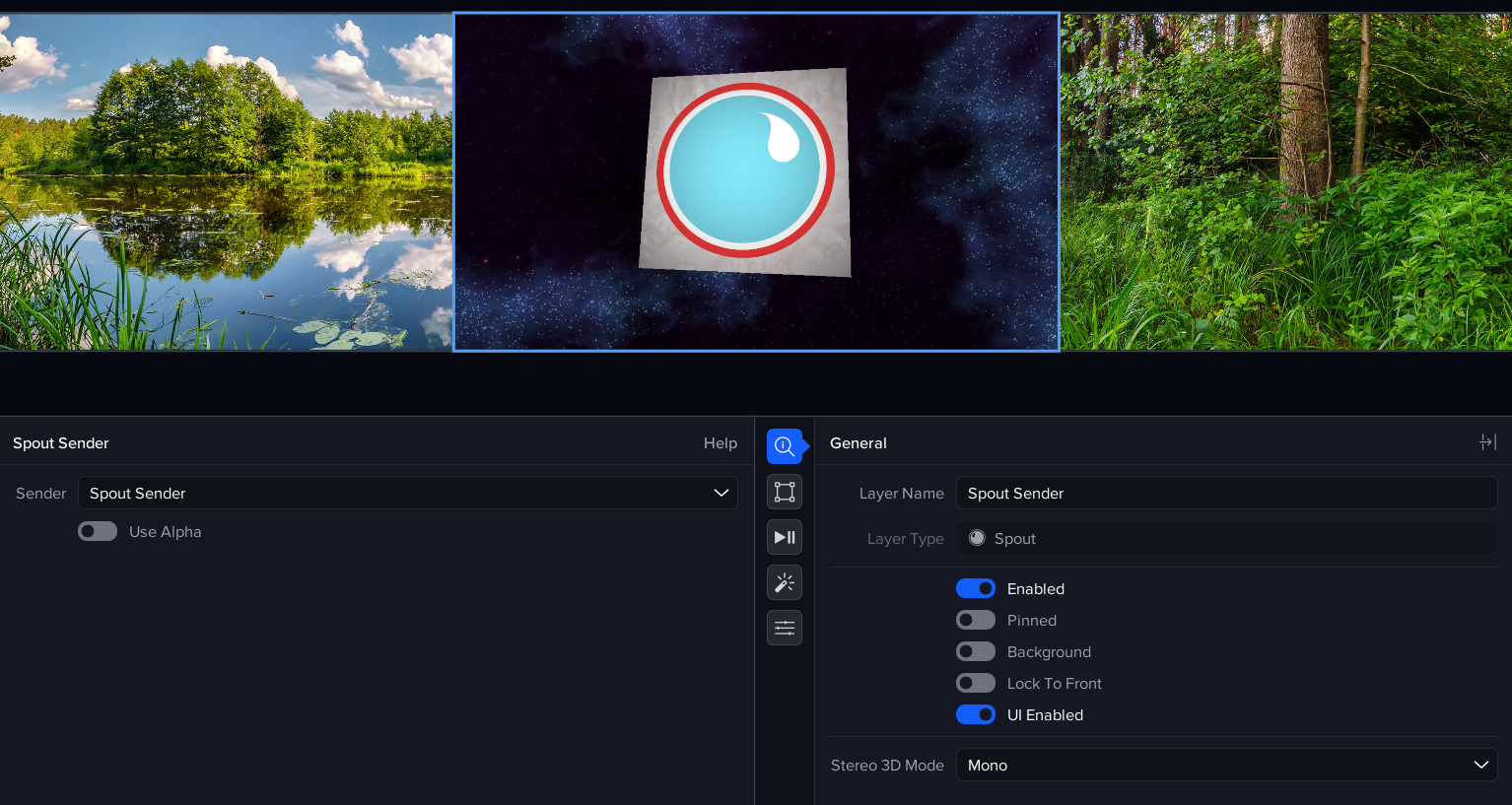
In the layer properties, use the Sender dropdown to view available Spout sources
-
Select a sender to begin displaying content
The Spout toolkit includes a demo application:
-
Run SpoutSender.exe
-
Select “Spout DX11 Sender”
-
A rotating cube will appear in the canvas
Common Use Cases
Spout enables integration with a wide range of creative and real-time tools:
-
TouchDesigner – real-time visuals and installations
-
Processing – generative and interactive content
-
Blender – viewport or render output
-
vvvv – live visual programming
Unity Integration
Spout is also used by the Igloo Toolkit for Unity, allowing real-time Unity output to be streamed directly into Igloo Core Engine.
NDI Layers (Network Video)
Network Device Interface (NDI) is a protocol developed by Newtek for network transmission of video and audio ( https://ndi.tv/about-ndi/ ). The NDI Toolkit and API enables applications to act as senders and receivers across the network.
-
Works across multiple devices on the same network
-
Supports cameras, screen capture, and production tools
-
Does not require capture hardware
Adding an NDI Layer
-
Press Add
-
Select Capture > NDI
This creates a new layer acting as an NDI receiver.
Selecting an NDI Source
-
Igloo Core Engine automatically scans the network for NDI sources
-
Available senders appear in the Sender dropdown
-
Select a source to begin playback
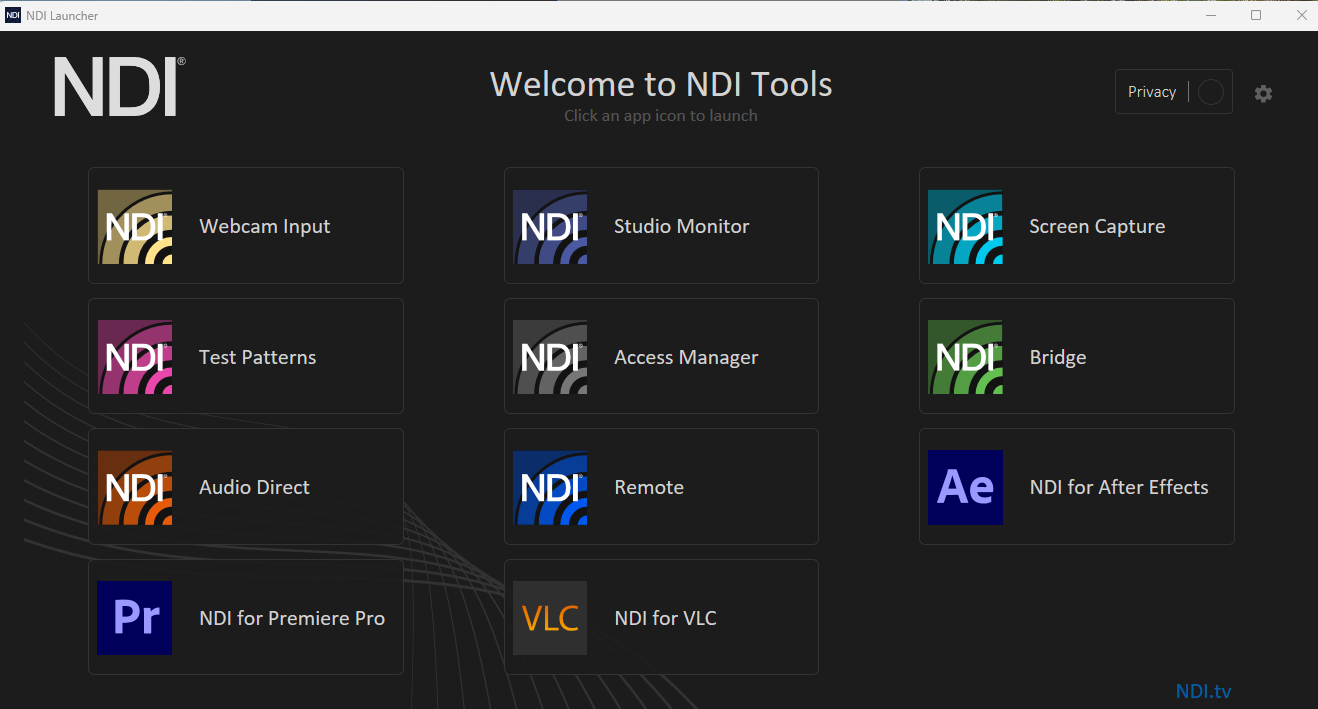
The NDI Toolkit includes useful utilities such as:
-
Screen Capture – streams your desktop as an NDI source
Common Use Cases
Presentations & Collaboration
-
Share a laptop screen without HDMI cables
-
Bring in remote presenters or video call feeds
Creative Workflows
-
Stream output from tools such as:
-
OBS Studio (graphics, scenes, overlays)
-
Adobe Premiere Pro / After Effects (via plugins/workflows)
-
Multi-Machine Setups
-
Render content on one machine and display it in ICE
-
Combine multiple live feeds into a single canvas
Mobile Integration
-
Use NDI apps on iOS/Android to stream:
-
Phone screen
-
Camera feed
-
Notes & Best Practices
-
NDI performance depends on network quality and bandwidth
-
For best results:
-
Use wired connections where possible
-
Avoid heavy network traffic on the same network
-
-
If a source does not appear:
-
Ensure sender and receiver are on the same network/VLAN
-
Check firewall settings allow NDI traffic
-
Summary
|
Feature |
Spout |
NDI |
|---|---|---|
|
Connection |
Local (same machine) |
Network (multiple devices) |
|
Latency |
Very low (GPU-based) |
Low (network dependent) |
|
Setup |
Simple (for Spout supported applications) |
Requires network setup |
|
Use Case |
Real-time graphics/tools |
Video feeds & remote sources |
Next Section: Desktop UI - Setting up a Game Engine Layer