
YouTube supports both standard and 360° video content. In Igloo Core Engine, there are two YouTube layer types depending on how you want the content displayed:
-
YouTube 360 - for immersive 360° and VR content mapped across the full Igloo canvas
-
YouTube (Non-360) - for standard video playback in a flat layer
Adding a YouTube 360 Layer
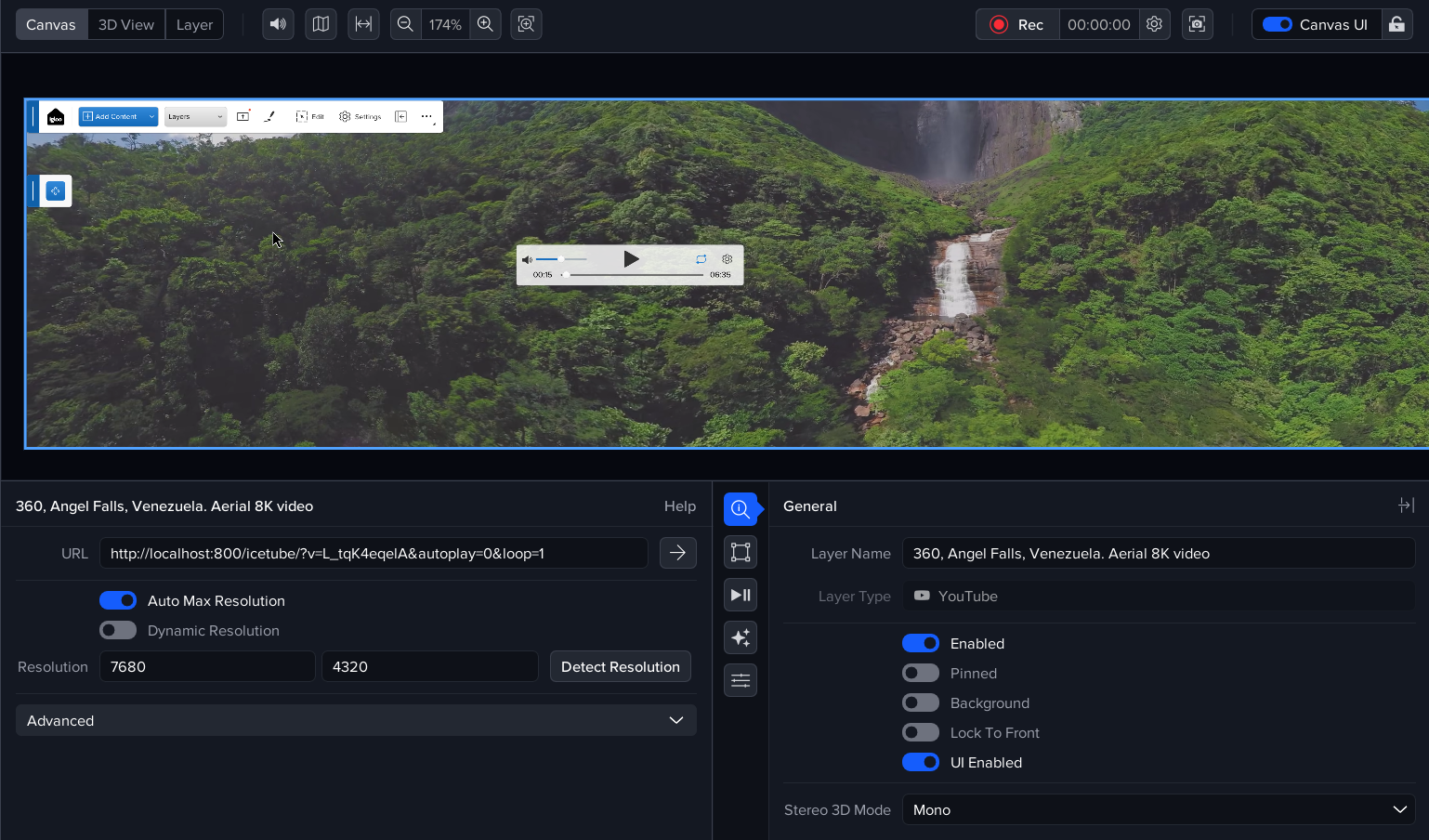
YouTube supports hosting of 360-degree video content. The YouTube 360 layer in Igloo Core Engine allows these videos to be displayed immersively across the entire Igloo canvas.
To add a YouTube 360 layer:
-
Press Add
-
Select YouTube > 360
-
Paste a YouTube 360 video URL into the URL field
Example:
https://www.youtube.com/watch?v=L_tqK4eqelA -
Press Enter to load the video
The URL is automatically converted into a local playback format, for example:
http://localhost:800/icetube/?v=L_tqK4eqelA&autoplay=1&loop=1
This connects to the Igloo Core Service, which handles playback and enables Canvas UI controls such as play/pause and volume.
Playback Controls
-
Adjust volume and playback via the Playback tab
-
Additional controls are available in the Canvas UI widget
Viewing Movies in Non-360 Mode
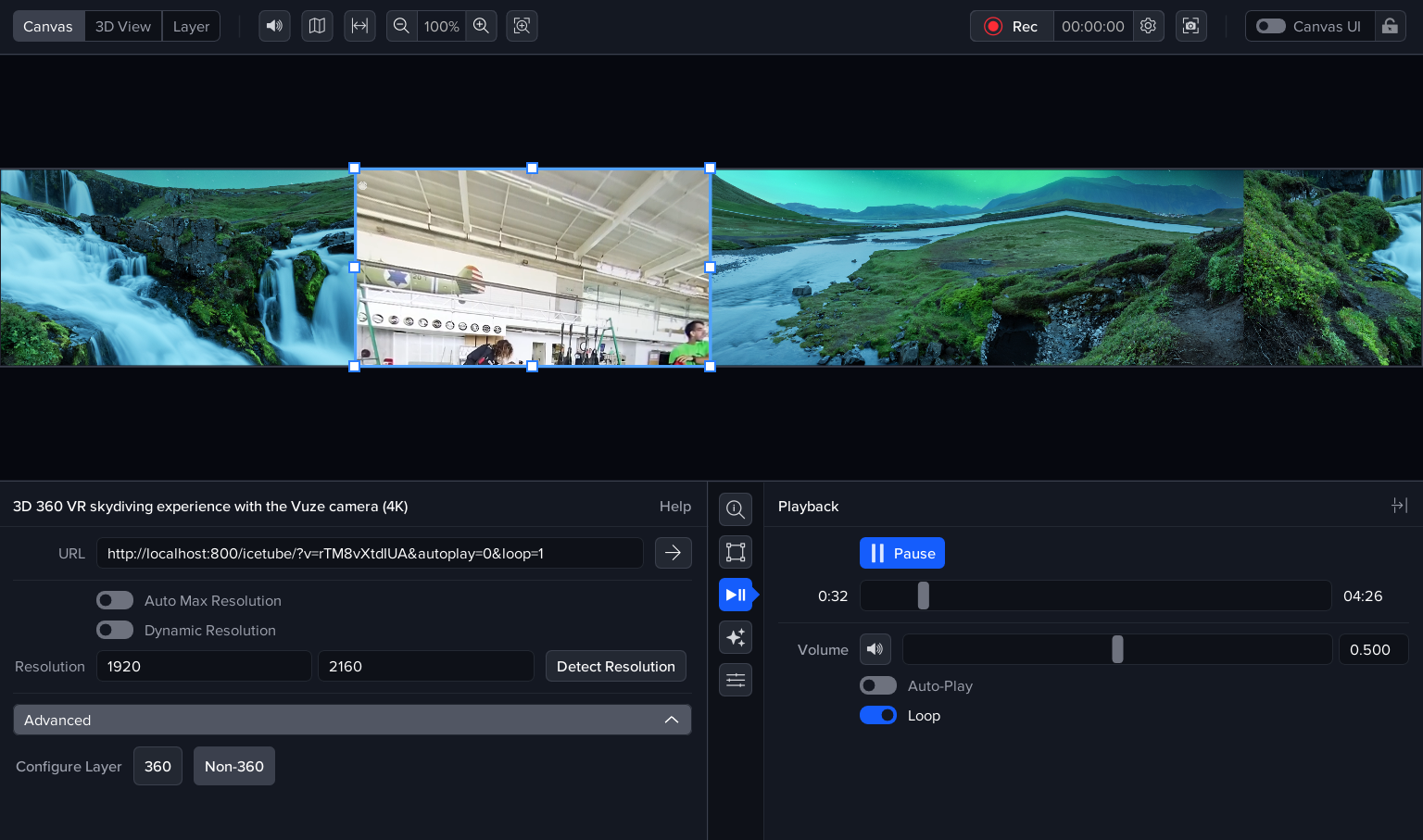
Standard YouTube videos can be displayed using the YouTube (Non-360) layer, which renders content as a flat layer within the scene.
To add a YouTube layer:
-
Press Add
-
Select YouTube > Non-360
-
Paste a YouTube video URL into the URL field
-
Press Enter to load the video
This uses the same Igloo Core Service backend for playback and control.
Use cases:
-
Presentations and dashboards
-
Embedded video playback
-
Content that does not require immersive viewing
Viewing a Stereo 3D Movie
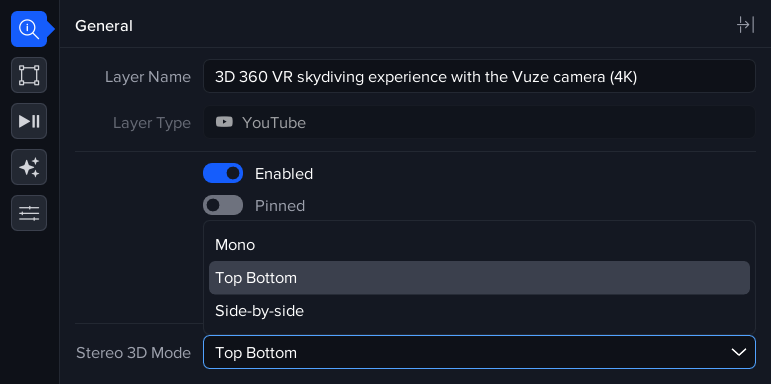
For movies in stereo 3D format, use the setting on the Layer’s Geometry tab called Stereo 3D Mode.
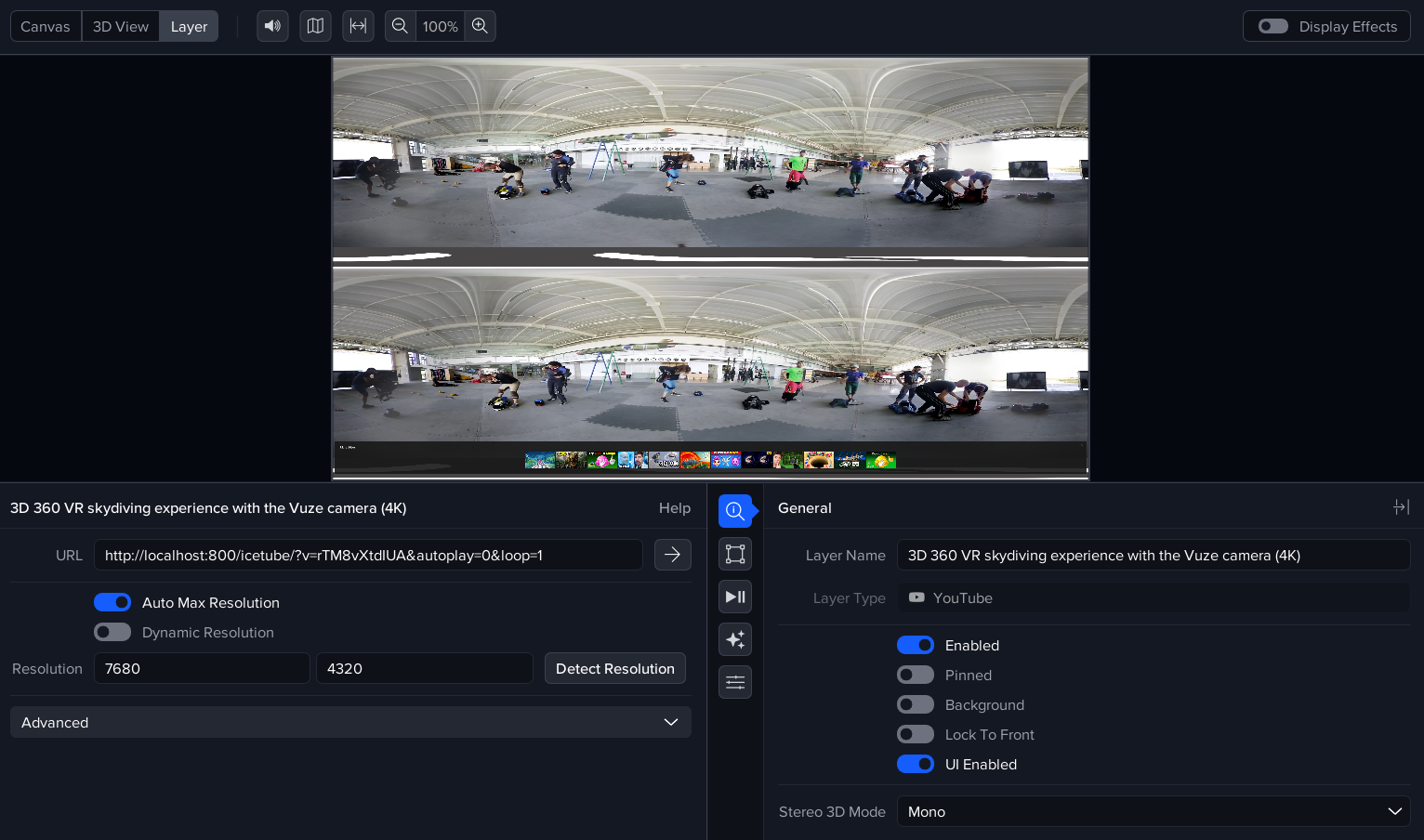
For a movie like the one shown above (https://www.youtube.com/watch?v=rTM8vXtdIUA ), the left and right eye images are drawn one on top of the other. This is called Top-Bottom format and this can be selected from the Stereo 3D Mode menu. Once selected, the movie will be displayed correctly either with or without stereo 3D hardware (projectors and glasses).
Setting Movie Start Time
If you would like the Youtube movie to start playing from a certain point in the movie you can set a start time in the URL using t=x, where x is a number of seconds into the movie.
As an example, using http://localhost:800/icetube/?t=10&v=rTM8vXtdIUA&autoplay=1&loop=1 will start playing the movie 10 seconds from the actual start.
Downloaded YouTube360 Movies
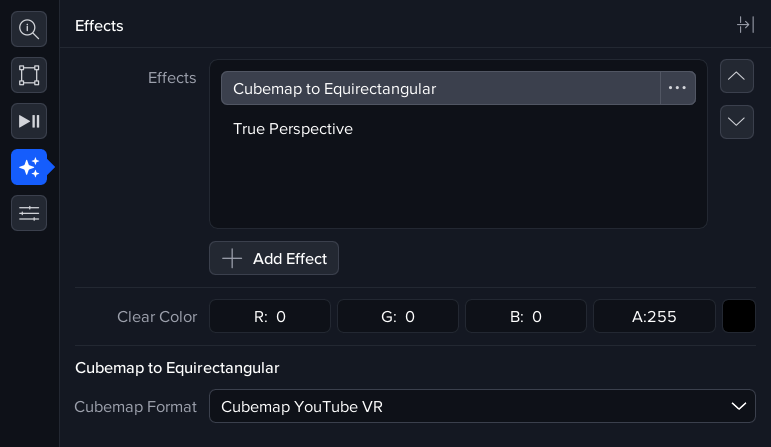
YouTube 360 movies which have been downloaded and stored as files e.g. as .mp4 files, can be viewed using the Video layer type in Igloo Core Engine. The video frames may be stored in YouTube VR format and this can be converted to Equirectangular format using the Cubemap to Equirectangular effect with the Cubemap format set to Cubemap YouTube VR.
For any videos already in Equirectangular format then the only effect needed is TruePerspective.
Non-embeddable Movies
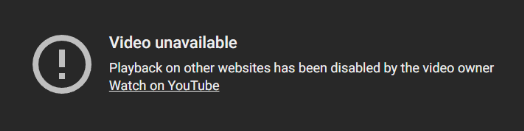
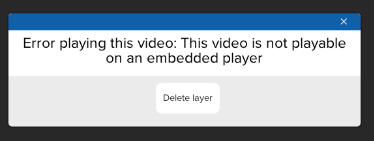
Some movies are restricted from embedding and they are not viewable using this layer type. They can, however, be viewed in the normal way using a WebView.
Next Section: Desktop UI - Designing Dashboards