
The tutorials in this section are all based on using the Igloo Core Engine Desktop User Interface.
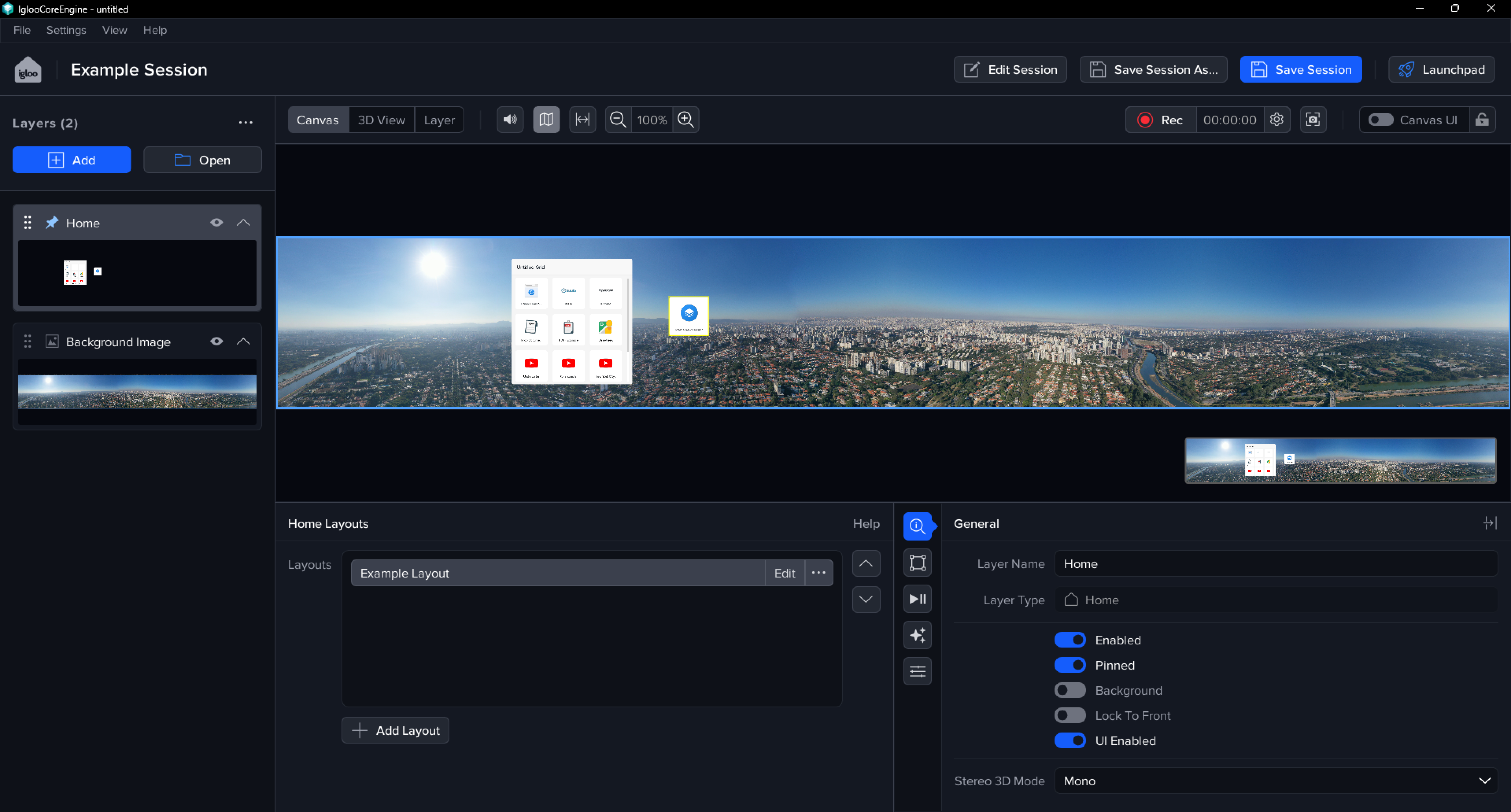
The Igloo Core Engine Desktop UI is comprised of four main pieces.
Header
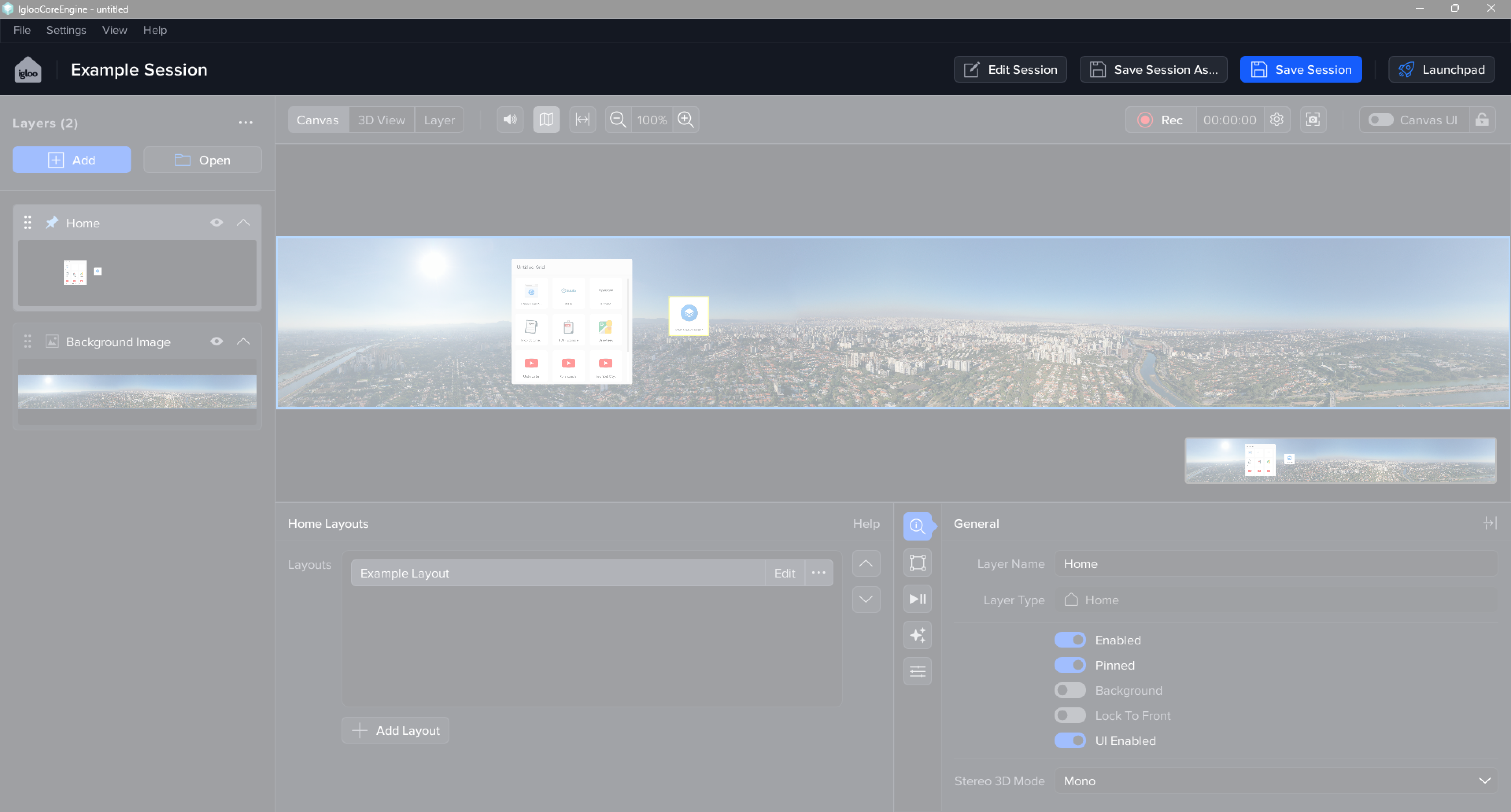
The Header spans the top of the application and provides access to primary application menus and functions, as well as information and controls for the current session. It is split into two bars:
Menu Bar
Contains the core application menus, including File, Settings, View, and Help.
-
File menu - create, open, import and export sessions, layers and workspaces
-
Settings- access global configuration settings which apply across workspaces.
-
View - access properties for the Canvas view.
-
Help - links for documentation, support and version update.
Session Bar
Provides session controls and navigation: the Home link, the Session title (with edit/save functionality), and the Launchpad button.
Layer List
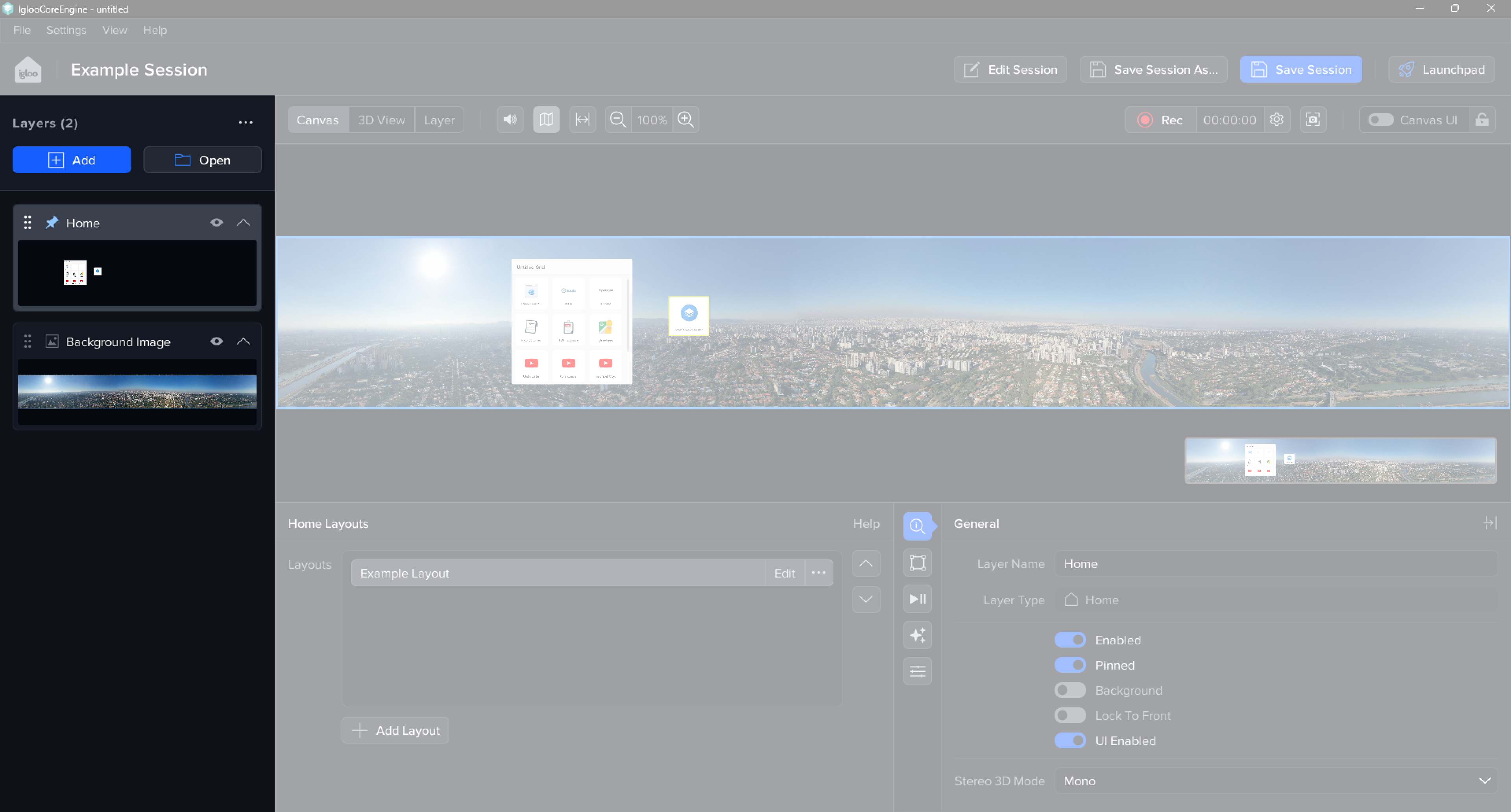
The Layer List manages the content of the workspace. It contains a scrolling list of all layer items, where the layer order dictates the drawing order on the Canvas.
Key functions are:
-
Adding Content: The 'Add' button provides a dropdown for new layer types, and the 'Open' button opens the Content Library to access sessions or media files.
-
Layer Interaction: Each layer card contains controls to enable/disable the layer, mute/unmute, and collapse/expand the layer preview. Layers can be reordered by dragging, and right clicking a layer reveals further options in a context menu.
-
List Options: The ellipsis menu provides global display and management options, including toggles for Hiding Pinned Layers and Only Showing Visible Layers, as well as batch actions like Expand All/Collapse All and Show All/Hide All.
TIP: Double clicking the name of a layer item quickly expands/collapses the layer preview.
Display Area
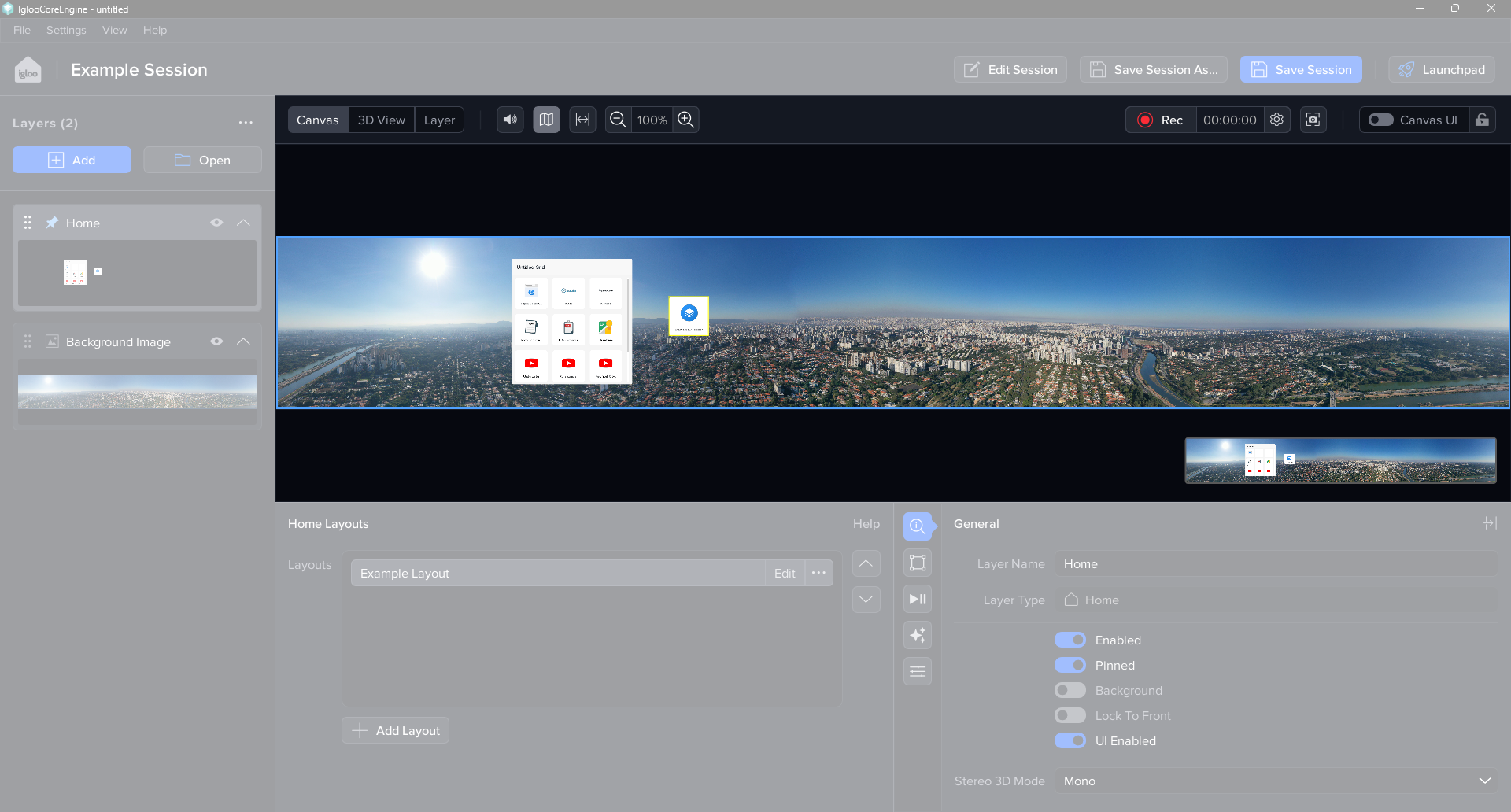
The Display Area is where all content is displayed and previewed. The main elements are the Viewport Toolbar and the Viewport.
Viewport Toolbar
The Viewport Toolbar contains controls to switch the view mode (e.g., between 2D Canvas and 3D preview) and provides navigation controls tailored to the currently selected view.
Viewport
The Viewport displays the currently selected preview mode. It defaults to a 2D view of the entire Canvas but can be switched to a 3D space preview or a fullscreen preview of the currently selected layer.
The Canvas view has a grey border defining the output region; objects placed outside this boundary will not appear in the final output.
The primary controls for navigating the 2D Canvas are:
-
Zooming: Middle mouse button scroll
-
Reset Zoom: Middle mouse button press
-
Pan: Right mouse button drag
Layer Controls
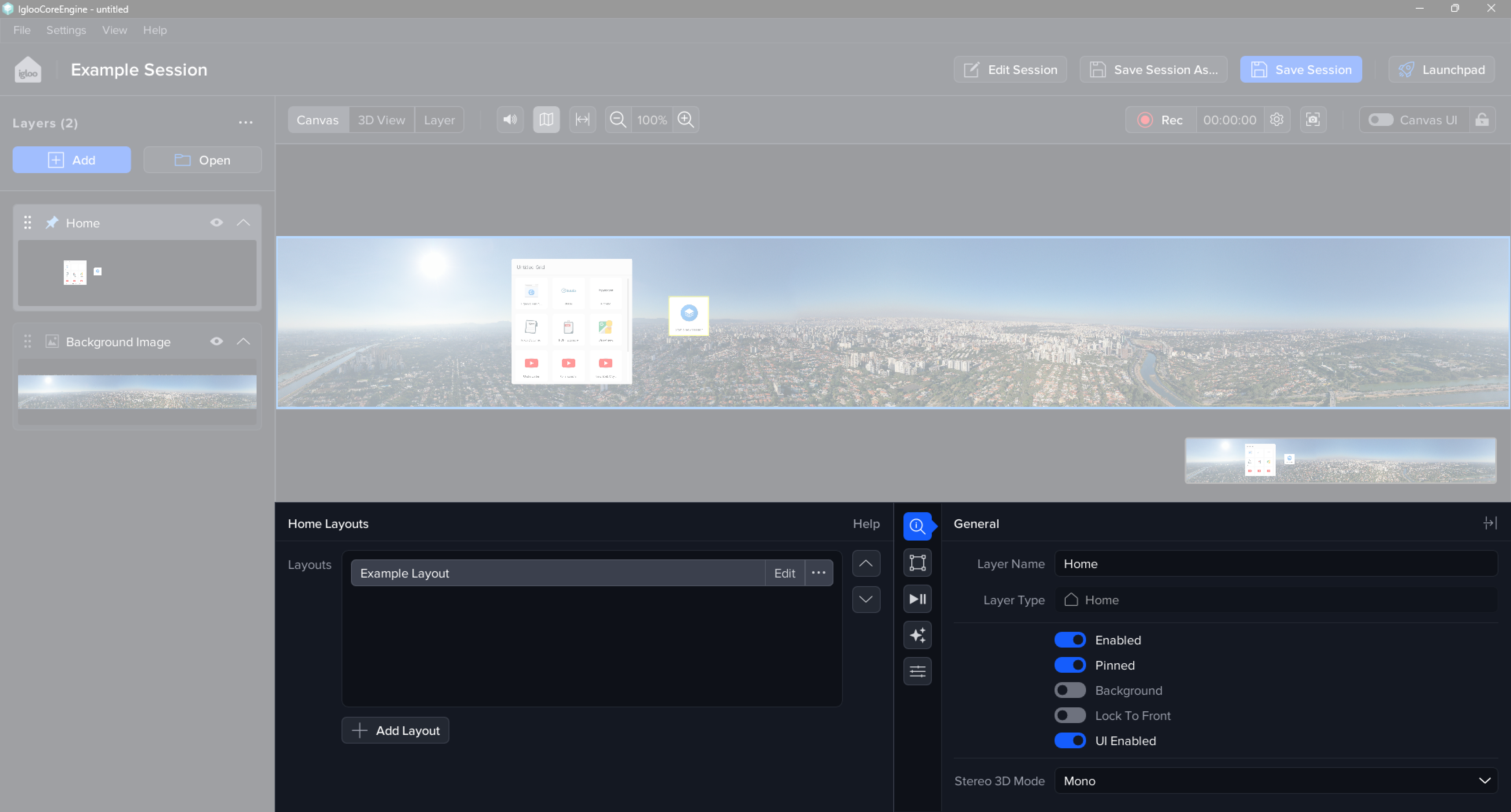
This area contains all the settings for the currently selected layer. It is split into two primary panels: Contextual Controls (left panel), and Generic Controls (right panel)
Contextual Controls
The left panel dynamically changes based on the selected layer, showing specific fields and controls relevant to that layer type.
Generic Controls
The right panel shows generic controls for the selected layer, such as settings for Geometry or Effects. The control category can be switched using the icons to the left of this panel.
Next Section: Desktop UI - Getting Started with Igloo Core Engine