
Combining multiple layers together can be a powerful way to display different sources of related content side-by-side. These are known as dashboards and can give an at-a-glance view of the status of a complex design, project or system.
Defining Regions of the Canvas
Layers can be positioned and sized anywhere on the canvas. This gives a high level of flexibility in how the dashboard can be laid out.
It can be useful, however, to have preset regions so layers can quickly be moved to specific areas, without the need to manipulate them directly.
Select Settings > Layouts & Regions. This pops up the Layouts & Regions window. The Default Layout contains 4 regions, each of which, is an equal quarter of the canvas, arranged horizontally. The extent of each region can be adjusted using the sliders Left, Right, Top, Bottom.
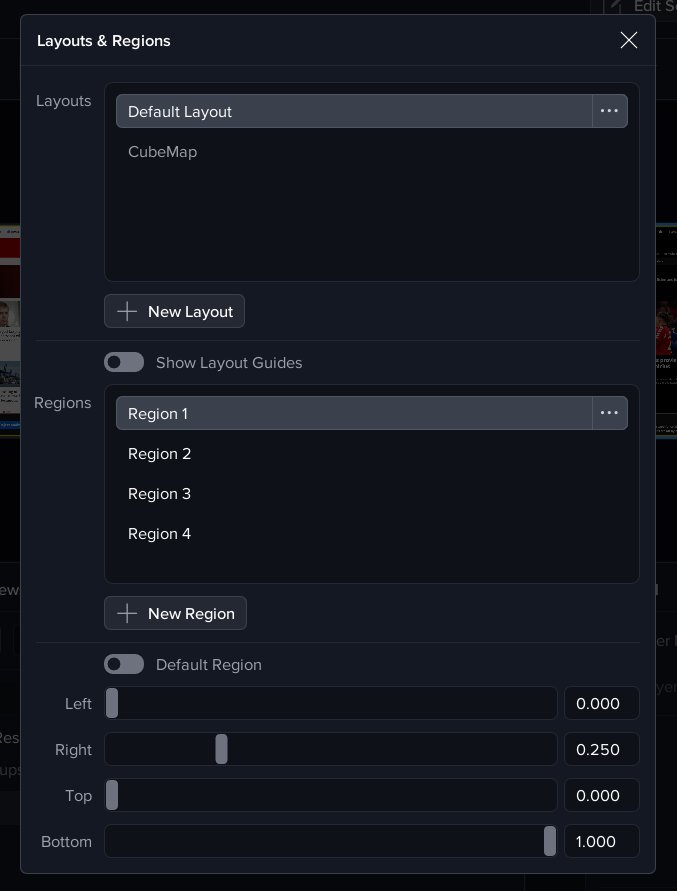
The regions can be renamed to have more logical names depending
on the immersive space e.g. north, south, east, west or left, front, right, back.
One of the regions in each layout can be designated as the default region. This is the region which new layers such as WebViews will appear when they are created. The default region is selected using the check-box labelled ‘Default’ just below the list of regions.
The Show Layout option will display the current layout in the Canvas preview (but not on the actual canvas) even when the Layouts dialog is closed.
Creating a Simple Dashboard
This section will describe creating a simple dashboard consisting of 4 WebViews pointing to news channels.
Press the Add Content button and select WebView. Repeat this 3 more times so that you have 4 WebViews.
You can also right click a layer and use the ‘Duplicate’ option to quickly make a copy of your existing WebView layers.
For one of the WebViews, set the URL to http://www.bbc.co.uk/news . In the Geometry tab, set the Aspect Ratio to ‘Container’ and Resize Mode to ‘Scale to fit h’. Set the Position Mode to ‘Lock to Region’ and set the Layout and Region to ‘Default Layout’ and ‘Region 1’. This will move the WebView to one of the preset regions and ensure it resizes to fill the space. Note that the layer name changes to match the name of the webpage, in this case it becomes 'Home - BBC News'.
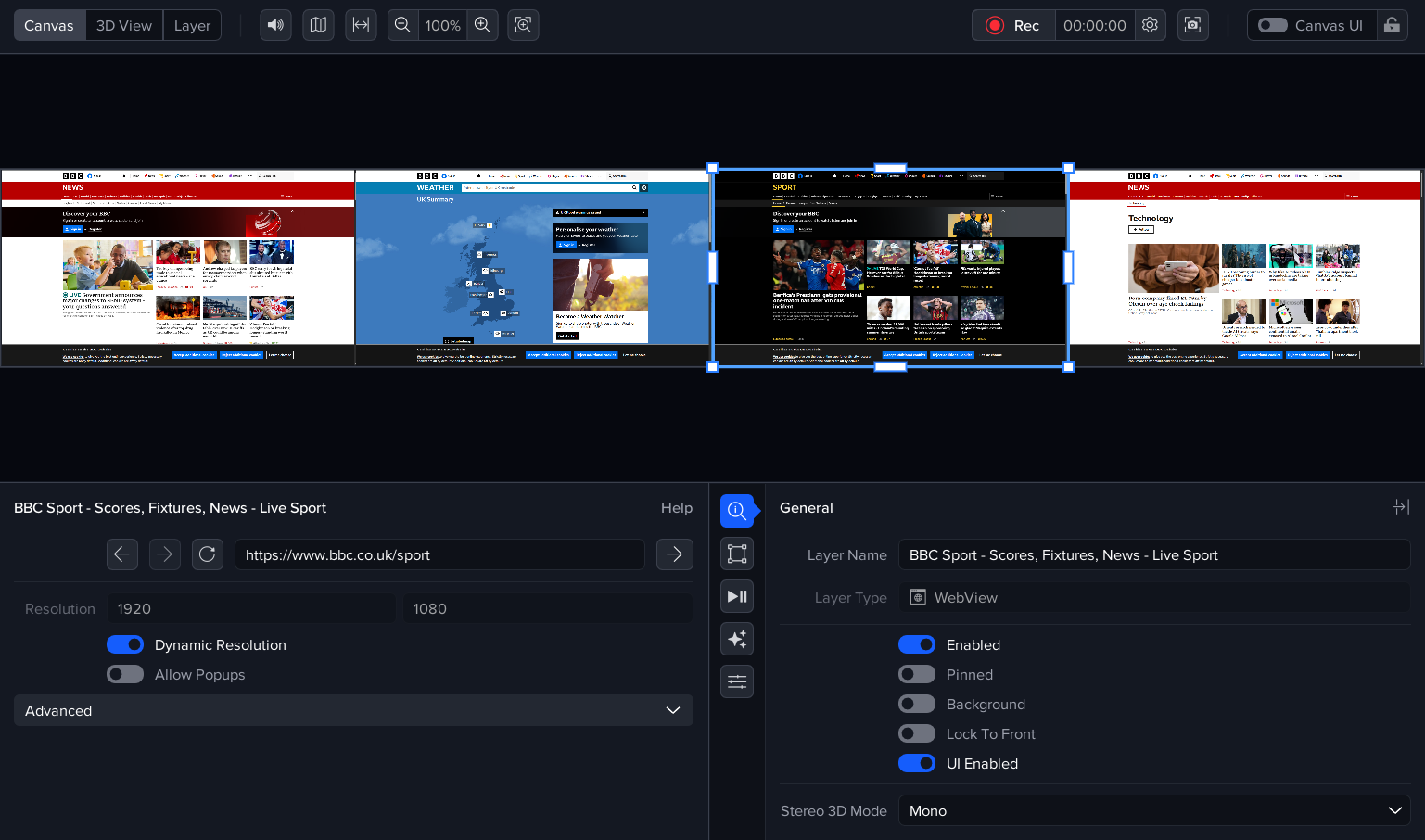
Repeat the above settings for the other 3 layers using the following URLs and regions:
http://www.bbc.co.uk/weather, Region 2
http://www.bbc.co.uk/sport, Region 3
http://www.bbc.co.uk/news/technology, Region 4
Once completed, save all the WebViews into a single session called ‘News Dashboard’. The session will automatically appear in the Sessions grid on the Homescreen layer.
Quickly Positioning Layers
There are several fast ways to position layers into regions.
Using the Right-Click Menu
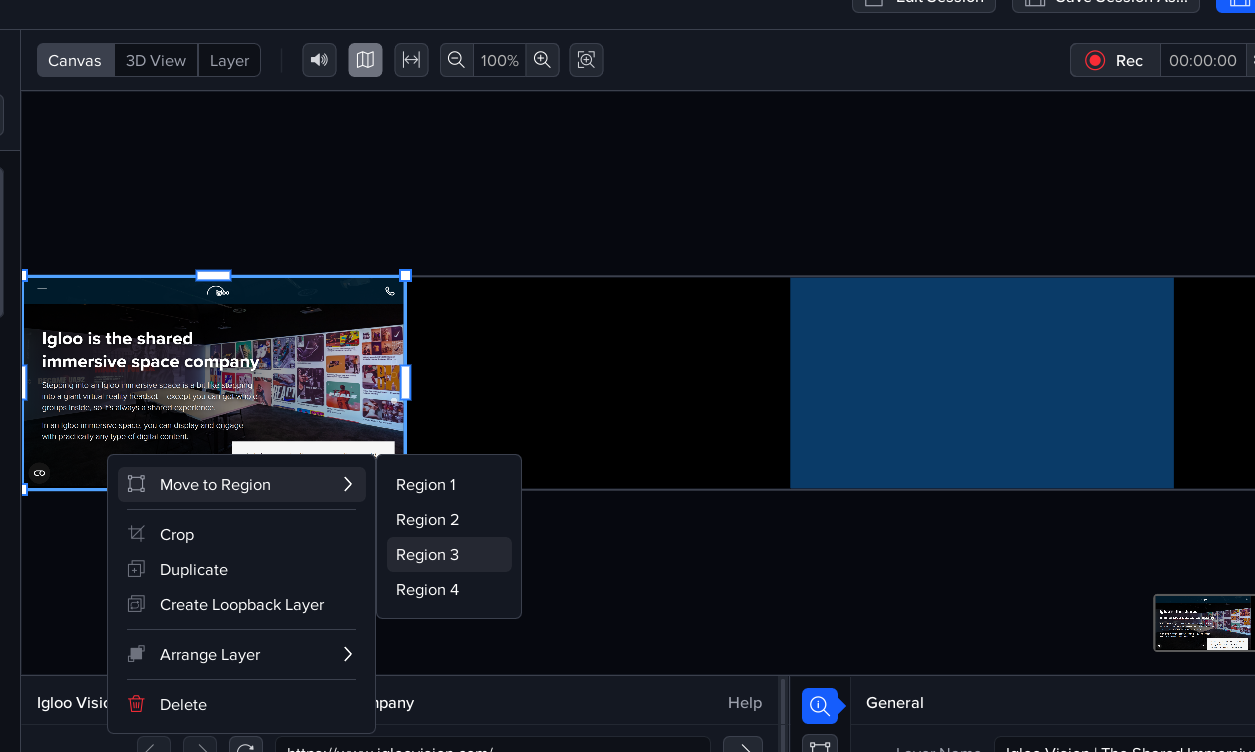
Right-click on a layer in the canvas or layer list to open the context menu.
Select Move to Region, then choose the desired region (e.g. Region 1–4).
This will instantly position and resize the layer to fit that region.
Dragging from the Layer List
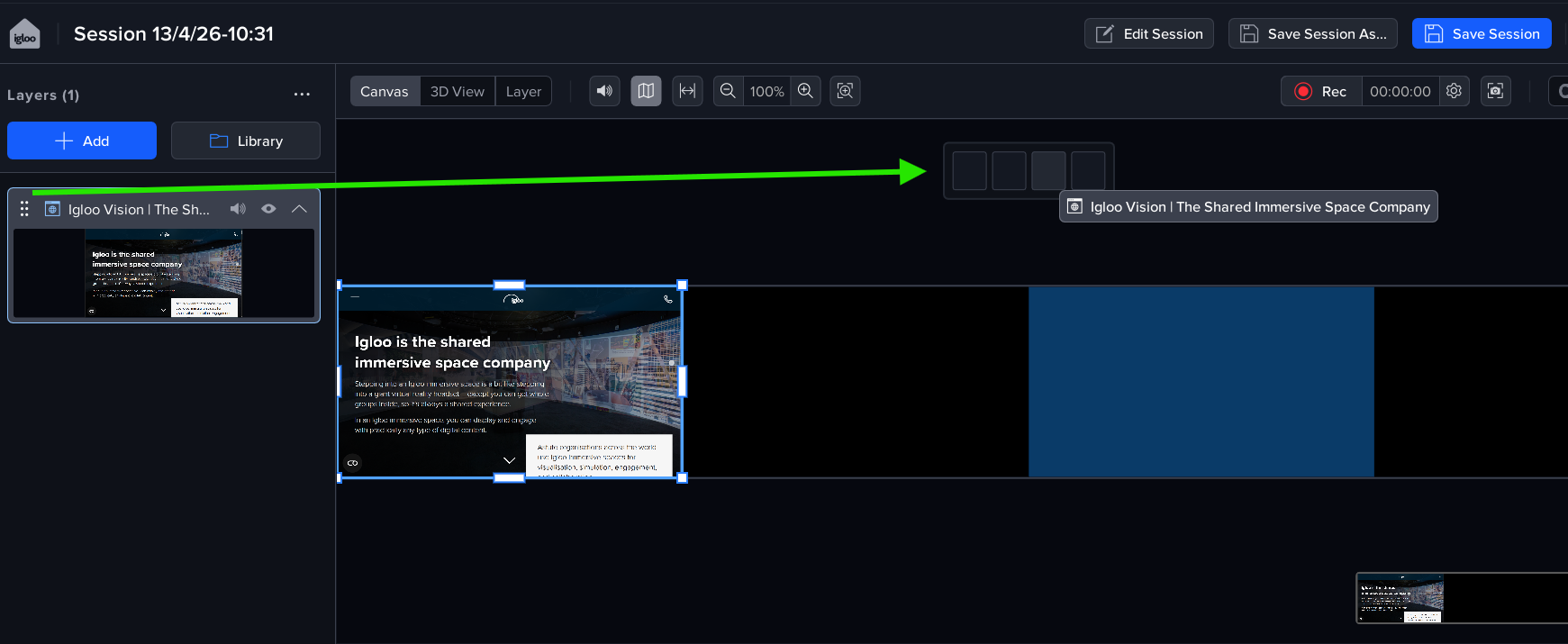
Each layer in the Layers panel includes a grab handle (left side of the layer item).
-
Click and drag the layer using this handle
-
Drop it onto a region in the canvas layout overlay
Next Section: Desktop UI - Controlling with a Keyboard and Mouse