
It is possible to configure a number of different controllers to interact with the layers on the Igloo Core Engine canvas. This section describes how to use the primary type of controller - a keyboard and mouse.
This tutorial requires Igloo Core Engine Control Panel to be installed on a device with a keyboard and mouse such as a laptop. The device must also be on the same network as the Igloo Media Player.
Local Keyboard and Mouse
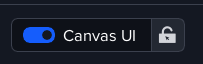
If you are directly connected to the Igloo Media Player, you can use the local keyboard and mouse to interact with the Canvas Preview in the Desktop UI.
-
Enable Canvas UI to allow interaction
-
Mouse movement over the preview window controls the canvas cursor
-
Click to select and interact with layers
The preview window size can limit precision. For finer control:
-
Resize the canvas preview by dragging the dividers between panels in the Desktop UI
Locking the Cursor to the Canvas
The Lock Cursor option ensures the mouse remains constrained to the canvas viewport while interacting.
When enabled:
-
The cursor cannot leave the canvas area
-
Improves precision and prevents accidental interaction with other UI elements
-
Particularly useful when using remote control or working on smaller screens
When disabled:
-
The cursor can move freely between the canvas and the rest of the Desktop UI
This option can be toggled next to the Canvas UI control in the toolbar.
Igloo Control Panel
The Igloo Control Panel application can be installed on another device, such as a laptop or PC, and then used as a controller for Igloo Core Engine.
Run Igloo Control Panel and it will automatically connect to an available Igloo Core Engine media player (briefly displaying the media player name). The Settings tab can be used to connect to a different media player.
Press the ‘Cast Mouse’ button.
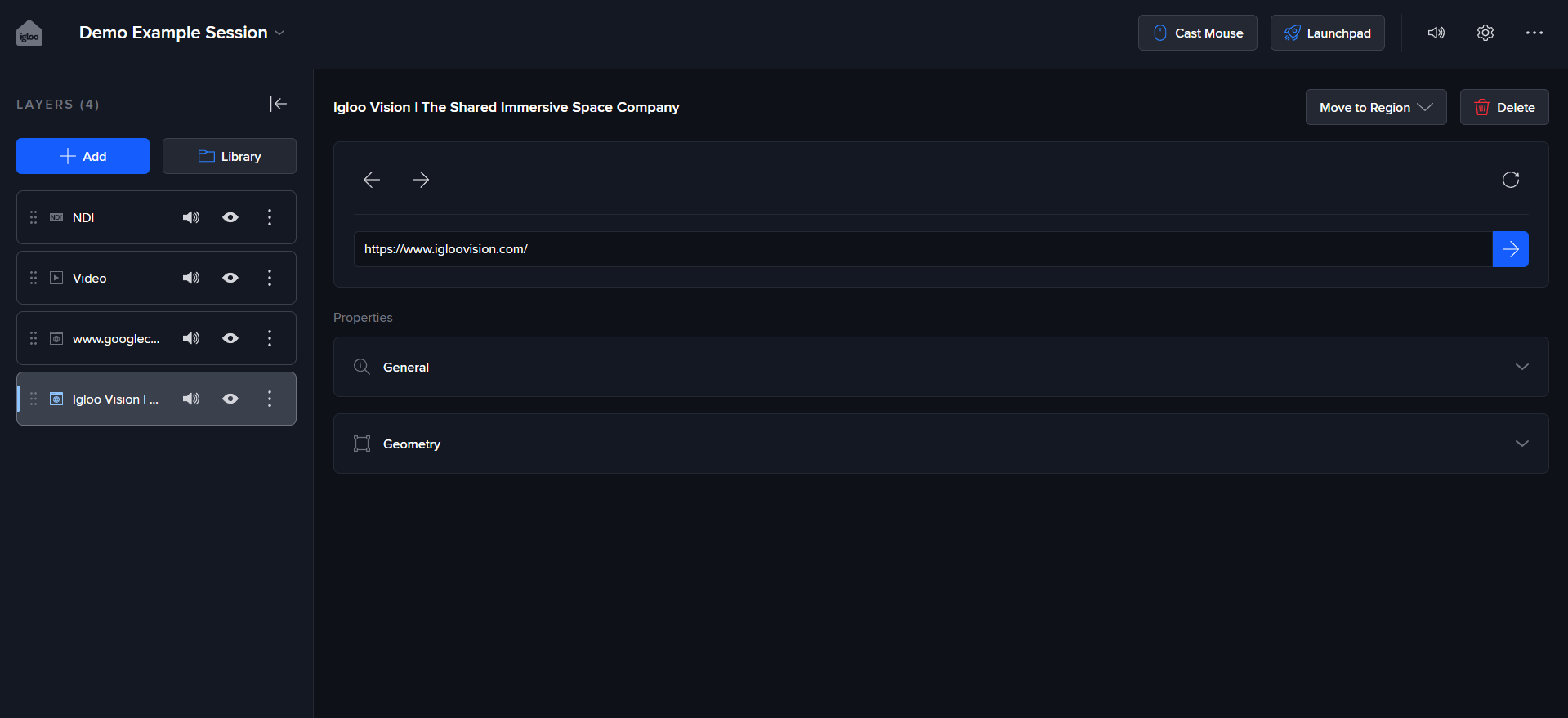
Igloo Control Panel can also be installed on iOS, MacOS, Android and Microsoft Surface devices. For phones and tablets, the cursor can be moved using the touchscreen and text input via the software keyboard.
Movements of the mouse will now drive the cursor position on the Igloo Core Engine canvas. Use the mouse to move around the canvas and interact with the layers. Using the ‘News Dashboard’ session, use the mouse to scroll the websites and click on any interesting links.
TIP: use left-click with the mouse to select a layer before interacting with it.
You can also use the mouse to interact with the Canvas toolbar. Select the Layers button and hide/show the WebView layers. Use the Set to region menu to swap the positions of the WebViews.
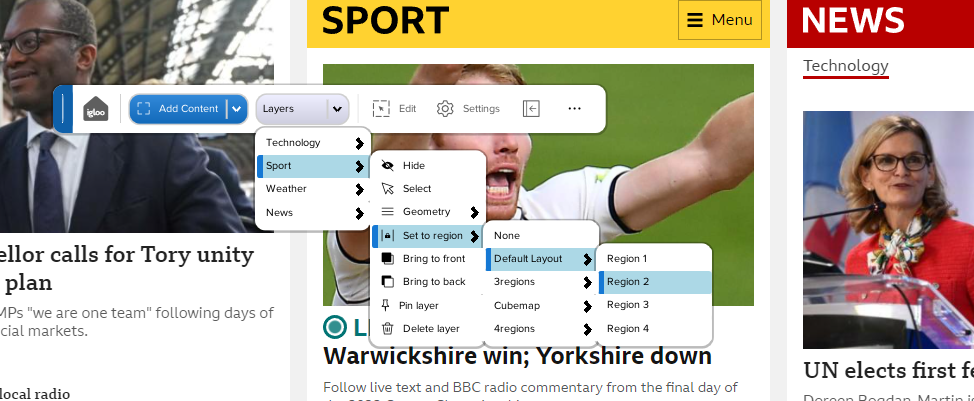
Test the keyboard input by selecting one of the WebViews and changing its URL to, for example, www.google.co.uk.
Press the Escape key on the keyboard to exit from casting mode.