
An Igloo Core Engine homescreen acts as a landing page for the immersive space and presents the user with commonly used shortcuts such as recent sessions, favourite content and integrated applications. It also provides an opportunity for branding the Igloo with custom graphics and styling preferences.
Adding a Home layer
Press the Add Content button and select Home.
A new layer is added called ‘Home’, which is always a pinned layer.
Now try pressing the 'home' button on the left side of the header session bar.
This returns the user back to the homescreen. In fact, the button causes all un-pinned layers to be removed from the layer list and the Home layer is moved to the top of the layer list.
Layouts and Components
The homescreen may consist of multiple layouts, each of which presents a set of components.
By default, we have one layout called ‘Untitled Layout’. In the Layout tab of the Home layer properties, change the name to ‘MyLayout’.
To add a component, press the '+' button at the bottom of the Layout tab. This will display a popup menu of component types. Select the Text type.
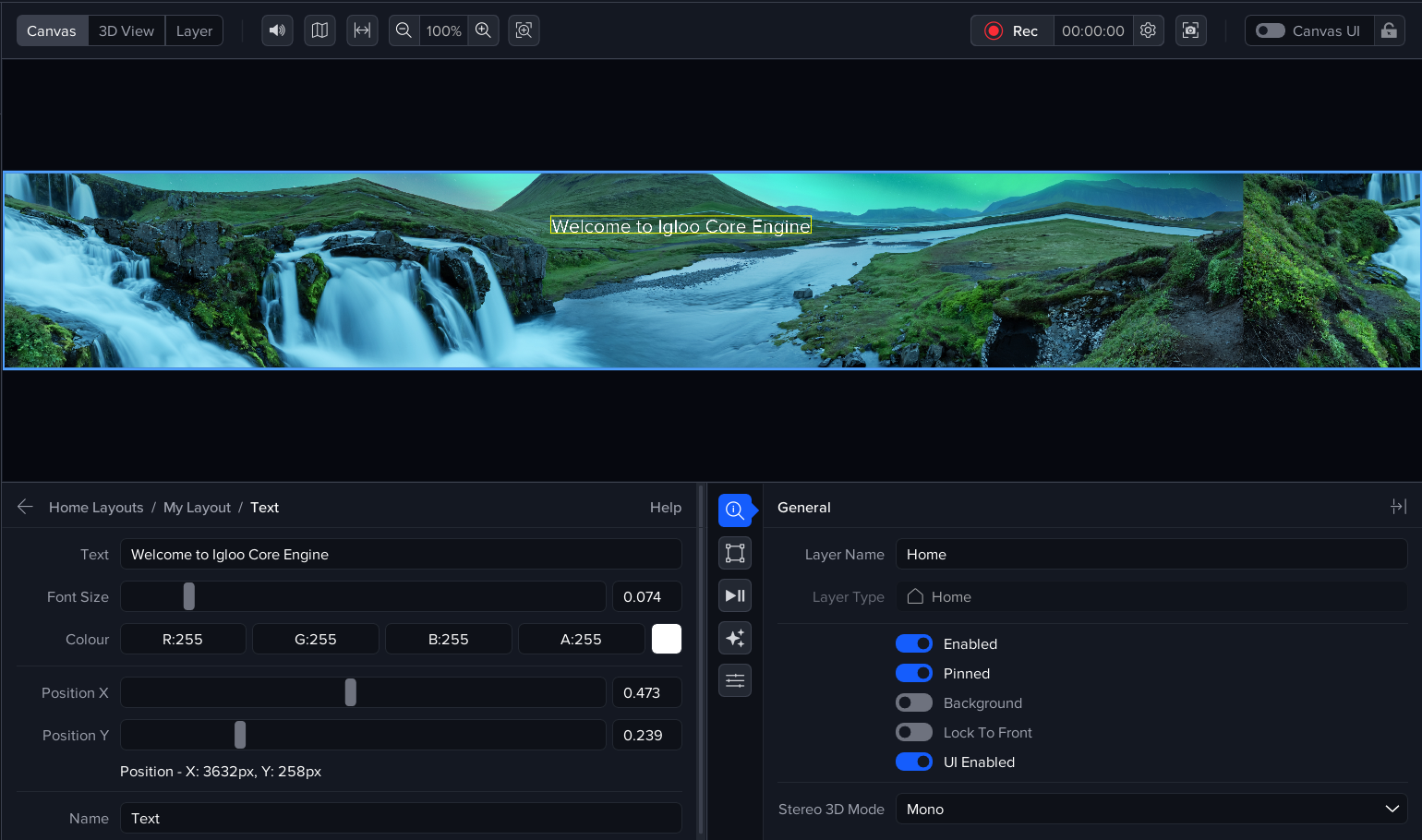
This will draw the word ‘text’ in the top left corner of the Home layer. Click on the Component tab and change the Text field to say ‘Welcome to Igloo Core Engine’. Use the X and Y position sliders to move the text into the upper centre of the Home layer.
Session Grids
Return to the Layout tab and press the ‘+' button. Select Grid from the popup menu. On the Component tab, set the name to be SessionGrid and set the title to be 'Recent Sessions’. Use the position sliders and width, height sliders so that the grid appears to the left of the Welcome text.
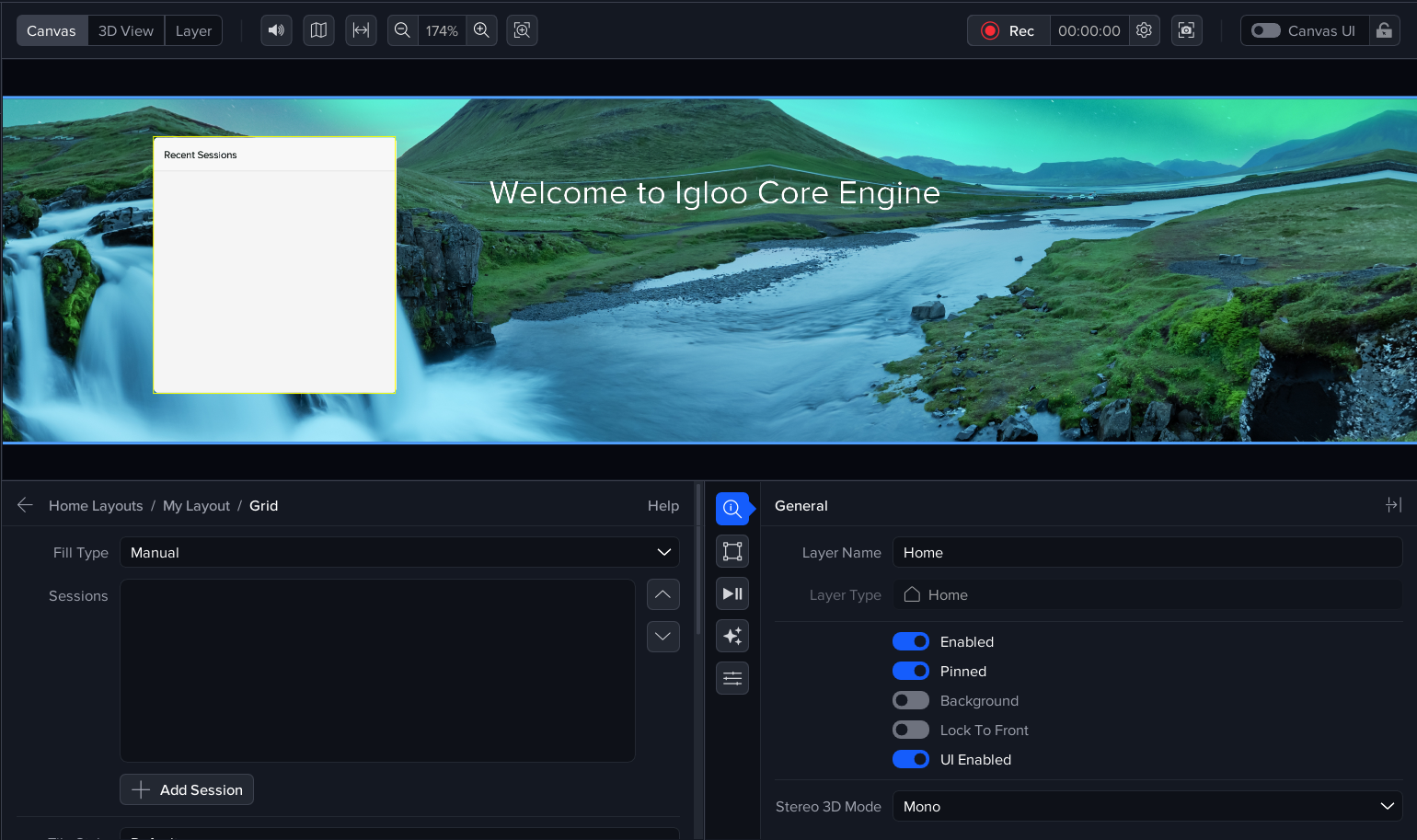
In the component controls, select Recent from the Fill type dropdown list. This will populate the grid with the most recently saved sessions. There is a limit value called Max Sessions to determine how many recent sessions to display.
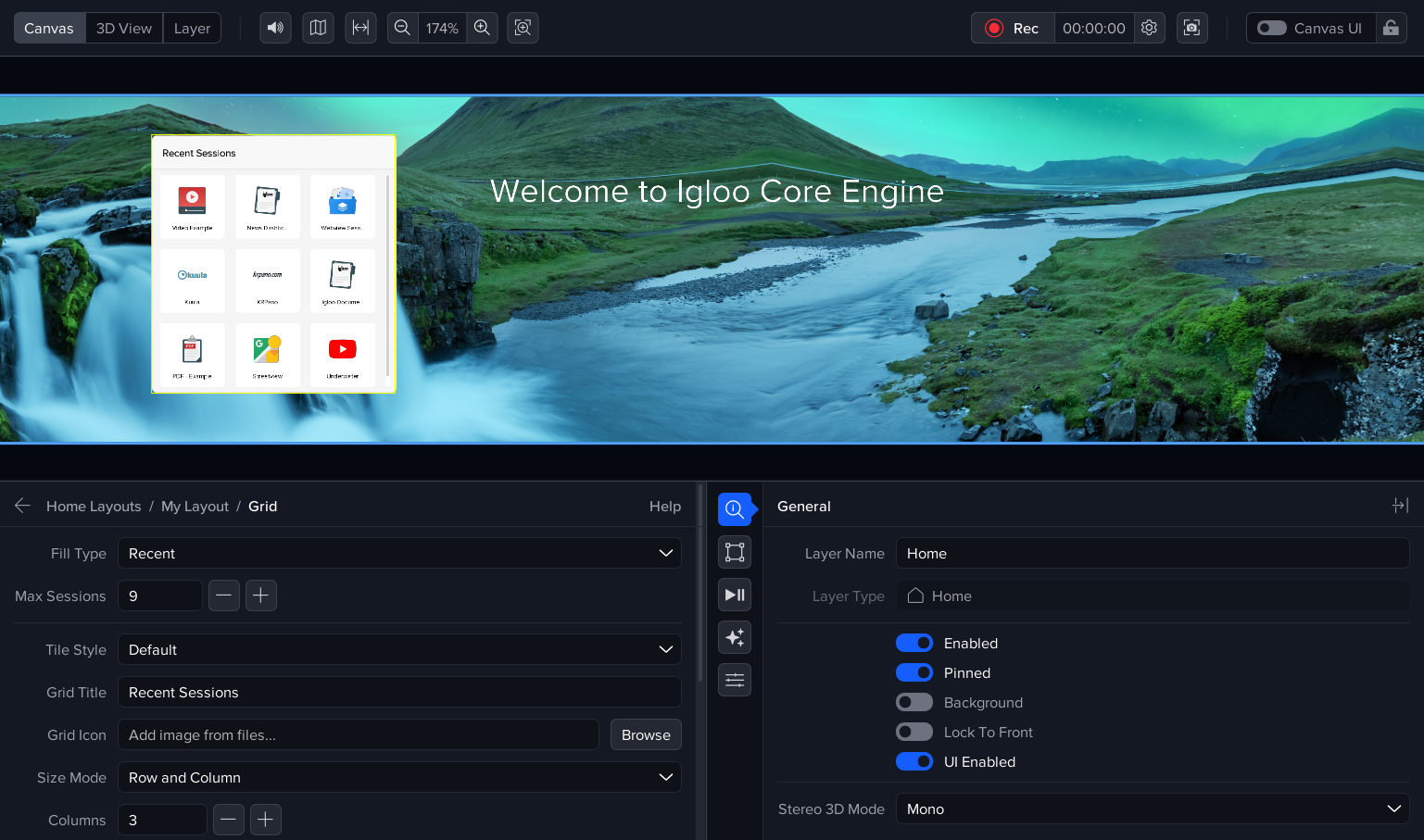
The SessionGrid on the Home layer is now populated with the most recent session icon shown in the top-left position. Notice if it shows the ‘2 WebViews’ session from the previous tutorial.
Launching a Session
To allow interaction with the Home layer, the Canvas user interface must be enabled.

On the right of the viewport toolbar, switch the Canvas UI on.
Now, in the Canvas viewport, move the mouse over the Home layer and click on the 'Webview Session' session icon.
This automatically loads the 2 WebViews session into the layer list and hides the Home layer. To go back to the Home layer, press the Home icon on either the Canvas toolbar or on the Desktop UI.
We will continue with the Home layer in the next tutorial to explore the other component types.
See Home - Igloo Core Engine Documentation for more further details on Home Layer configuration
Next Session: Desktop UI - Building a Homescreen, part 2