
By Lawrence Selly
Igloo ArcGIS gives users access to real-world maps and geospatial 2D and 3D data. Users can immerse themselves within GIS scenes, visualize concept designs and statistical datasets, and perform spatial analysis of geometry.
Requirements
An annual subscription license is required and the software is enabled using a license key.
The application must be installed on a Windows 11 operating system with nVidia graphics on board.
How it works
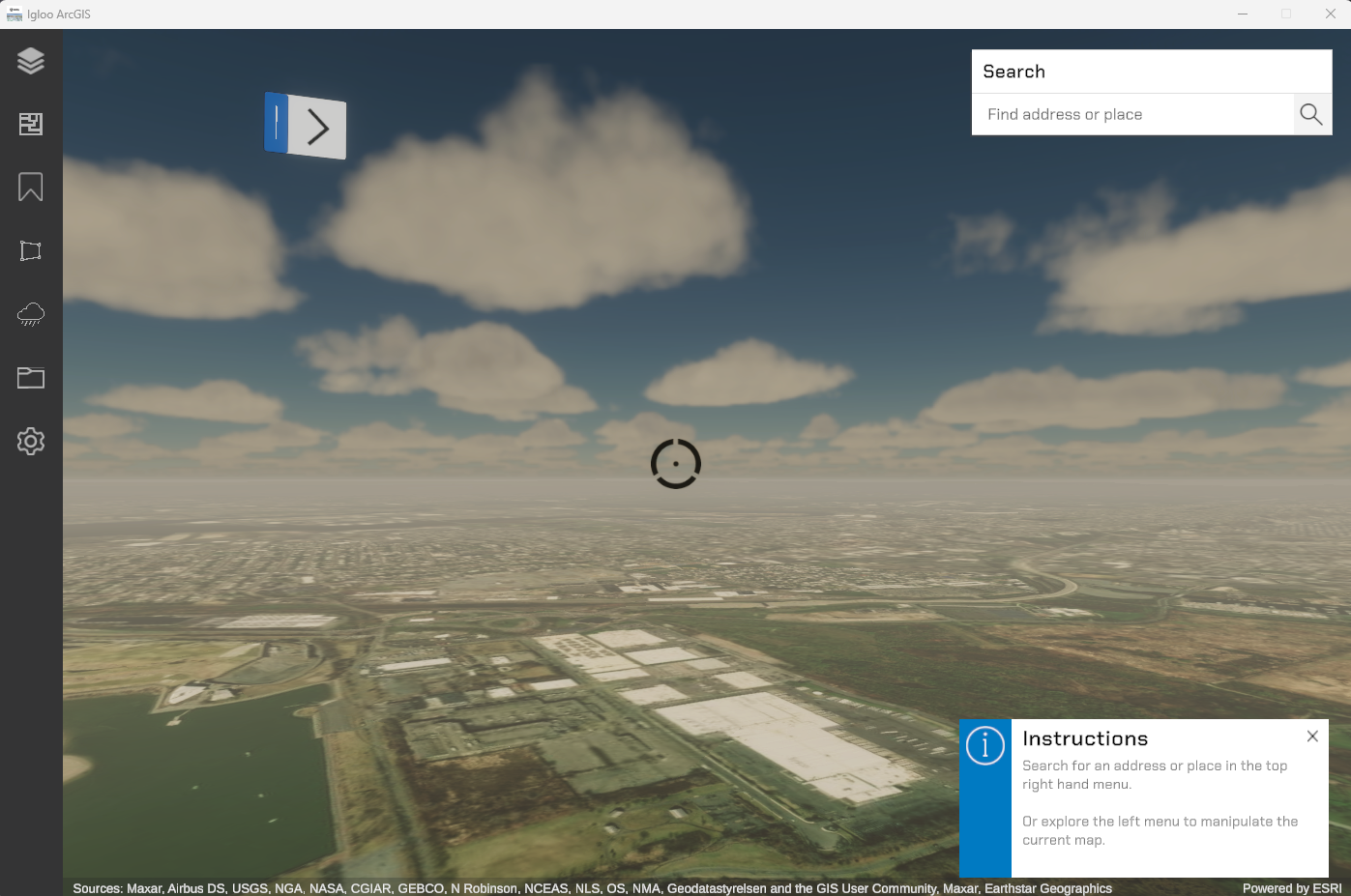
Essentially this is a virtual representation of the planet. You can fly above anywhere in the world and see the map of it. There are many maps available to choose from (see Basemaps)
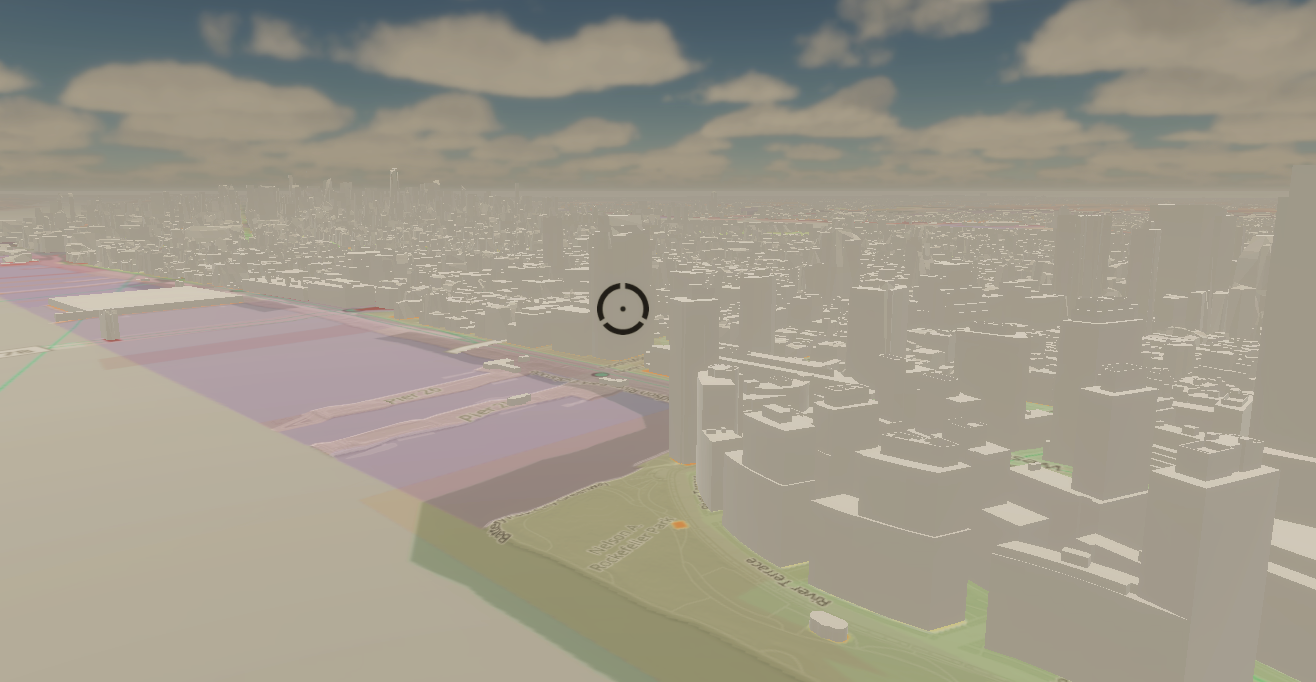
You can then place objects in the world (via ESRI’s other software) and view them to real world scale, you can also create data overlays for map based analysis.
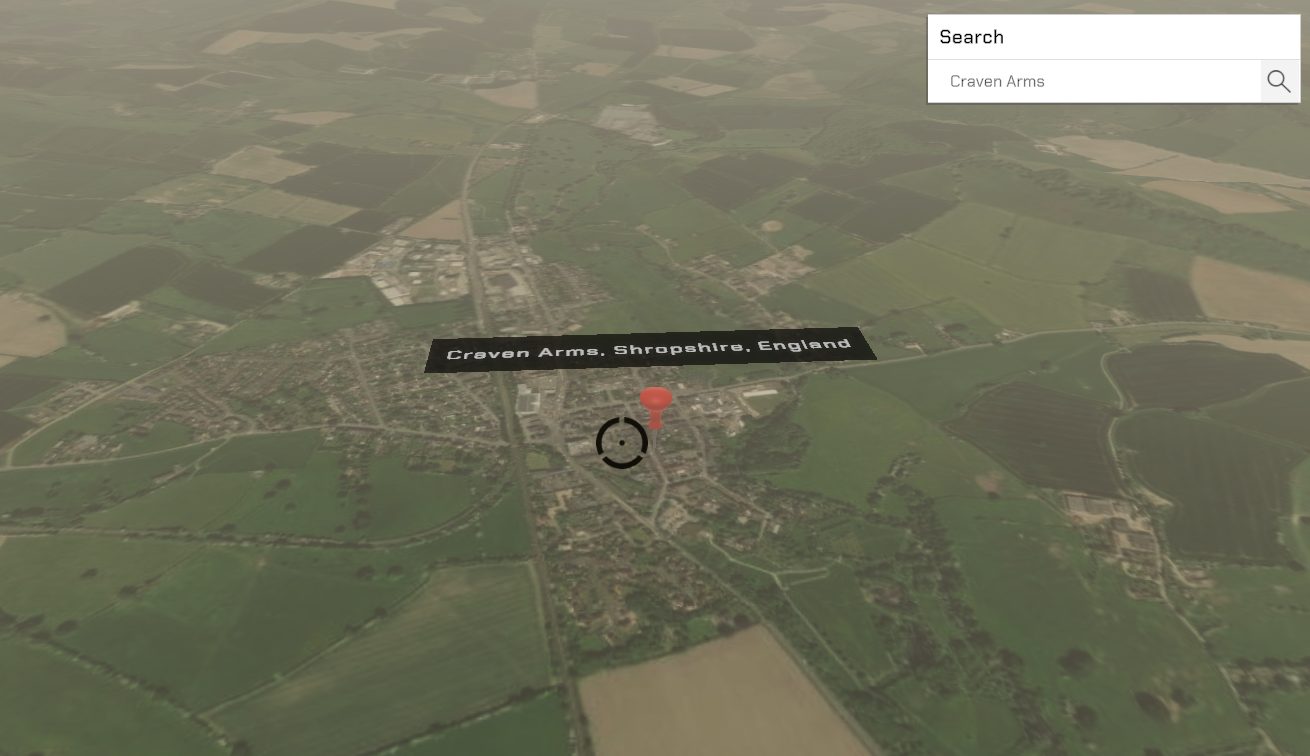
You can “geolocate” by typing any address into the search bar in the top right. This uses google maps API to match the prompt to a set of coordinates, which it then teleports the player to.
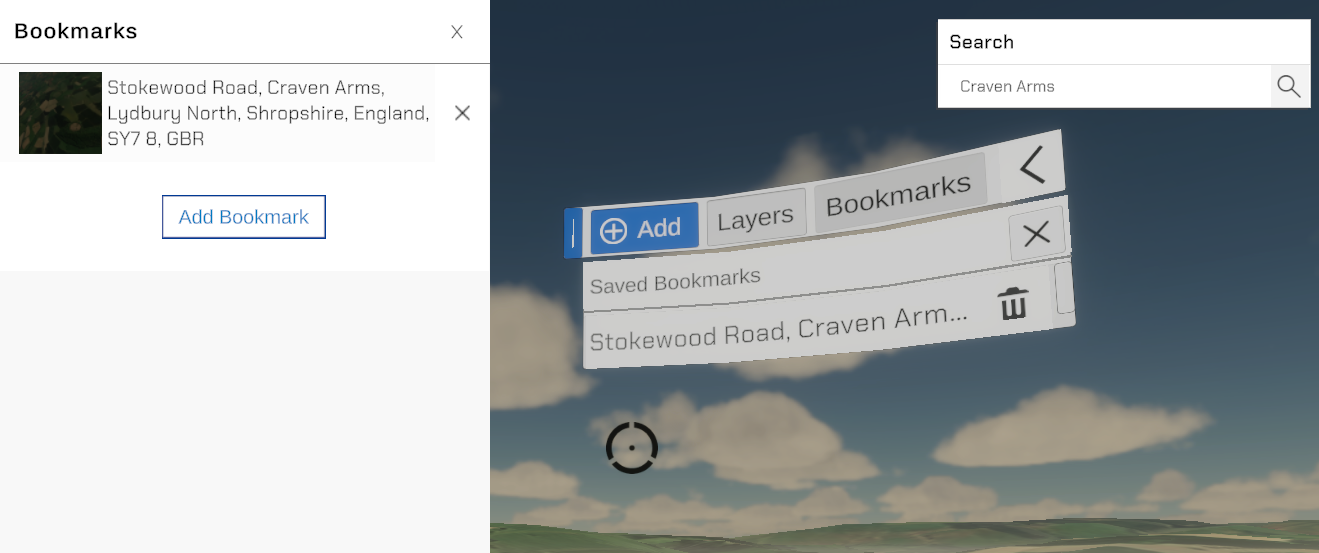
You can also bookmark any location to easily return to it, which can be done in both the Desktop and Canvas UIs.
All of the above data can be saved as a custom json format to load the same map over and over.
Most of the assets are hosted online. This means it can take a while for things to download, so loading times vary from location to location. It also means some firewalls may restrict access to certain aspects of this program.
Canvas UI
To enable ease of use within the Igloo space, a canvas user interface has been created to easily navigate between bookmarks and layers. It’s also possible to add a new bookmark quickly using this menu, and it will be extended to additional features in the future.
Players interact with the canvas UI using the on screen crosshair and the A-button on Xbox / Igloo Controller or Mouse click / Space Bar to select.
Bookmarks
Bookmarks can be added via the Add menu, and then by selecting “Create Bookmark here” which creates a bookmark using Reverse Geolocation, whereby a pin is placed on the world directly beneath the player. The bookmark is automatically named based on the location request, and the players position in world space is recorded (including height)
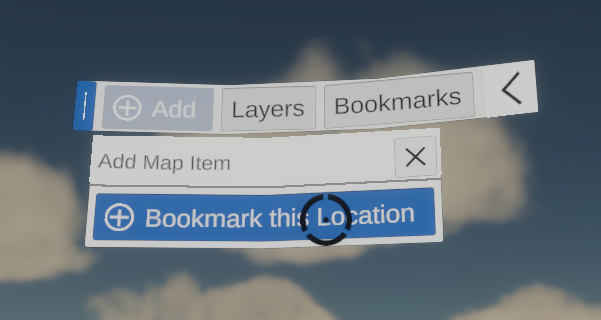
Users can then click the Bookmarks tab to view any bookmarks created, and can select the bookmark to fly to it.
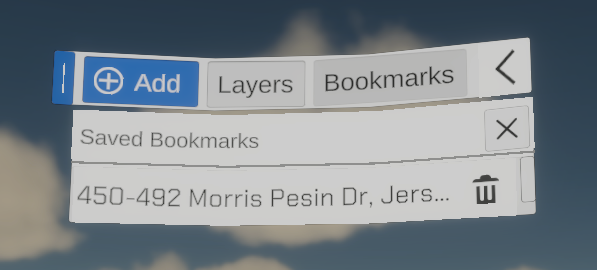
They can also remove a bookmark by clicking the trash icon.
Layers
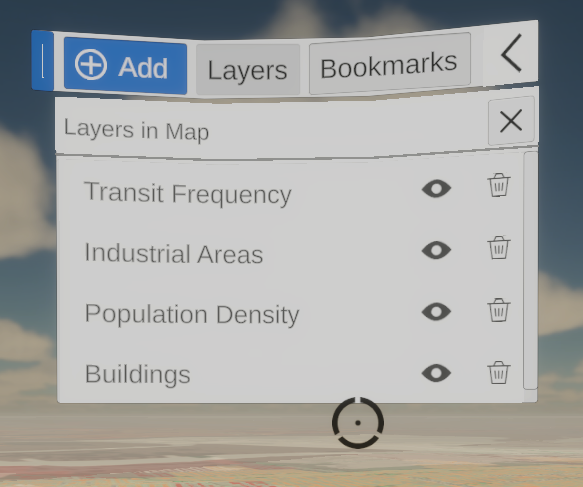
Layers can not currently be added using the Canvas UI system, but any layers added in the Desktop UI are mirrored within the Canvas UI’s layers tab.
From here you can delete layers you no longer want to use, or use the Show / Hide button to show and hide layers on the map.
Desktop UI
The Desktop UI has been designed to mimic the look and feel of other ESRI applications so users feel at home with its functionality.
Layers
The layers tab contains the current layers in the scene, with an add layers button at the bottom.
Clicking on a layer will teleport the player to the center of the layers extent.
Be careful when using this with large datasets that cover the globe. The center of those… is the center of the planet.
You can also click the trash icon to delete a layer, and the show / hide icon to show or hide the layer.
Adding Layers
When adding a new layer the user will need to input a name, layer type, and Resource URL.
It is possible to copy/paste details into these fields.
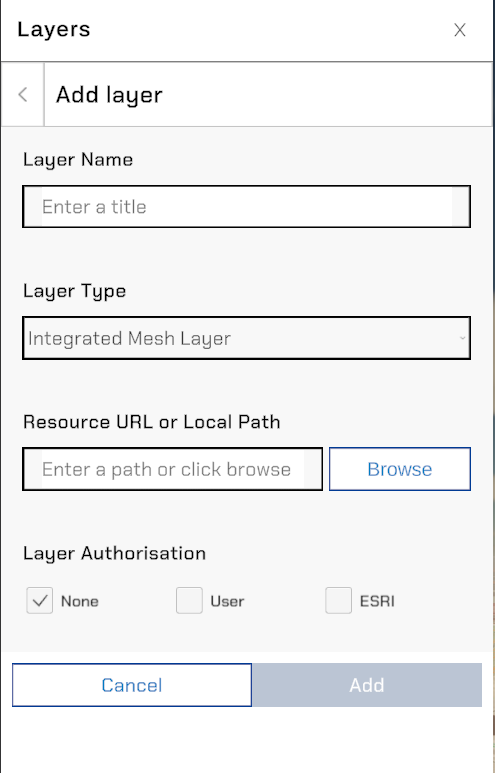
Layer Name
Please name your layers appropriately. Duplicates are not allowed.
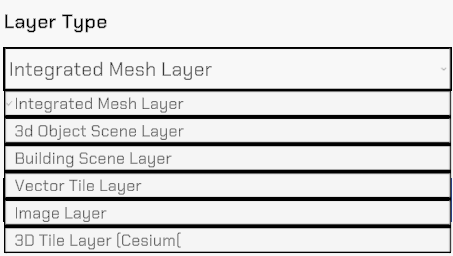
Layer Type
The following Layer Types are available currently:
Resource URL (or Local Path)
Paste a online resource URL into this field for online hosted layer. If the online layer is authentication protected you will need to adjust the Layer Authorisation checkbox to ‘User’ if they are on a personal / corporate ESRI server or ‘ESRI' if they just require an ESRI login to function.
For local layers, please navigate to the .slpk for ESRI Scene Layer Packages, or .json for Cesium Tilesets
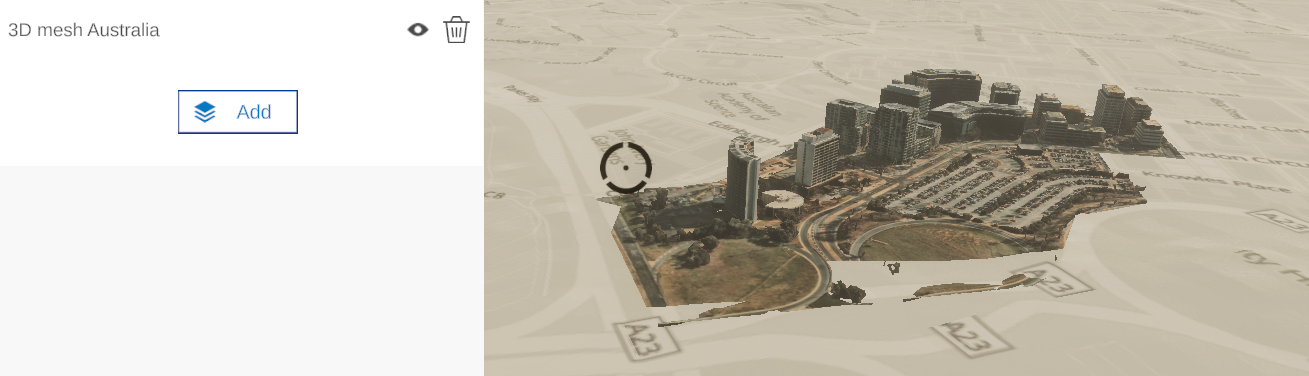
Once the all fields have been populated, you will be able to load the layer. This may take time depending on it’s size.
If there is an error, the layer will not load at all. Please check the logs for error message.
Basemaps
There is currently a large variety of basemaps available from OpenStreetMaps and ESRI, and all of these are currently selectable within the Igloo ArcGIS application.
This page also allows the adjustment of the elevation source, which can be from an .slpk or a URL.
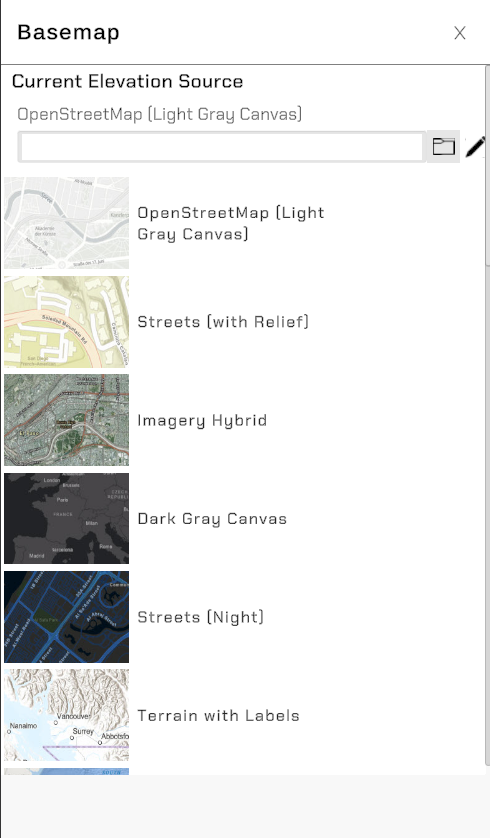
Some of the basemaps can take longer to load than others, depending on their host.
Terrain Modification Tool
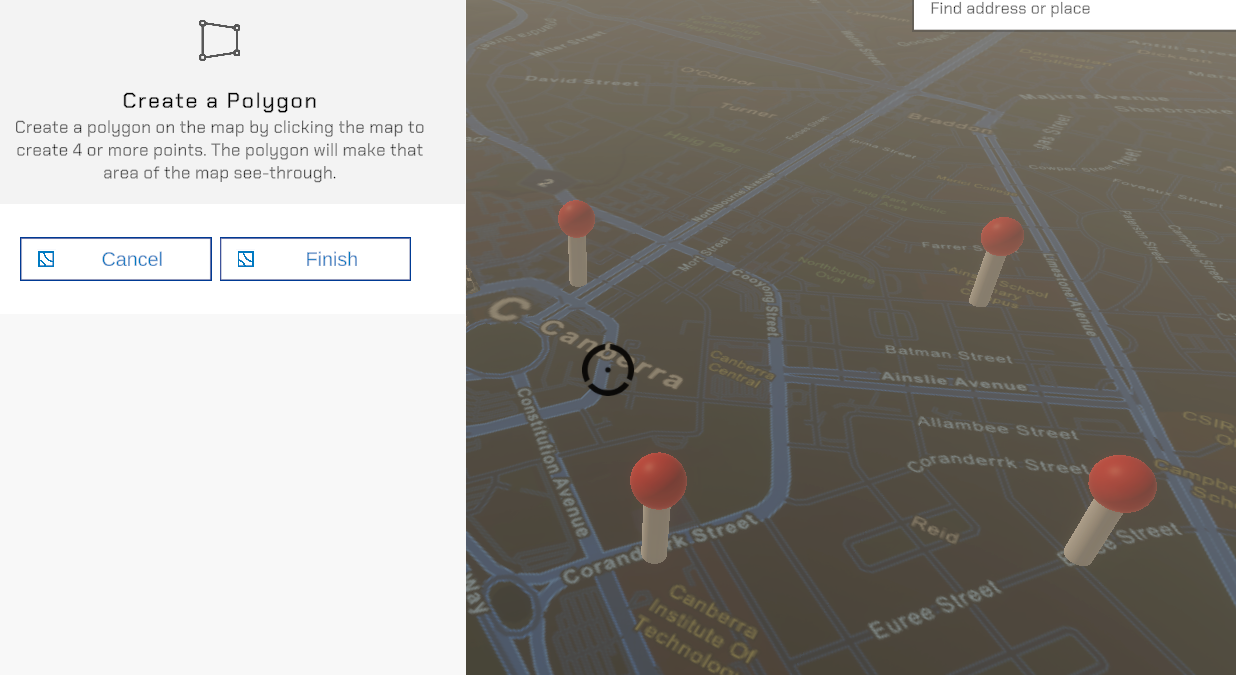
Currently this tool is very limited in it’s ability.
It allows the user to create a ‘hole’ within the basemap which can be useful when loading a 3D model that has a custom terrain layer.
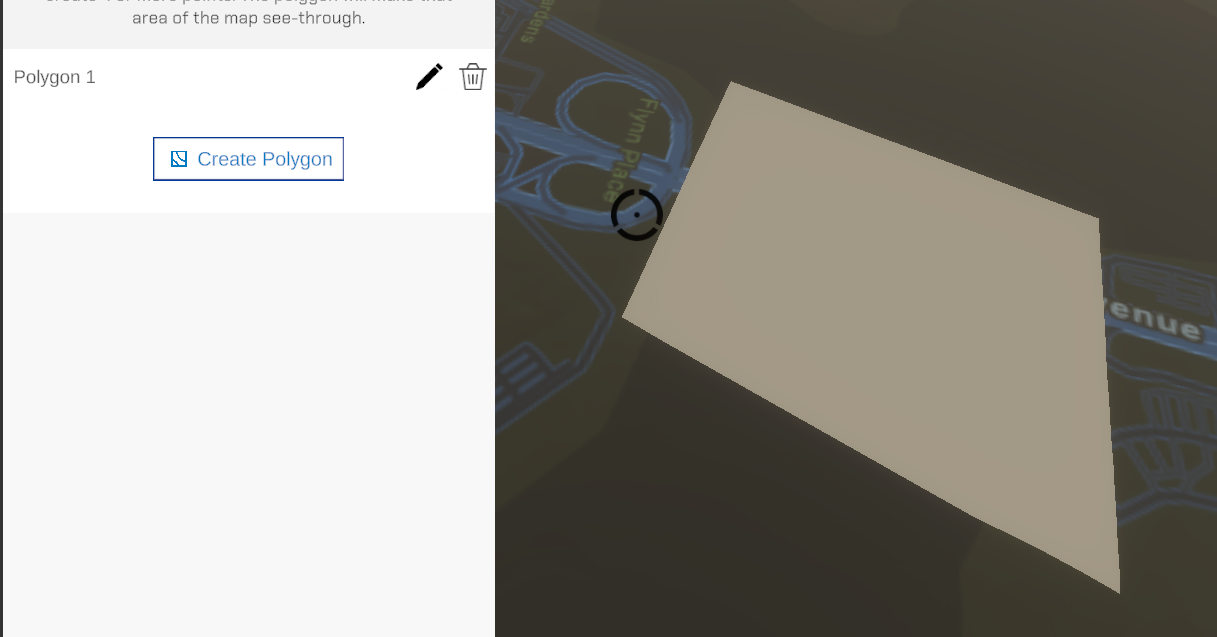
Time of Day System
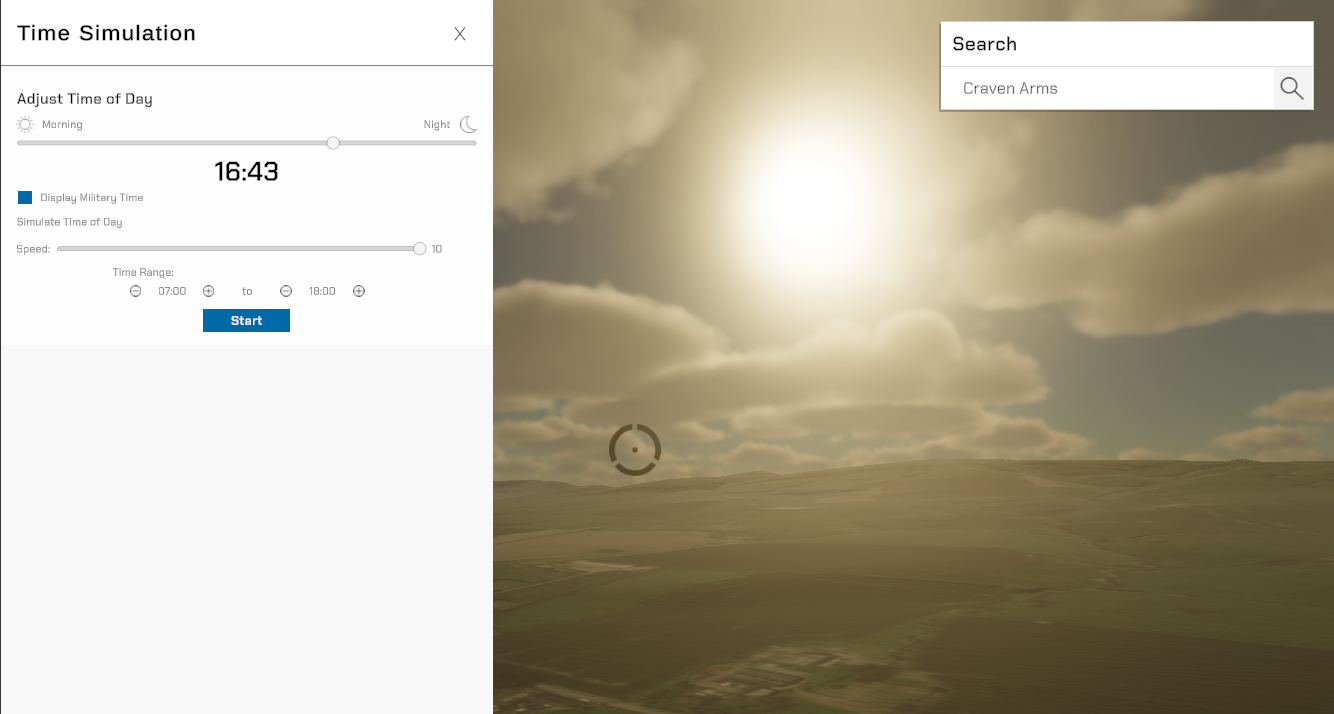
The time of day function, is a relatively new addition. It looks best when used in conjunction with 3D models.
Save and Load
The save and load functions do as you would expect. Open a saved map, save the current map, and there’s also an option to start fresh. Removing all layers and bookmarks.
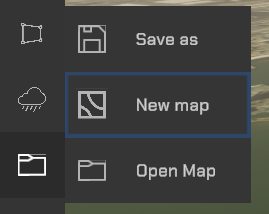
If you load a map, a box will open that allows you to select an existing .iglooGIS file. There are several of these included with the program and they can be found in the StreamingAssets tab on the left hand menu.

If you click the Save Icon, you will get a similar looking menu, and you will be saving the current map in it’s current state.
The save file includes:
-
Basemap selection, and elevation layer.
-
Layers currently open, including their show/hide state
-
Bookmarks created
In future it will also save any created geometry, and the Time of Day.
The most layer rich save file to open is NewYork
Settings
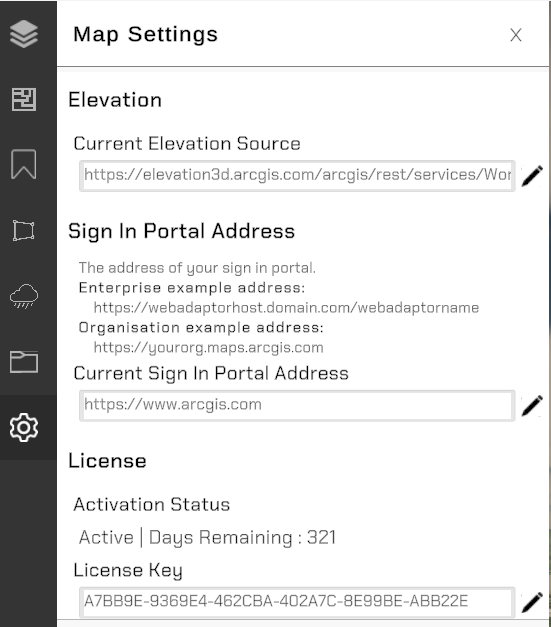
The current elevation source can be changed from here, along with the sign-in portal address for oAuthentication.
Finally the License key (generated via Cryptlex) can be adjusted if required.
Patch Notes
2.1 - July 2025
-
Canvas UI System added
-
Bookmark creation and navigation via Canvas UI
-
Layer navigation via Canvas UI
-
-
3D tileset support increased performance and lighting support.
-
3D tilesets are now able to be hosted locally
-
Level of Detail system has been tweaked to be more aggressive, resulting in faster performance.
-
Authentication is now persistent when a user logs in.
2.0 - April 2025
-
Support for Tilesets added
-
oAuth authentication available
-
First version with Cryptlex licensing added
-
Elevation layers can now be exaggerated
-
Expanded 3D layer support