A Composition groups multiple sources (called sub-layers) into a single layer. This is useful when you want to manage several items as one unit (move/scale/enable/effects together), while still being able to edit each source independently.
Setup
Add a Composition layer
Create a new Composition from the Add Layer menu (or File > New > Layer).
Composition resolution
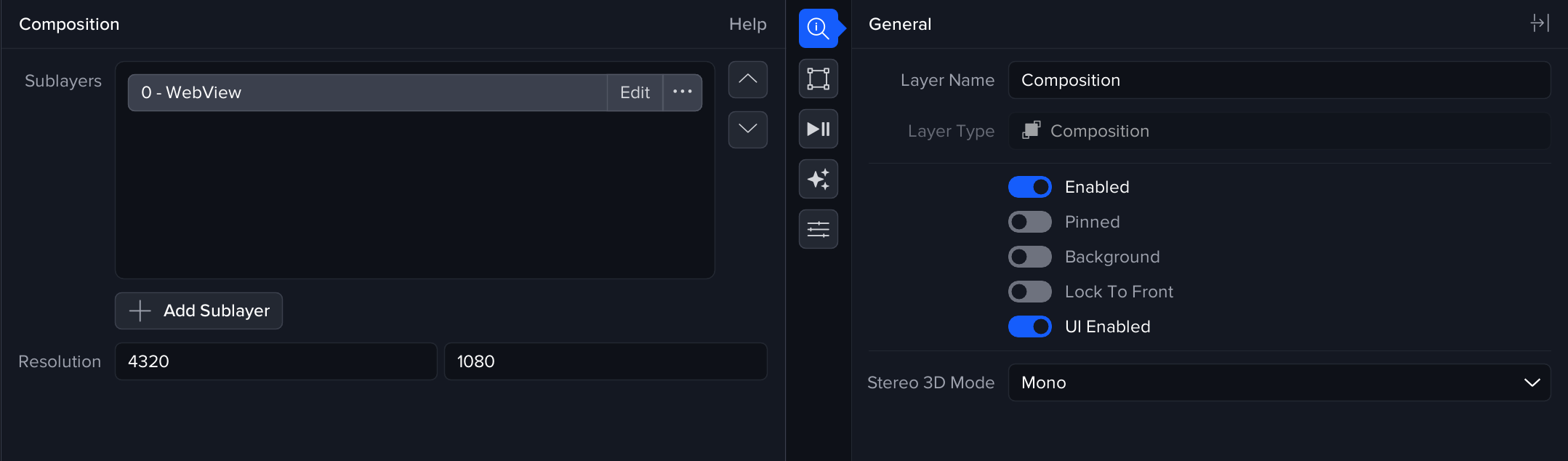
By default, a new composition uses the Workspace Canvas resolution.
You can change the composition resolution if needed (for example, if you want a lower-resolution composite for performance, or a fixed resolution such a compositing cubemap faces)
Managing sub-layers (sources)
Sub-layers are managed from the Sublayers list.
Add a sub-layer
Select Add Sublayer (+):
-
New: create a new source inside the composition
-
Load: add an existing source from the library
Remove a sub-layer
Right-click a sub-layer in the list and select Remove.
This removes it from the composition (it does not delete the original item from your library).
Edit a sub-layer
Right-click a sub-layer and select Edit.
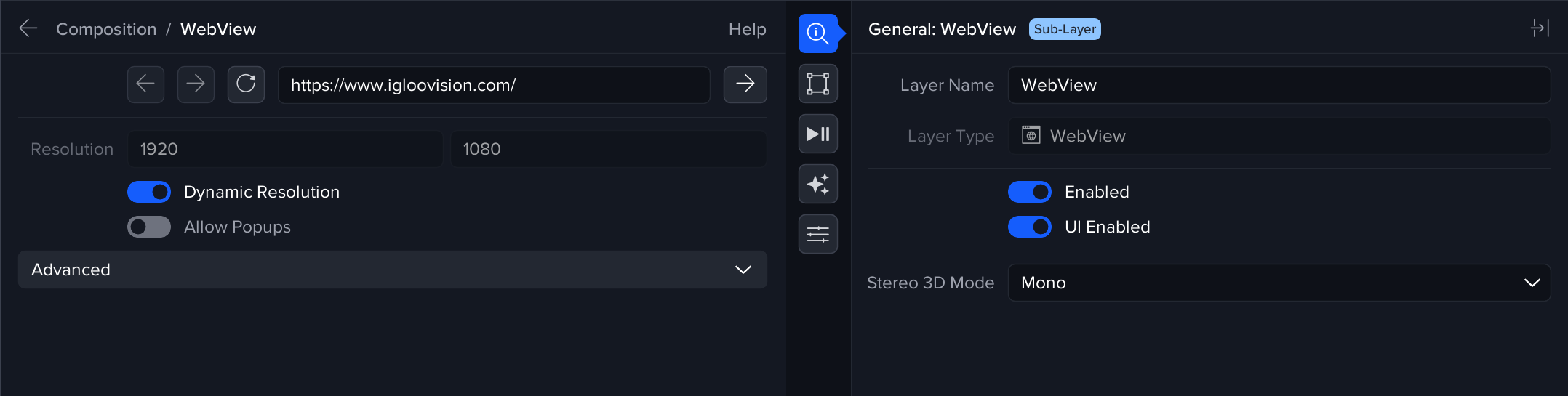
When editing, you’ll “enter” the sub-layer and the UI will update to show:
-
A breadcrumb trail at the top (shows where you are: Composition / Sub-layer)
-
The Layer settings panel for the selected sub-layer (so you can change its URL, resolution, sender, playback settings, etc.)
To stop editing the sub-layer and return to the composition, use the breadcrumb to go back to Composition.