
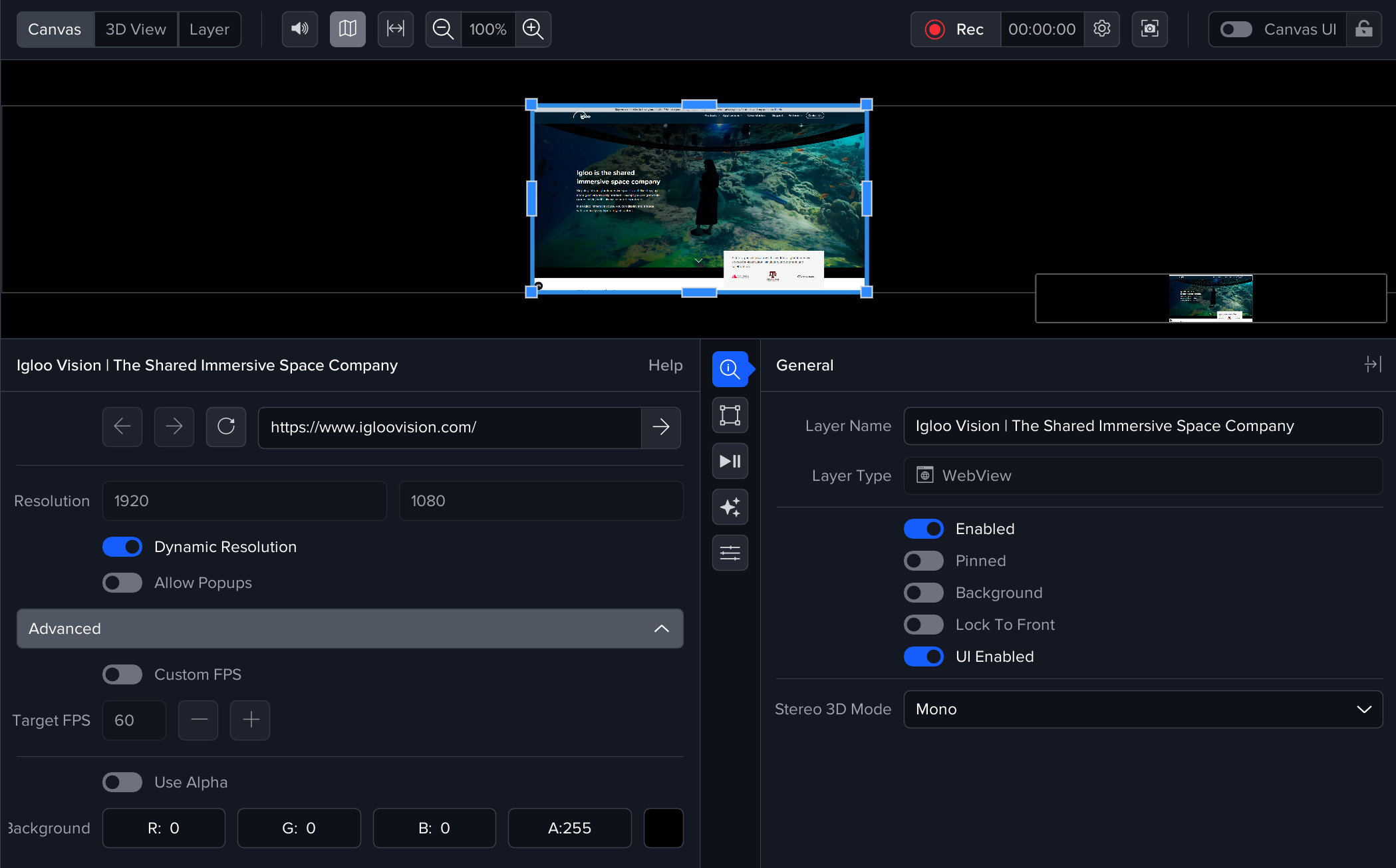
Use the WebView Layer to display any web page in Igloo Core Engine
Settings
URL
Enter the complete URL of the web page you want to display.
Resolution
Define the rendering resolution of the web page in pixels (Width x Height).
The WebView layer supports a maximum resolution of 16,384 × 16,384 pixels. Content larger than this will be downscaled which maintaining aspect ratio
Dynamic Browser Resolution
Enabled: The browser's resolution will automatically update when the layer's scale changes.
Disabled: Changing the layer's scale will not affect the browser's resolution. This is useful when:
-
Operating in a high-resolution workspace, as native resolution WebViews may reduce performance.
-
Displaying a Cubemap/Equirectangular web page, where a fixed resolution and aspect ratio are required.
Use Custom FPS
Set the WebView's frame rate independently from the Igloo Core Engine application frame rate.
Use Alpha
When enabled, the browser's alpha channel will be utilised to support transparency, allowing for see-through elements and overlay effects. This is particularly useful for creating seamless integrations with varying background layers or for aesthetic effects where transparency is a key factor.
Allow Popups
When enabled, if a website attempts to open a popup it will be displayed on top of the current WebView.
Keyboard & Mouse Control
Once added, the web page can be controlled by selecting the WebView layer within the Workspace view and using keyboard and mouse interactions
Canvas UI must be enabled to allow interaction with the WebView Layer
Media
The WebView uses the Chromium Embedded Framework (CEF), offering most Google Chrome features including audio playback, WebRTC, and WebGL.
Audio
Audio within a WebView is fully supported and can be mixed independently like any other audio source in Igloo Core Engine.
Cookies
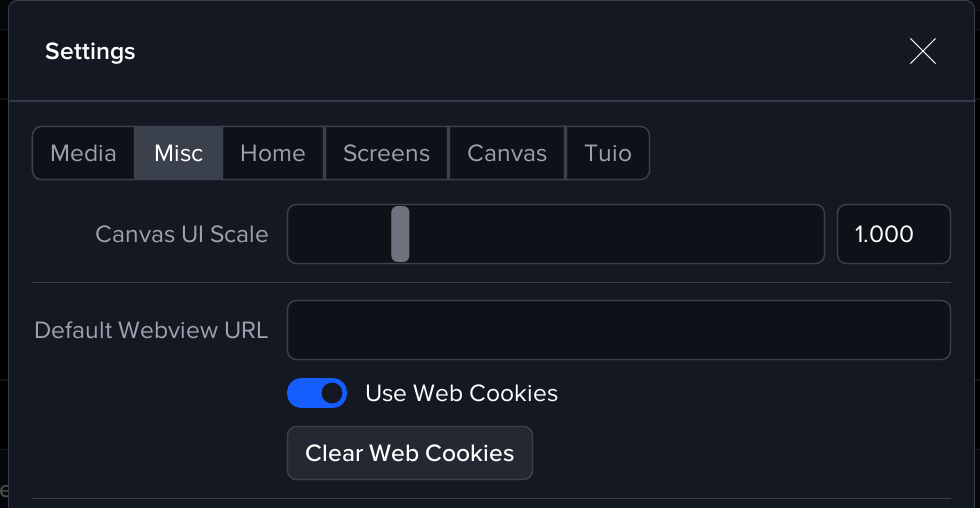
Cookies in Igloo Core Engine are managed similarly to Chrome, stored per Windows user. You can control the enablement or disablement of cookies through the "Use Web Cookies" setting found in Settings > System Settings > Misc Tab. You can also clear cookies during runtime using the “Clear web cookies“ button.
Utility Browser
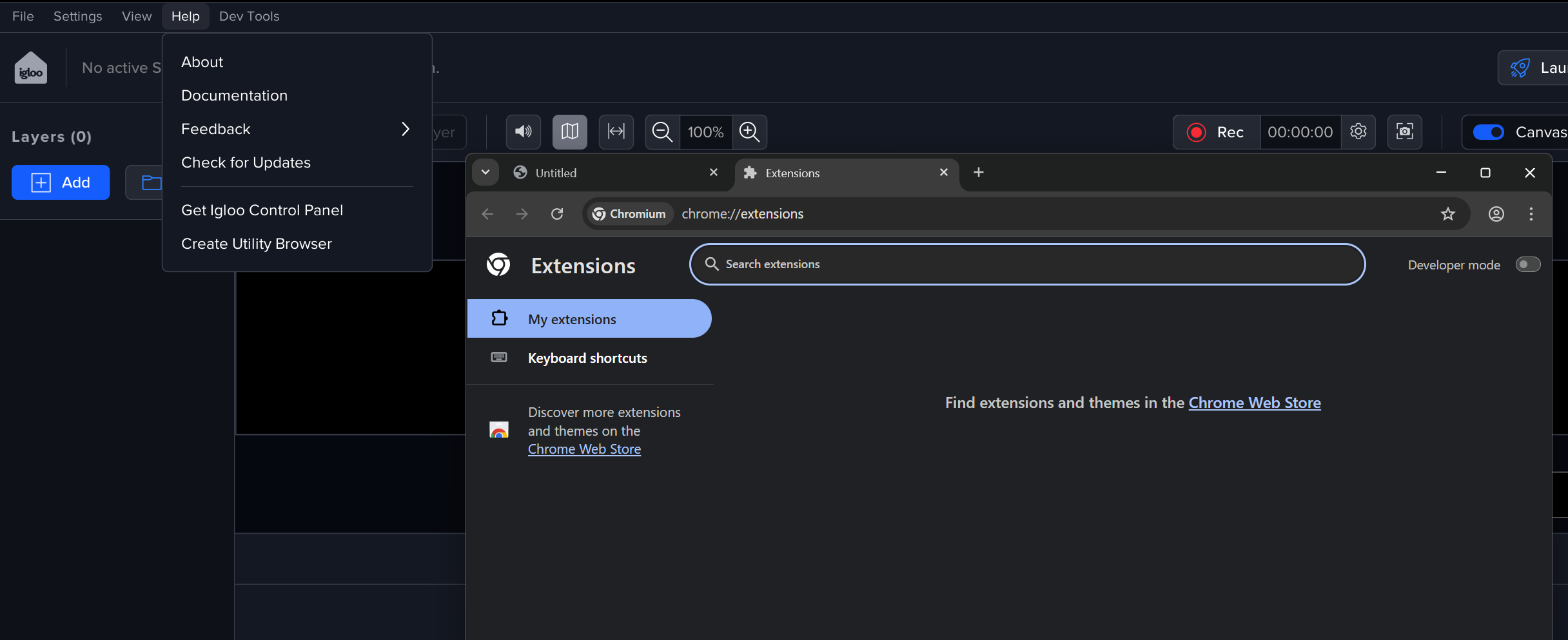
The Utility Browser (accessible via Help > Create Utility Browser) can be used to perform browser actions that aren’t directly supported in the WebView layer.
For example, you can use it to install browser extensions or log into websites where authentication might otherwise be blocked. Once an extension is installed or a login is completed through the Utility Browser, those settings will automatically propagate to the WebView, as both share the same cookies and session data.
The Microsoft single sign on chrome extension may be of interest - Microsoft Single Sign On - Chrome Web Store
Dev Tools
Chrome Dev Tools can be used to inspect and debug the state of WebViews within Igloo Core Engine.
Chrome DevTools - Chrome Developers
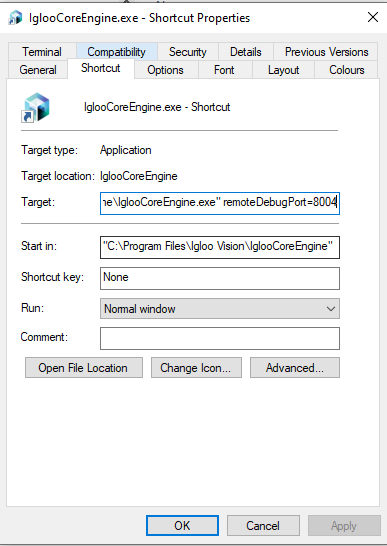
To do so, Igloo Core Engine must be opened using the command line parameter.
remoteDebugPort=n
Where n is the port number.
e.g.
WebViews are then discoverable by the Chrome DevTools protocol, most easily through visiting chrome://inspect in a chromium-based browser (Chrome or Edge). If the selected port is not 9222 or 9229, you’ll need to manually add it to the Discover network targets configuration:
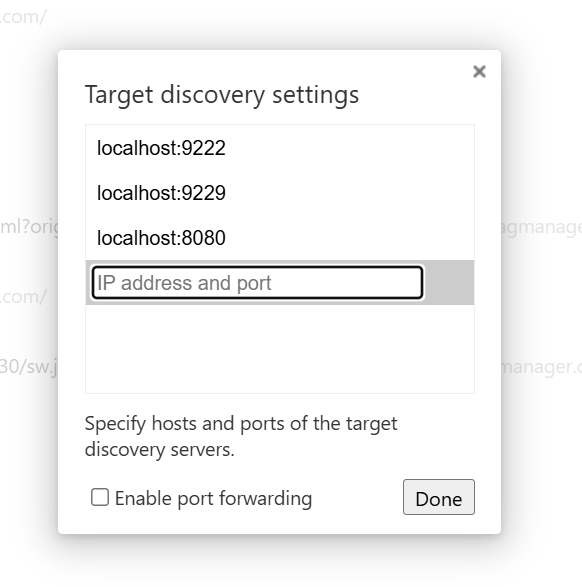
Once discovered, links to inspect open WebViews will be shown on that page.
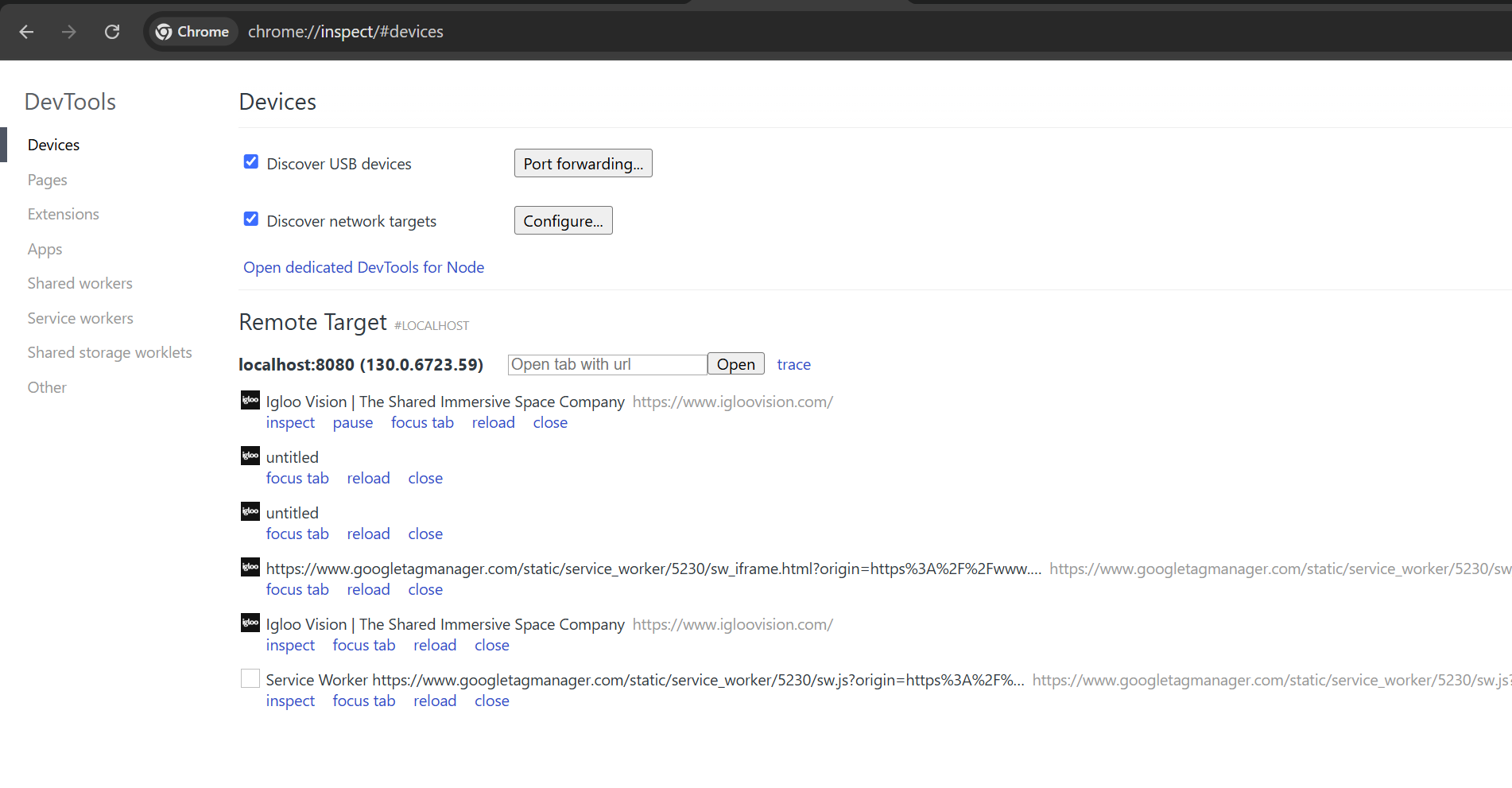
Alternatively, DevTools for a specific WebView can be opened via the Igloo Core Engine API (probably using iceman), by sending the message layer/contextual/showDevTools?id=[layer-id]. The layer ID can be omitted if the WebView you’d like to inspect is the currently selected layer.
When using this API method to open DevTools for a layer the program will likely not exit cleanly, leaving a lingering process which must be closed using Task Manager before running again. Monitor Task Manager when closing Igloo Core Engine after using this API method.