
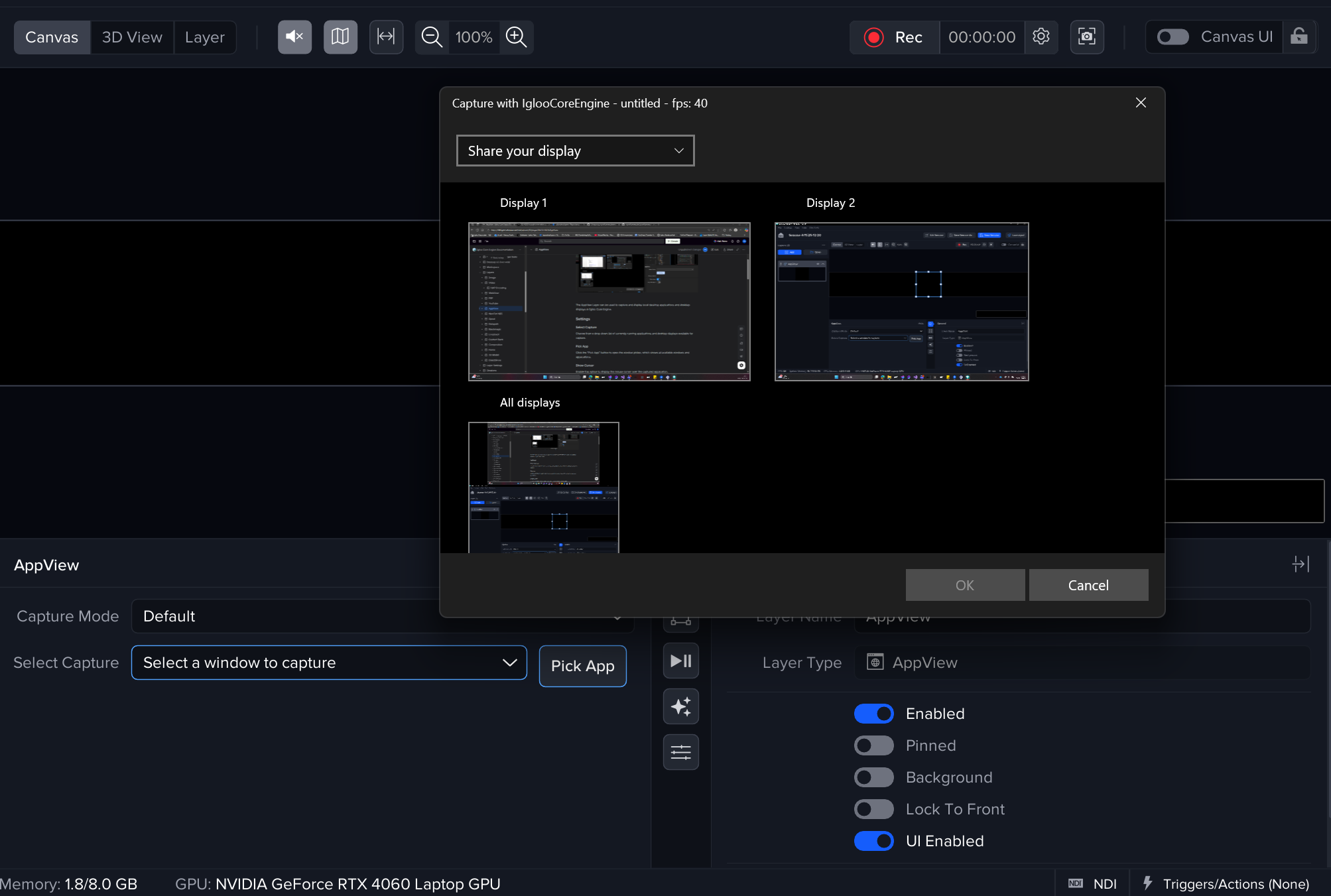
The AppView Layer can be used to capture and display local desktop applications and desktop displays in Igloo Core Engine.
Settings
Capture Mode
Pick Default or PowerPoint mode. PowerPoint mode is described in the separate section below.
Select Capture
Choose from a drop-down list of currently running applications and desktop displays available for capture.
Pick App
Click the "Pick App" button to open the window picker, which shows all available windows and applications.
Show Cursor
Enable this option to display the mouse cursor over the captured application.
-
Enabled: The mouse cursor is shown in the capture.
-
Disabled: The mouse cursor is not shown in the capture.
Exact Title Match
Determine how the layer identifies the window to capture based on its title.
-
Enabled: The layer captures a window only if its title matches exactly.
-
Disabled: If an exact match is not found, the layer captures the closest match with the same application name (e.g., Chrome running a different tab name).
PowerPoint mode
Prerequisites and limitations
-
PowerPoint must be installed, licensed, and signed in
-
PowerPoint files must be stored locally on the machine
-
It is highly recommended that PowerPoint files have edit access enabled
-
Only a single PowerPoint presentation can be captured at a time i.e. multiple concurrent AppView layers capturing PowerPoint is not supported
In PowerPoint mode you can choose a PowerPoint presentation that the layer will load for you.
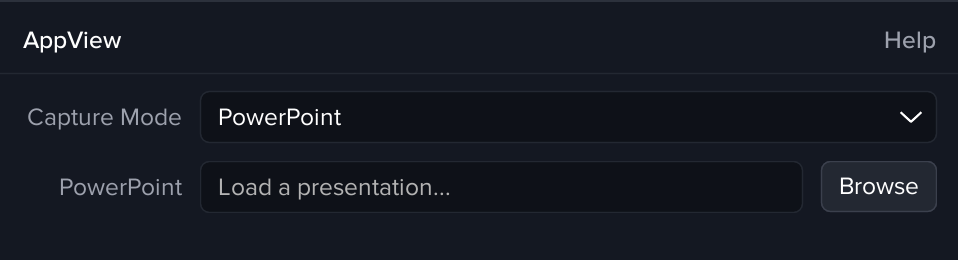
Once loaded the layer will display the presentation in a window on your desktop and capture it so that it will be shown on the canvas. You will then see the navigation buttons to move between slides and animations.
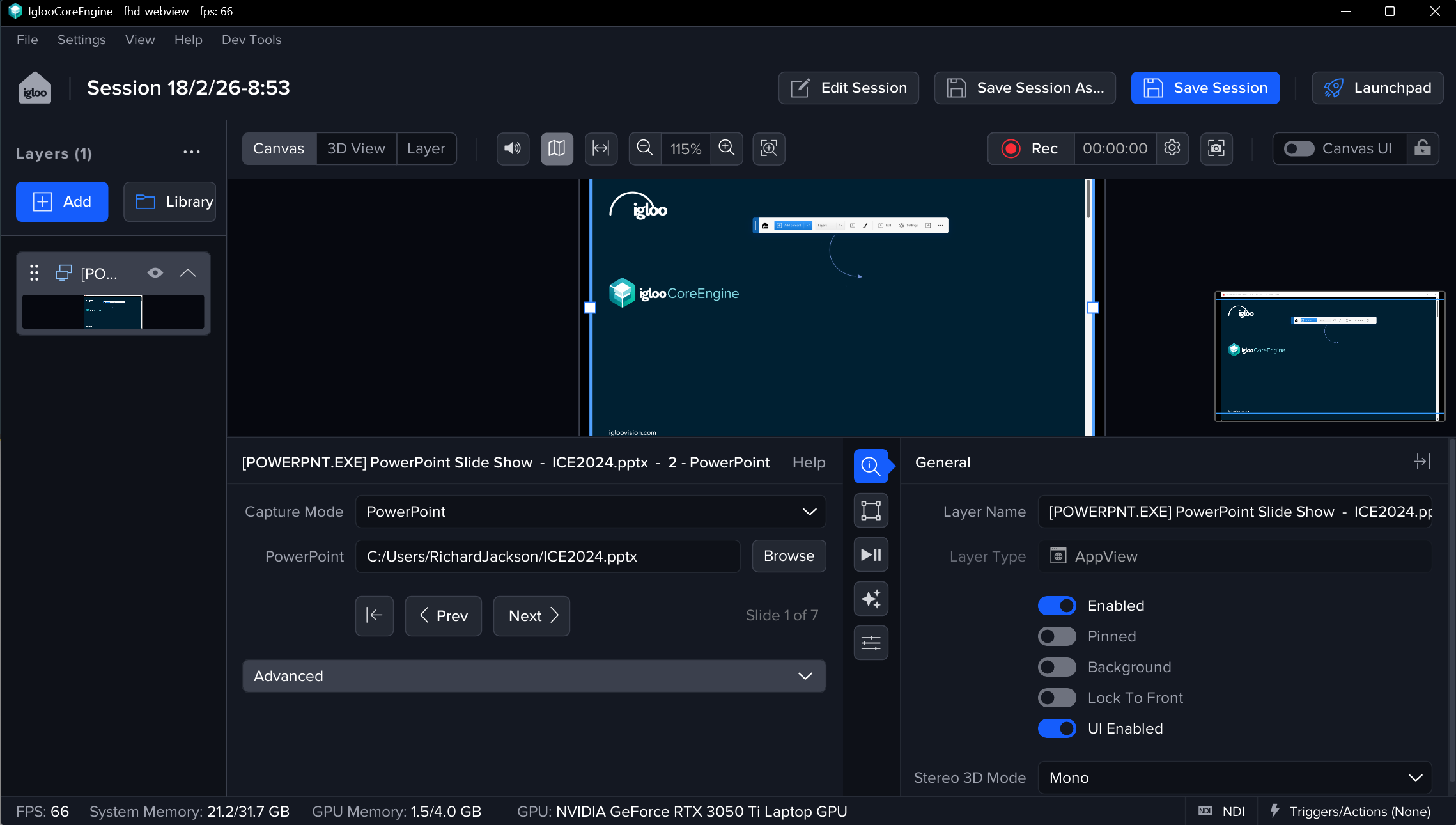
PowerPoint Mode Advanced Settings
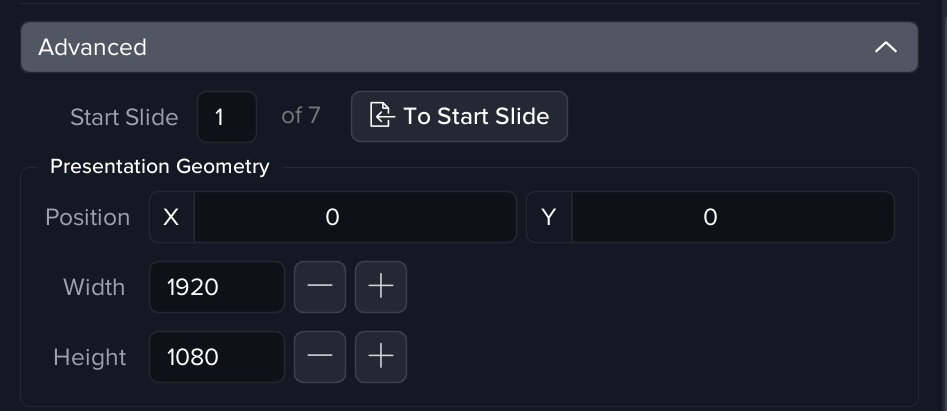
Start Slide
This is the slide that will be shown on opening the presentation. There is also a button which can be used to return to it at any time.
Presentation Geometry
-
The presentation window has to remain fully contained within a display for it to be captured i.e. it cannot span multiple windows displays
-
The presentation window must also be positioned on a display which is connected to the same GPU as Igloo Core Engine
The geometry settings control its position and size. You can also move and resize it like any other desktop window.
But you will not be able to change it so that any portion is off the desktop
To prevent the PowerPoint presentation window from appearing in front of the Igloo Core Engine output, enable “Always on Top” in the Screens settings. This ensures the output windows remain above the presentation during usage.
Read-only fallback
Due to the limitations imposed by a file that is set to be read-only. Igloo Core Engine can’t force the slideshow to be windowed. Read-only files will be shown in the default mode which is full screen. This makes the slideshow window pop up on top for a brief moment before eventually being put behind the Igloo Core Engine window. For the best experience, consider changing the file to be editable and save it.