This integration enables 360 images to be generated using Blockade Labs Skybox AI and viewed in an Igloo.
Please note there is a new method for generating images using AI models, introduced in IglooCoreEngine 2.0, see Image Generation
Scroll down for a description of the legacy method for using Blockade Labs Skybox.
Integration within Image Layer properties
We have integrated with a number of different AI models for image generation. These integrations can be accessed via the Igloo Desktop UI and Igloo Control Panel.
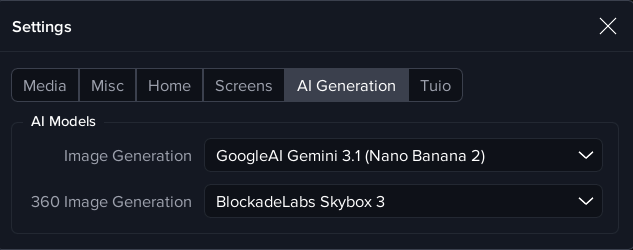
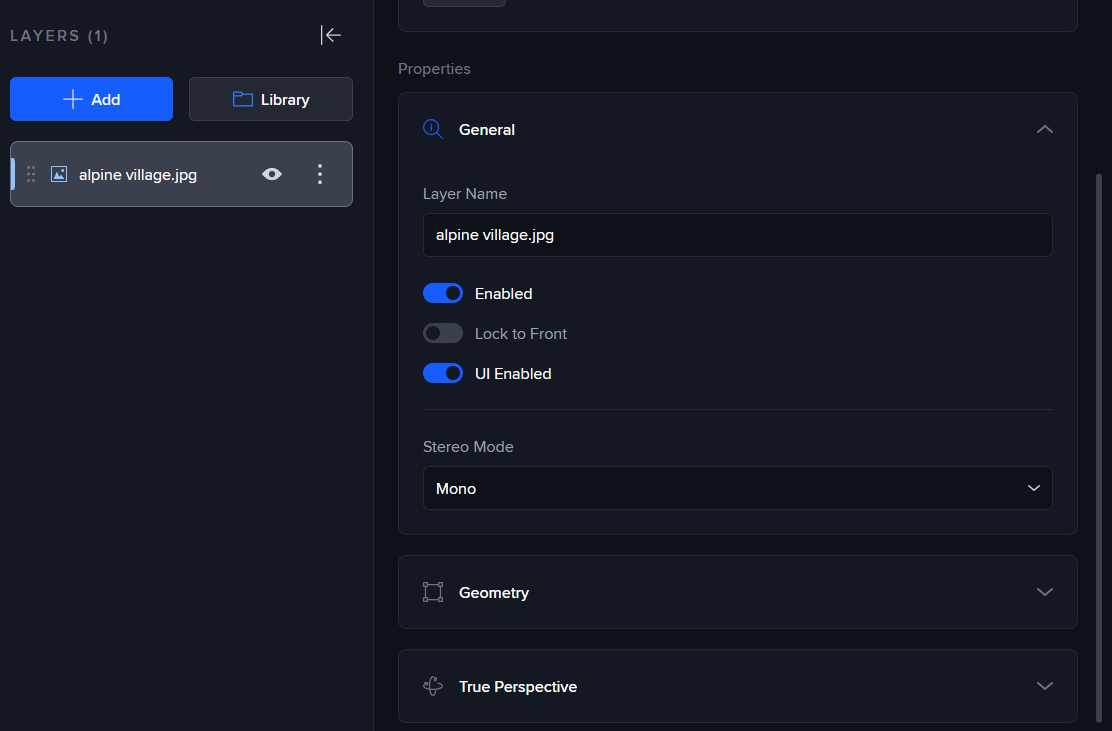
Set the default models to be used in the System Settings dialog (Desktop UI):
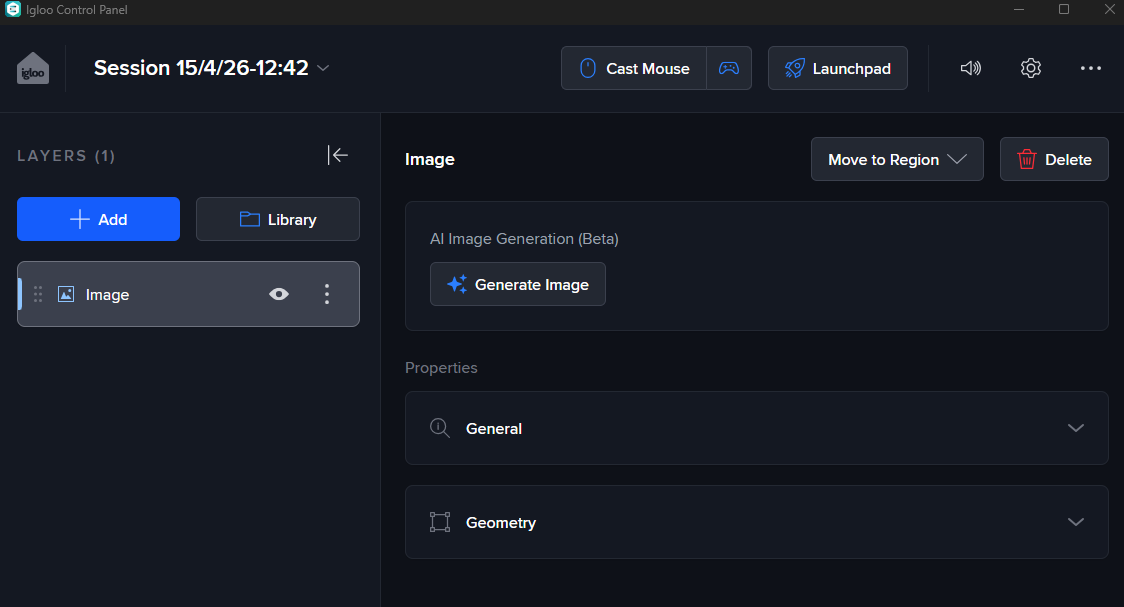
The Generate Image button will appear in the layer properties section when an Image layer is created.
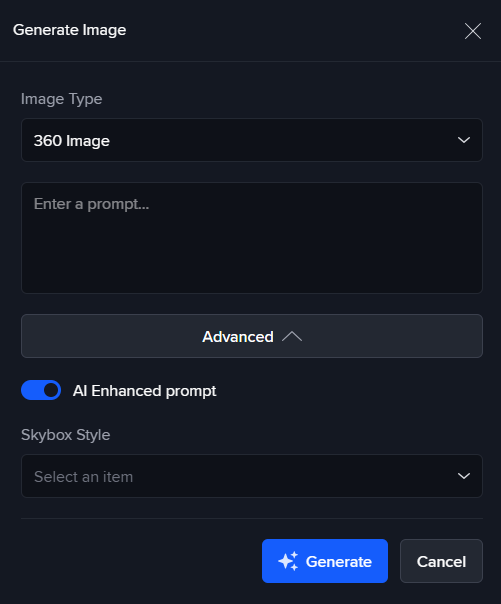
When the Generate Image button is pressed, the dialog below is shown with advanced properties depending on the default model. In this case the Skybox style dropdown is available.
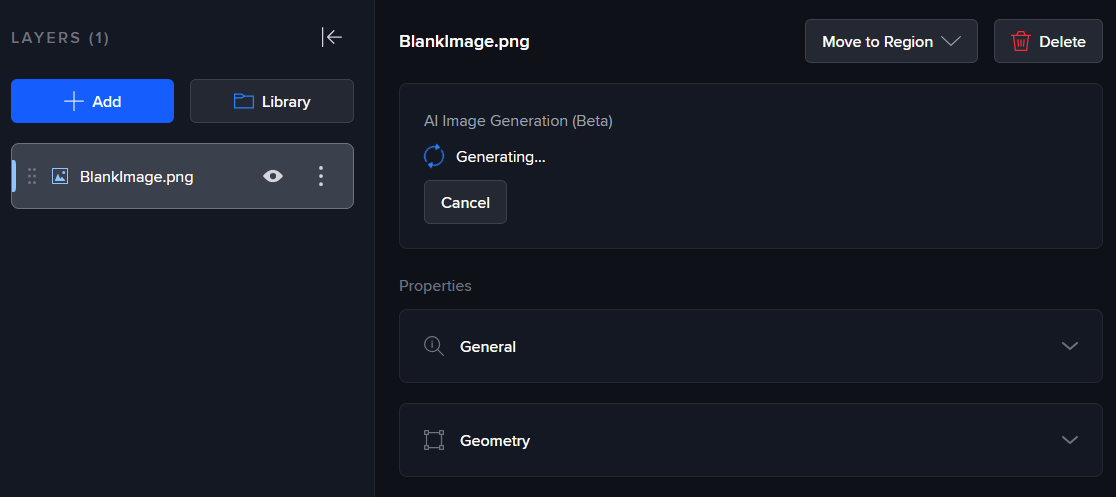
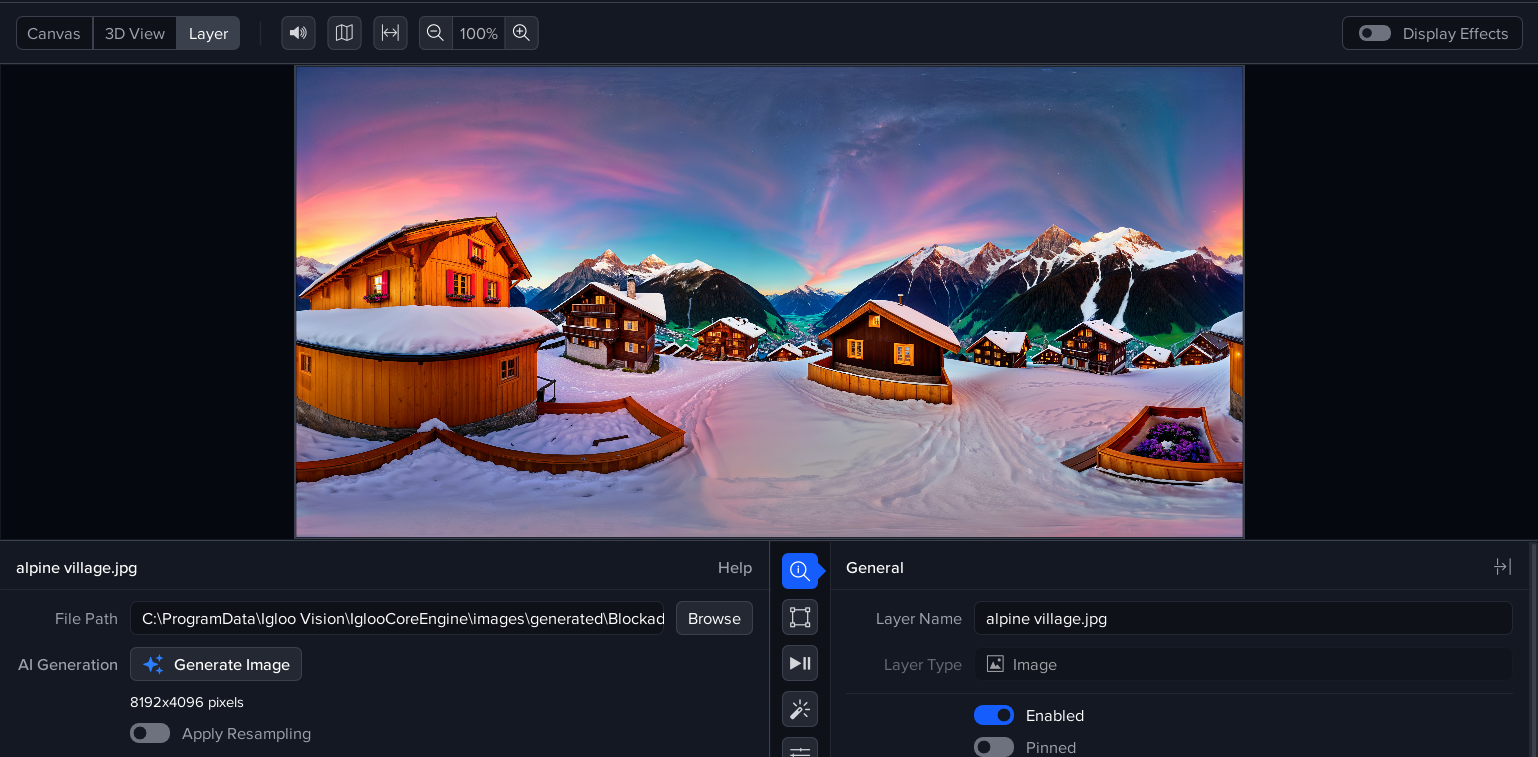
Example 360 Image
Using prompt ‘Alpine village’. The prompt widget changes to ‘Generating..’ while the AI model is running.
Legacy Interface
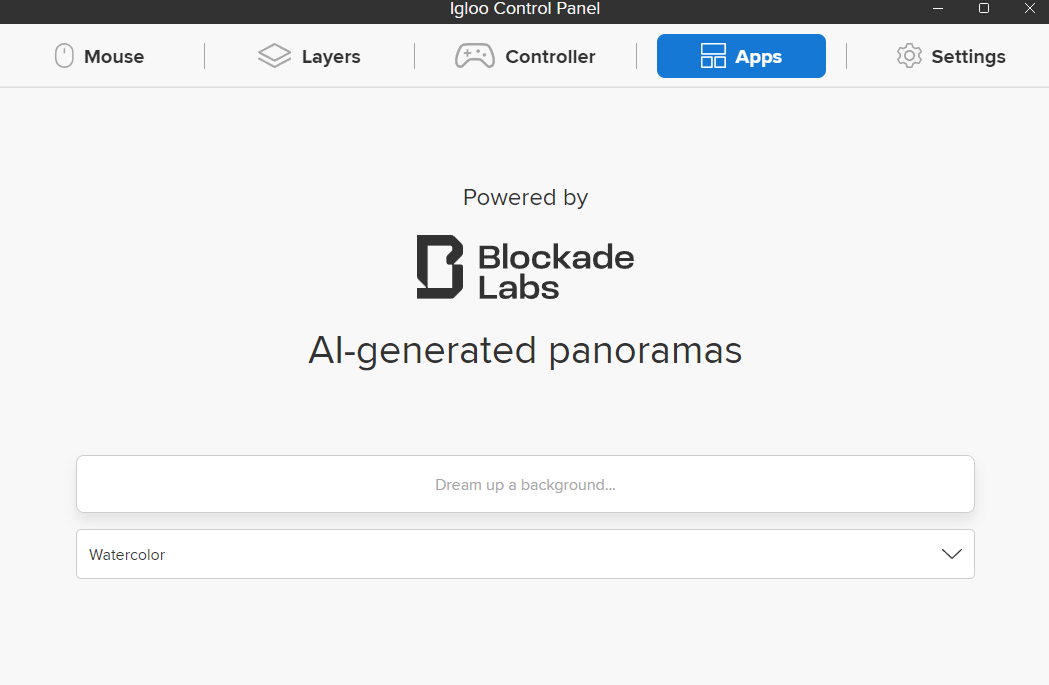
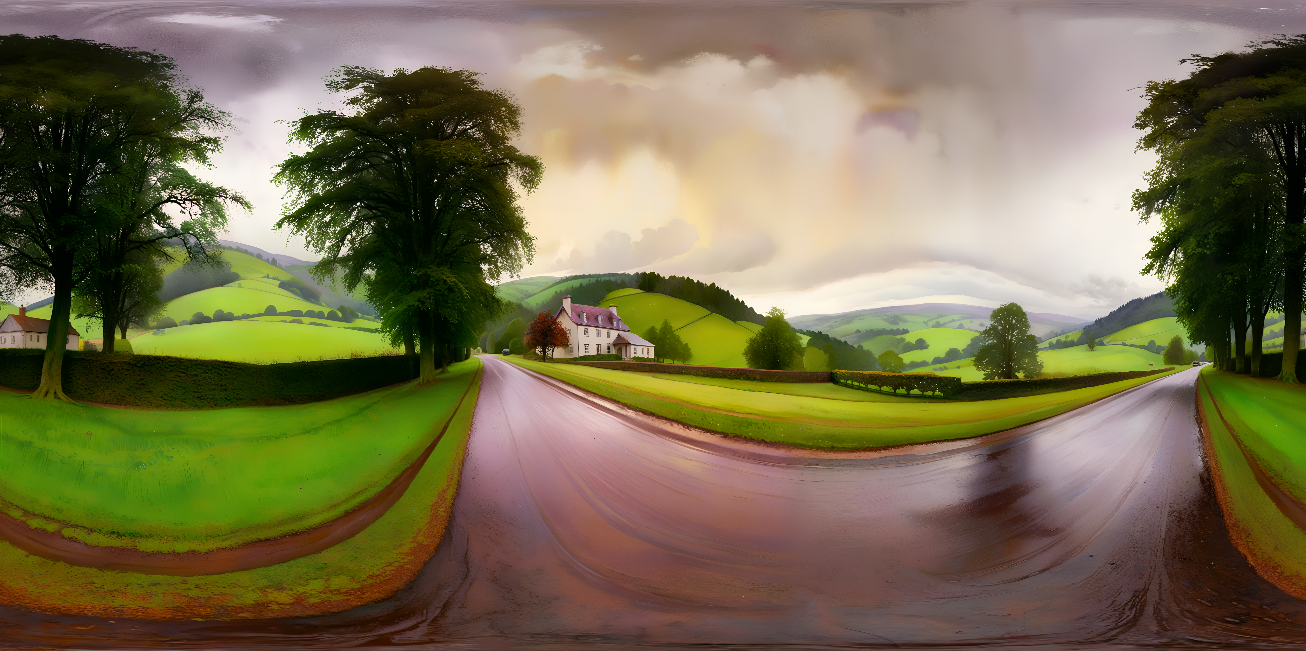
The AI prompt and image style are entered in Igloo Control Panel. Select the style, type in the prompt and press Enter. The image typically takes between 30 and 90 seconds to generate.
Requirements
An APIKey is required to use this integration. Keys can be obtained from https://skybox.blockadelabs.com/membership
Once obtained, insert the APIKey in the config.json file in C:\igloo\igloo-core-service.
 "skybox": {
    "apiKey": "<insert apikey here>"
  },
Control panel
The URL endpoint for the control page is: https://[media server ip]:801/skybox/control/ (https is required for clipboard functionality).
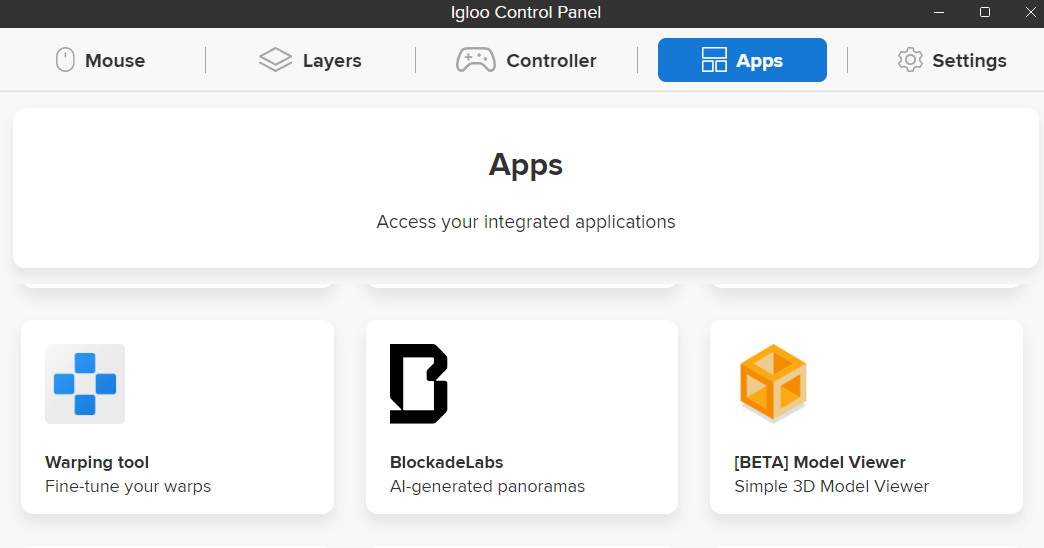
Enter the section below in C:\igloo\igloo-core-service\custom_browsers.json
{
  "blockade": {
    "name": "BlockadeLabs",
    "url": "$remoteIP:800/skybox/control/",
    "https": true,
    "icon": "$ai/blockade.png",
    "description": "AI-generated panoramas"
  }
}
Include blockade as an item in the apps list in config.json
"apps": [
      "matterport",
      "streetview",
      "warping",
      "blockade",
      "default"
    ],
Igloo Core Engine
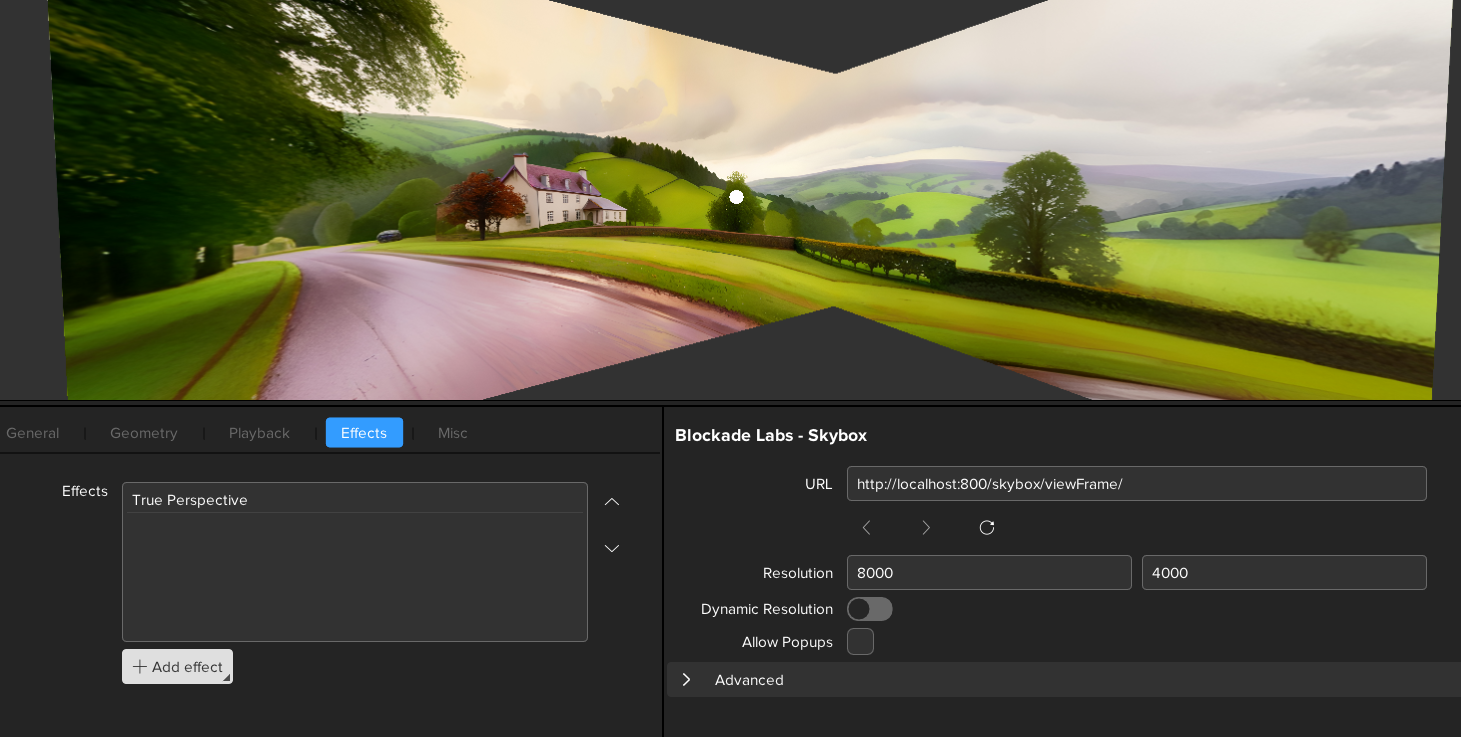
The URL endpoint for the AI generated image is: http://localhost:800/skybox/viewFrame/
Generated images will be automatically displayed in a WebView with the above URL. The WebView resolution should be set to 8000x4000 and true perspective should be added to the effects.
Logo
Place blockade.png (below) in C:\igloo\igloo-core-service\app-icons