Igloo Core Engine

Viroo

Enterprise XR Platform - Enterprise XR made simple, secure, and scalable. From concept to deployment.

https://viroo.virtualwareco.com/

Watch the video: https://www.youtube.com/watch?v=W2TQS2uxjPY&list=PLV-XSHXY_dh6Lz6TqO58DvaaCUeowqg0h&index=11

Installation

This integration is built by the Viroo development team supported by the Igloo application integration team. The integration enables the 360 video output to be displayed in a suitable format for Igloo immersive spaces.

Integration

Download and the run the installer for the Viroo Single Player app from here: https://viroo.virtualwareco.com/resources/players/
The next step is to modify a configuration file so that the advanced launch options are displayed, which enables the ability to start apps with additional command line parameters. To do this, go to the Single Player installation path, right-click on the shortcut, select Open file location, and then edit the appsettings.json file located inside the data folder.

In this file, look for the ShowAdvancedSettings key, set it to true, and save the file.

Once this is done, when you open Single Player, you will see a new section where you can add parameters to the command line. In our case, we need to pass the --igloo parameter so that the application launches in this mode. This parameter only needs to be used for applications that support Igloo mode.

After adding the parameter, the application must be launched in desktop mode, as this is the mode currently implemented for Igloo.

Interaction is done via keyboard and mouse.

For more information, please refer to:

https://virooportal.virtualwareco.com/docs/3.0/viroo-players/single-player/introduction/introduction.html

https://virooportal.virtualwareco.com/docs/3.0/viroo-players/single-player/navigation/desktop.html

Running a Demo Session

Run Viroo Single Player and login with your Viroo account credentials
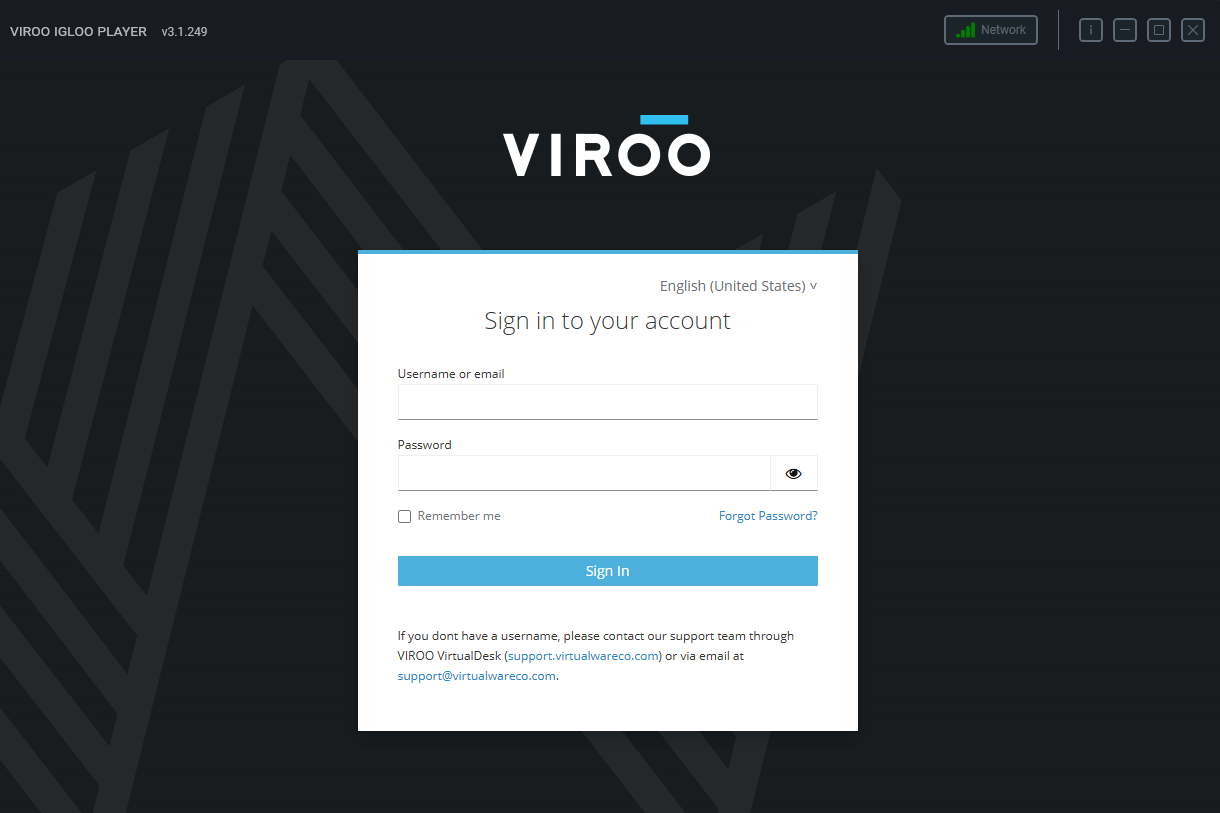
Screenshot 2026-02-09 141406.png
Login to Viroo Single Player app

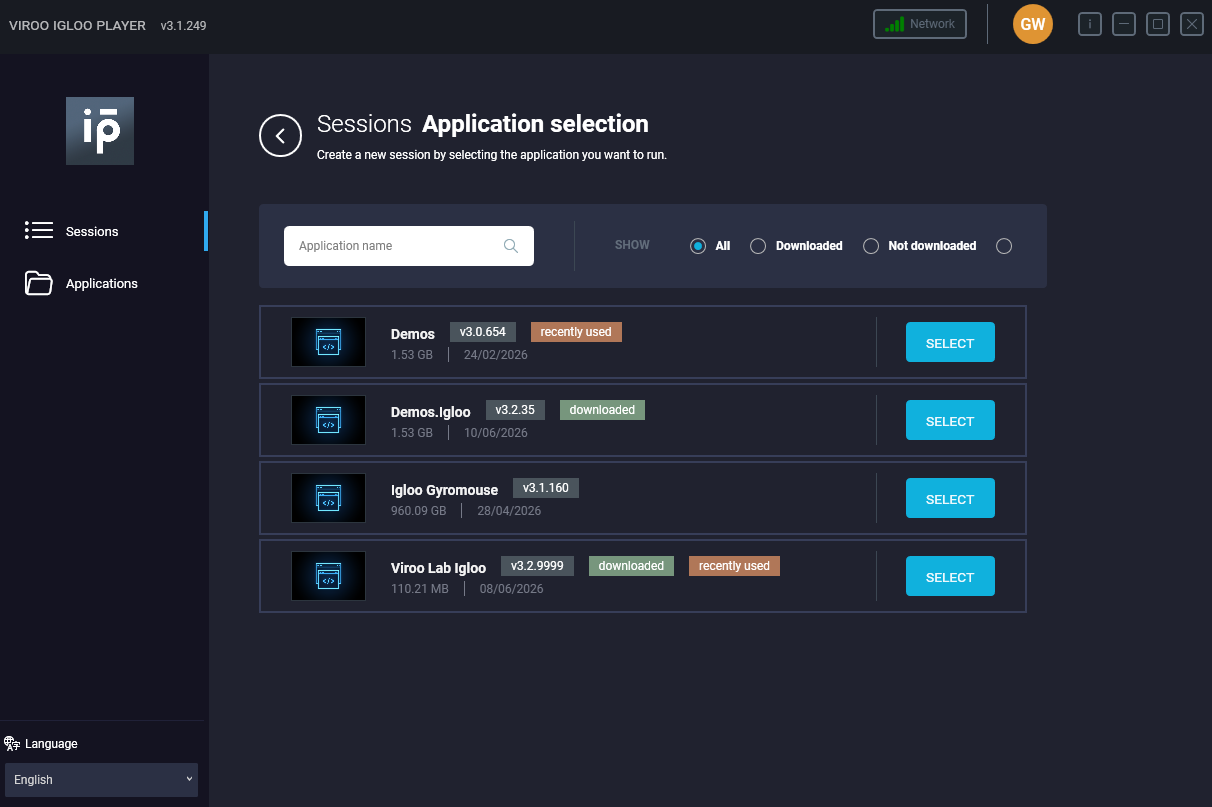
Create and Join a new session and choose “Demos Igloo Game controller And Mouse” from the dropdown list.

Screenshot 2026-02-09 141550.png
Create a new session in Viroo

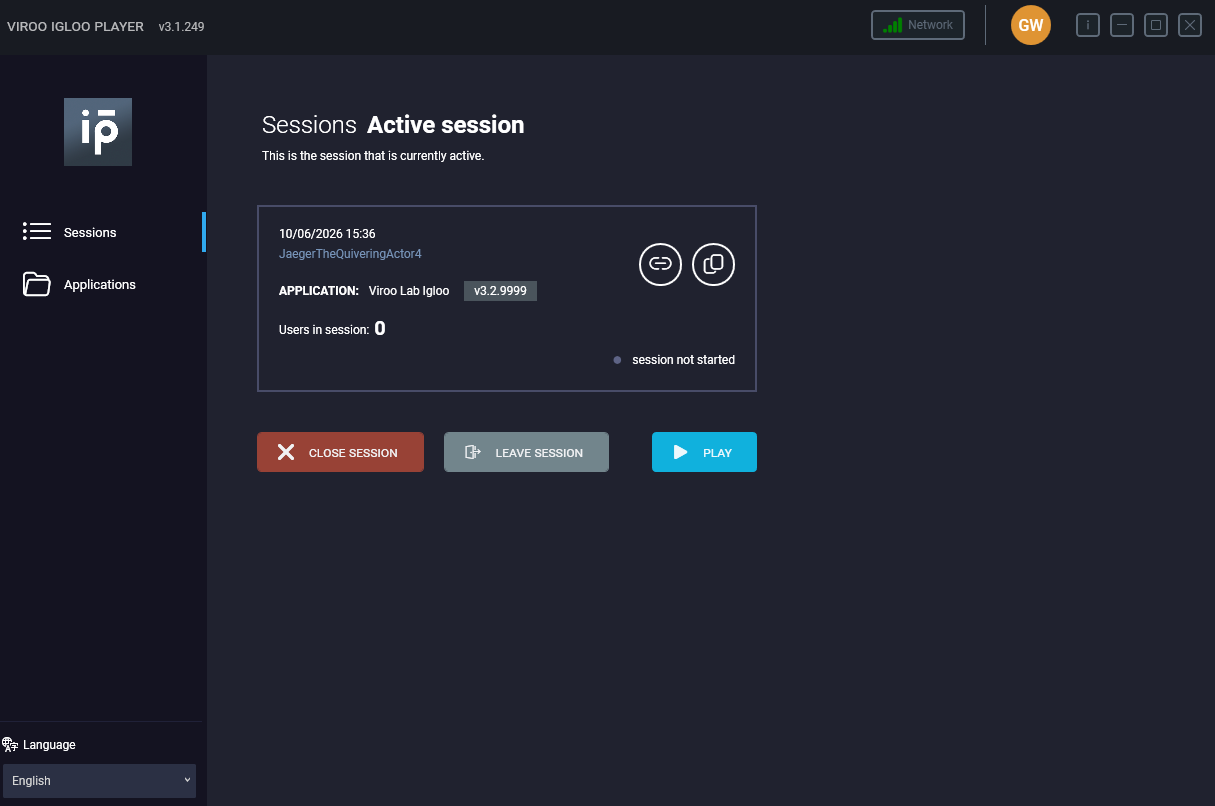
Press Play to startup the demo.

Screenshot 2026-02-09 141620.png
Press Play

Select “Keyboard and mouse” and enter “--igloo” in the extra command line parameters.

Screenshot 2026-02-09 141714.png
Select the “Keyboard and mouse” option and press Play

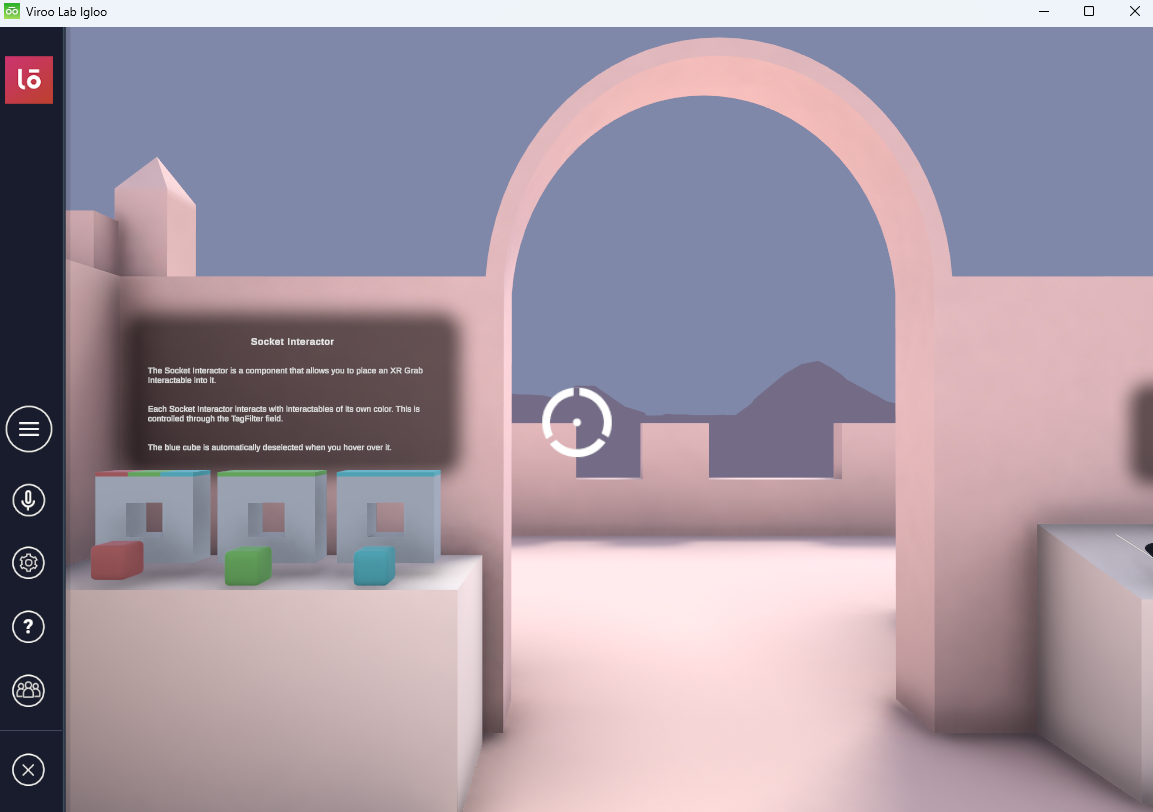
The Car Showroom scene is loaded by default. Navigation can be done via the Igloo Control Panel Game Controller.

Screenshot 2026-02-09 141859.png
Navigate using Game Controller in Igloo Control Panel


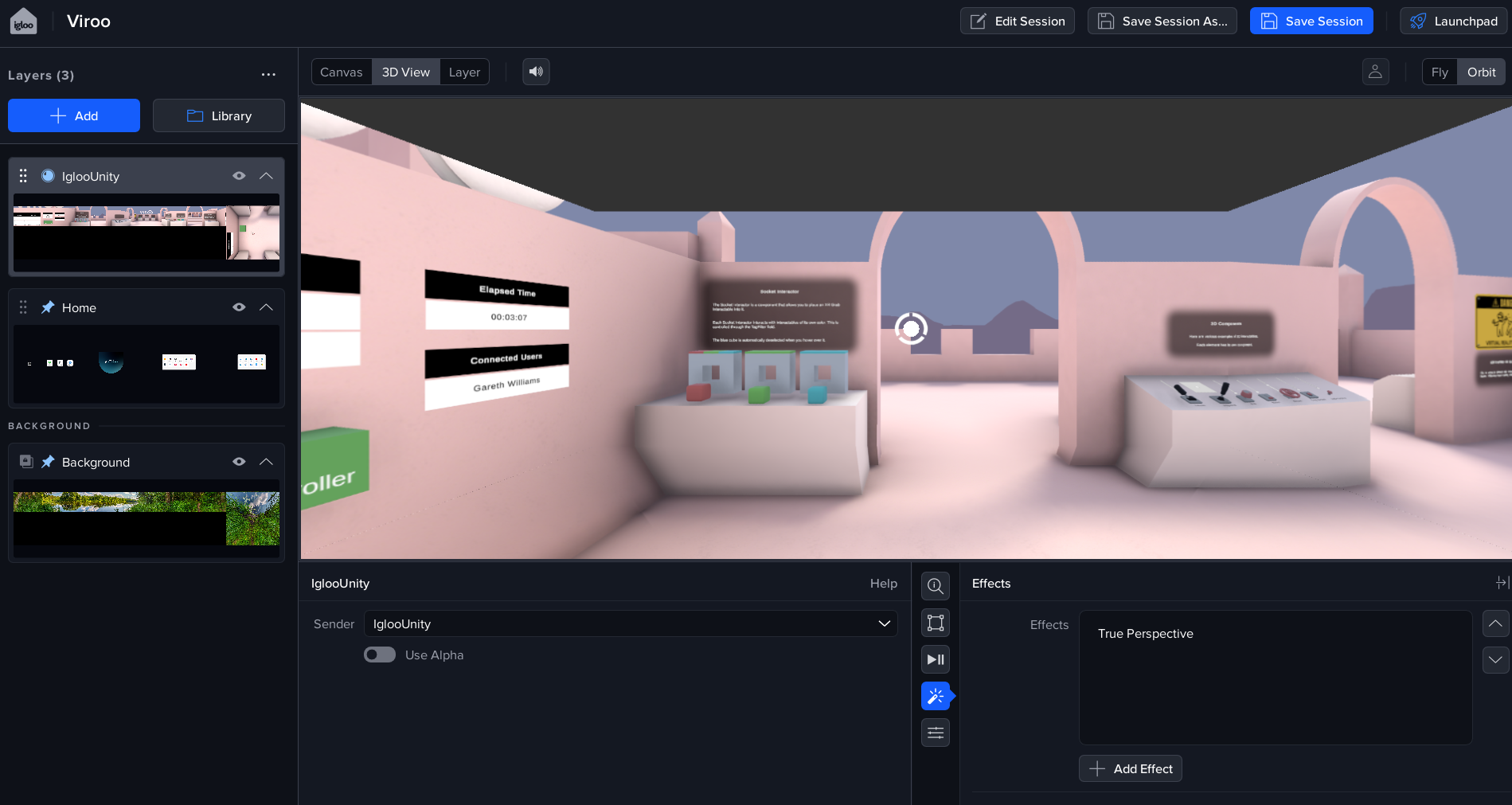
Add a Spout layer in Igloo Core Engine and select the IglooUnity sender.

Screenshot 2026-02-09 142314.png
Select Spout sender IglooUnity

Apply the TruePerspective effect to the Spout layer.

Screenshot 2026-02-09 143244.png
Apply TruePerspective effect

I have an Issue!

For issues with the Viroo integration, please contact myadvocate@igloovision.com or use the help desk. A ticket will be generated for you, and an appropriate member of our tech support team will contact you as soon as possible to assist you with your problem.