
True Perspective is the effect that makes 360 content work out of the box in Igloo Core Engine.
It takes a 360 source (equirectangular or cubemap) and renders a correct perspective view for your Igloo geometry (cylinder, immersive room, etc.). This happens in real time (no offline re-rendering), and the viewing position (Head Position) can be changed dynamically.
Head Positions Configuration
Head Positions are applied in three stages:
-
Global Head Position Presets are defined once.
-
Each Workspace selects which preset it uses as its Default Head Position.
-
Each Layer uses the workspace Head Position by default, but can override it if required.
This keeps most content consistent by default, while still allowing controlled exceptions.
Defining Head Position Presets (Global)
Go toSettings > True Perspective to manage Head Position presets.
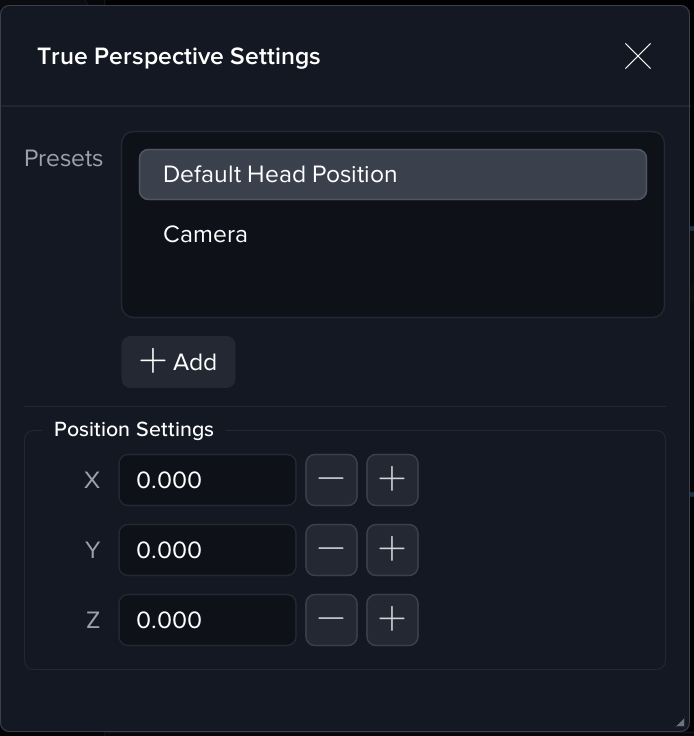
Here you can:
-
Create and manage multiple Head Position presets (X / Y / Z).
-
Define common viewing locations (e.g. Centre, Video Conference Camera, Podium).
These presets form a global library that can be reused across workspaces and layers.
Selecting the Workspace Default Head Position
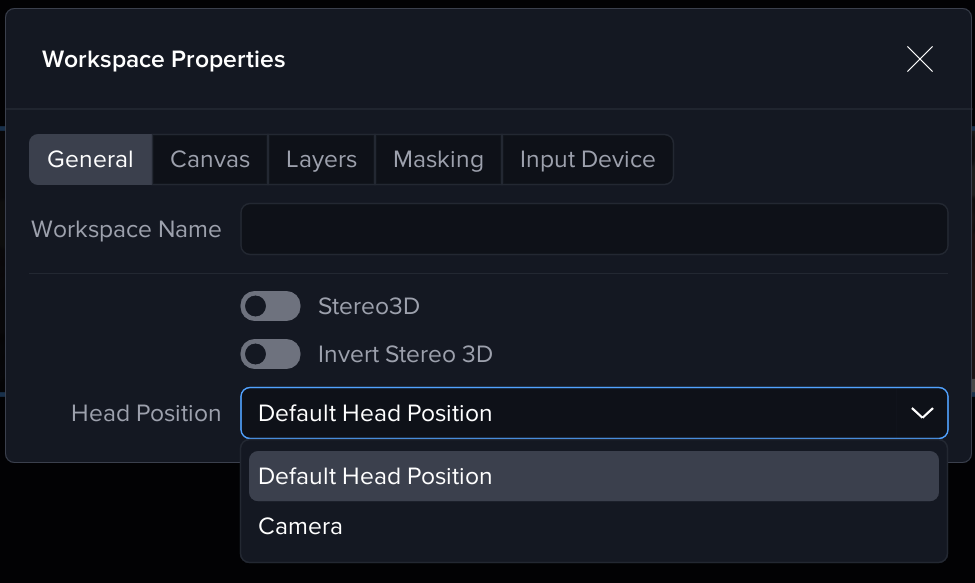
Each workspace chooses which global Head Position preset it uses by default.
Go to Settings > Workspace Settings > General > Head Position
-
Select the Default Head Position for the workspace.
This determines the viewing position used by True Perspective unless a layer explicitly overrides it.
Typically, this is configured once per workspace / installation.
Using Head Positions on Layers
When True Perspective is added to a layer, the layer decides how it gets its Head Position.
By default, layers inherit the workspace setting, ensuring visual consistency across content.
Head Position Mode (per layer)
Each layer can select one of the following modes:
Workspace (default)
Uses the workspace Default Head Position.
Recommended for most content.
Preset
Selects a different Head Position preset from the global library, overriding the workspace default for this layer only.
Useful when a specific layer needs a different viewing location.
Custom
Defines a fully custom Head Position using explicit X / Y / Z values.
Use sparingly — this bypasses both workspace and preset consistency.
Prefer Workspace or Preset so multiple layers remain visually aligned.
True Perspective Effect Controls
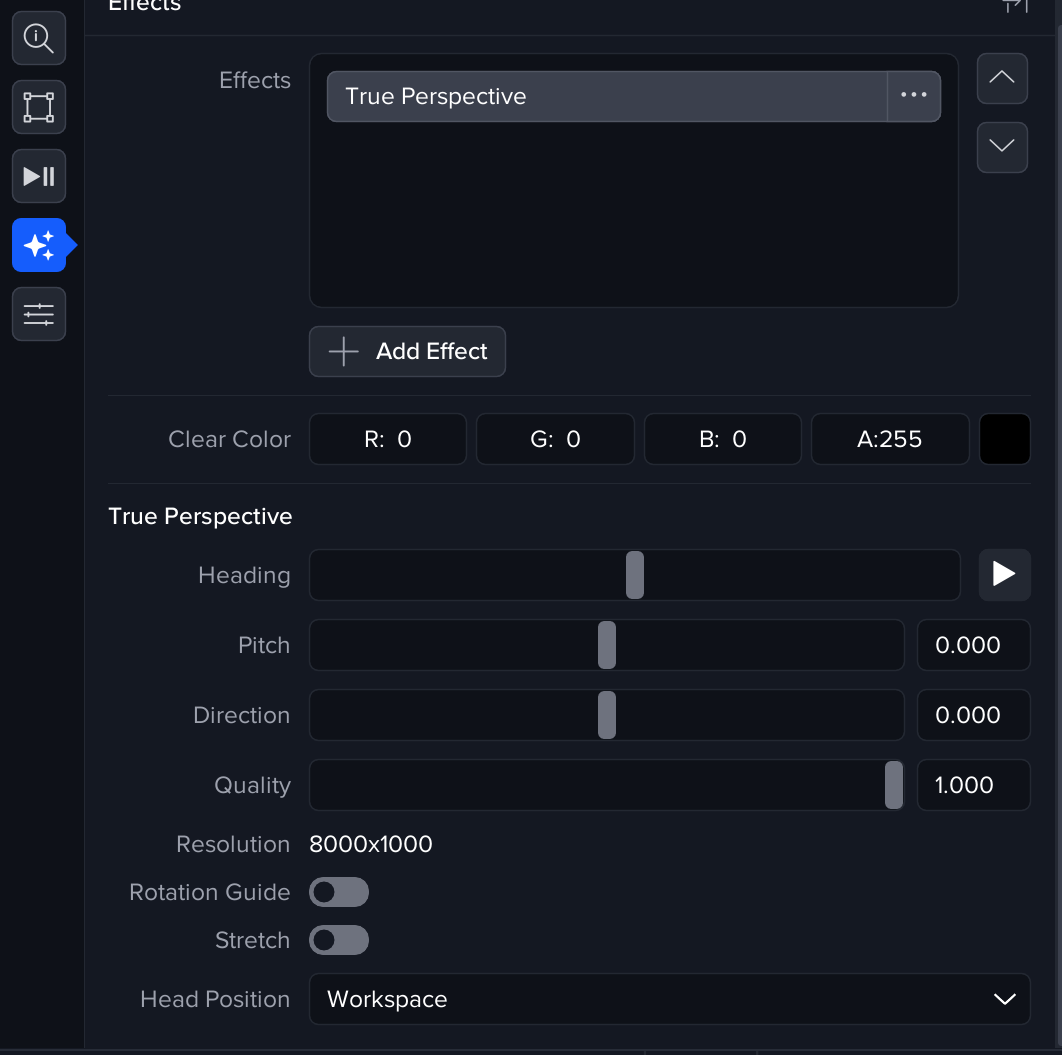
View Orientation
Heading
Rotates the 360 content left / right (yaw).
Use the ‘Play’ button to automatically rotate the 360 content over time
Pitch
Rotates the 360 content up / down.
Direction
Controls the axis along which pitch is applied. Useful for aligning tilt relative to the space.
Rotation Guide
Displays a guide on the canvas to help visualise pitch direction while tuning.
Render Quality
Quality
Controls resolution for the extracted view. Higher values increase GPU cost.
Resolution (read-only)
Displays the internal render resolution used by the effect.
Stretch
-
Scale: Vertically scales the extracted view.
-
Offset: Vertically shifts the result.
Stretch is intentionally a non-physical adjustment. It can help with small “fit” issues in specific situations, but it breaks correct perspective. Only use it for minor corrective tweaks when the trade-off is understood.
Recommended Workflow
-
Open Settings > True Perspective
-
Create one or more global Head Position presets
-
-
Open Workspace Properties
-
Select the workspace Default Head Position
-
-
On your 360 layers:
-
Add the True Perspective effect
-
Leave Head Position = Workspace (or select a Preset if needed)
-
-
Then adjust:
-
Heading / Pitch / Direction (alignment)
-
Quality (performance vs clarity)
-
Stretch (last resort)
-
See Desktop UI - Handling 360-Degree Content for an example of how True Perspective can be used