
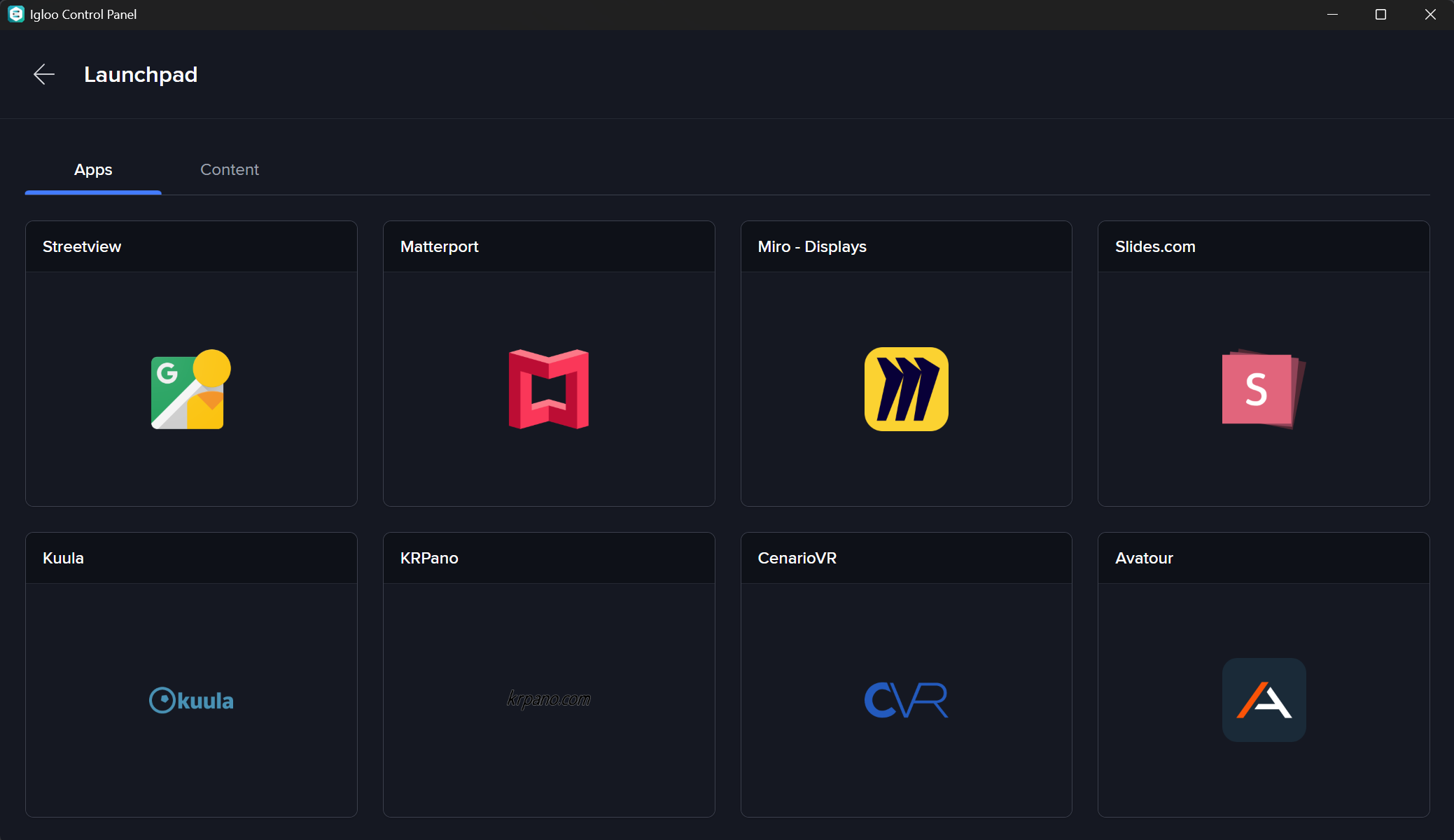
Launchpad provides a fast, user-friendly way to launch content and trigger actions directly from Igloo Control Panel.
It presents a grid of tiles that allow users to switch sessions, execute pre configured actions, or jump straight into interactive content, without needing to understand how anything is configured in Igloo Core Engine.
Launchpad layout, tiles, and behaviour are configured in Igloo Core Engine. This section focuses on how Launchpad behaves from the Control Panel.
Opening Launchpad

To open Launchpad:
-
Click Launchpad in the Control Panel header
-
Launchpad opens as a full-screen grid of tiles
If multiple pages are configured, you can navigate between them.
Using Launchpad
Each tile represents an action. The two main types are:
-
Session Tiles > Load or modify Sessions
-
Trigger Tiles > Run Triggers & Actions
To use Launchpad:
-
Click or tap a tile
-
The action executes immediately
-
The Control Panel updates based on the tile’s configured behaviour
What Happens When You Launch a Tile
The behaviour after launching a tile is conditional and depends on its configuration within Igloo Core Engine
This determines what the user sees next in the Control Panel.
Common outcomes
After selecting a tile, Control Panel may:
-
Stay on the current screen
-
Return to the Layer List
-
Open a specific Layer UI
Control Panel Behaviour Options
Tiles can define what the Control Panel displays after the action has completed:
-
None
Leave the Control Panel unchanged -
Back to Layer List
Return to the Layer List after launching -
Show Layer UI (Session tiles only)
Launch the session and immediately open the interface for a specific layer
Additional Options (when Show Layer UI is selected)
-
Layer
Specifies which layer’s UI is opened (from the launched session) -
Home After Exiting Interface
When enabled, exiting the layer UI returns Igloo Core Engine to the Home layer
(or clears all session layers if no Home layer exists in the workspace)
Show Layer UI Behaviour
This behaviour is designed to create the most streamlined and guided user experience possible in Control Panel. When combined with the Blocks system, it allows fully customised, kiosk-style interfaces to be built. However, this does require additional setup and configuration within Igloo Core Engine.
When a tile is configured with:
When Launched > Show Layer UI
the following happens:
-
The tile action is executed (e.g. launching or appending a Session in Igloo Core Engine)
-
Control Panel then opens the UI for a specific Layer within the active Session
-
The user is taken directly into that layer’s interface for interaction
The Control Panel only updates its view when the action is triggered from the Control Panel itself.
What this means
-
The UI you see is not standalone
-
It is always tied to a layer inside the current active session
Example
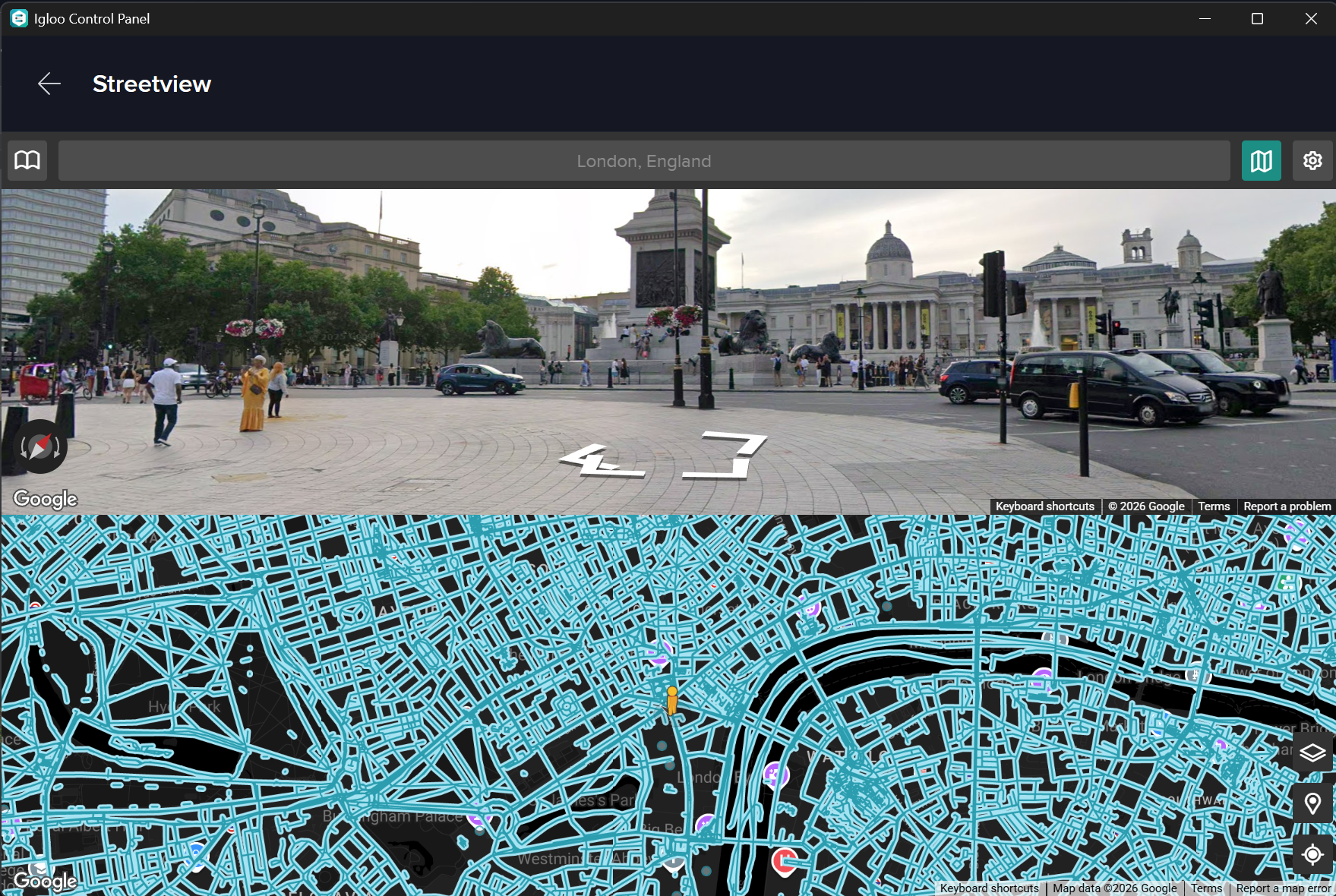
A Street View tile may launch (or update) a session and immediately open the Street View layer UI, allowing the user to navigate without seeing the Layer List or other non essential controls
Kiosk / Guided Experiences
Launchpad can be configured to create a simplified, guided experience:
-
Users interact only with tiles
-
The system controls what appears next
-
Layer UI can be opened directly with no navigation required
Customising the Layer UI
When using Show Layer UI, the interface shown can be customised using the Blocks system.
This allows you to:
-
Simplify controls
-
Hide unnecessary options
-
Embed custom web-based interfaces
Stream Deck Support
Igloo Control Panel supports integration with Elgato Stream Deck devices, allowing you to trigger Launchpad items using physical buttons.
https://www.elgato.com/ww/en/p/stream-deck
Setup
-
Connect a Stream Deck via USB to the device running Igloo Control Panel
-
Open Settings > Devices within Control Panel
-
Click Authorise StreamDeck and select your device
Configuration in Igloo Core Engine
To use the Stream Deck with Launchpad:
-
In Igloo Core Engine, create a Launchpad page named StreamDeck
-
Set the Launchpad page grid to match your physical Stream Deck layout (e.g. 3x5, 4x8, etc.)
-
Add items to this page, such as:
-
Sessions
-
Triggers
-
Usage
-
The Stream Deck replicates the Launchpad grid from the “StreamDeck” page
-
Each button maps directly to a tile in the Launchpad grid
-
Pressing a button triggers the corresponding Launchpad item
Limitations
-
Only a single Launchpad page is supported
-
The Launchpad grid must match the physical layout of the Stream Deck
-
When active, Igloo Control Panel takes full control of the Stream Deck, so it cannot be used with other apps or plugins at the same time