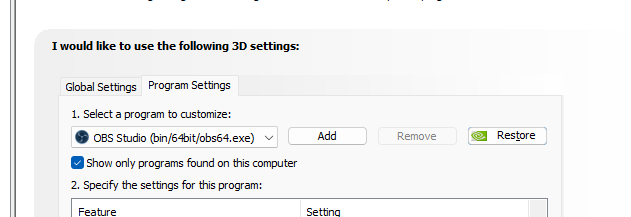
We can avoid changing the global preset to ‘3D App - Video Editing’ by creating a per application nvidia driver profile for ice and setting the one flag that resolves the issue.
Steps:
-
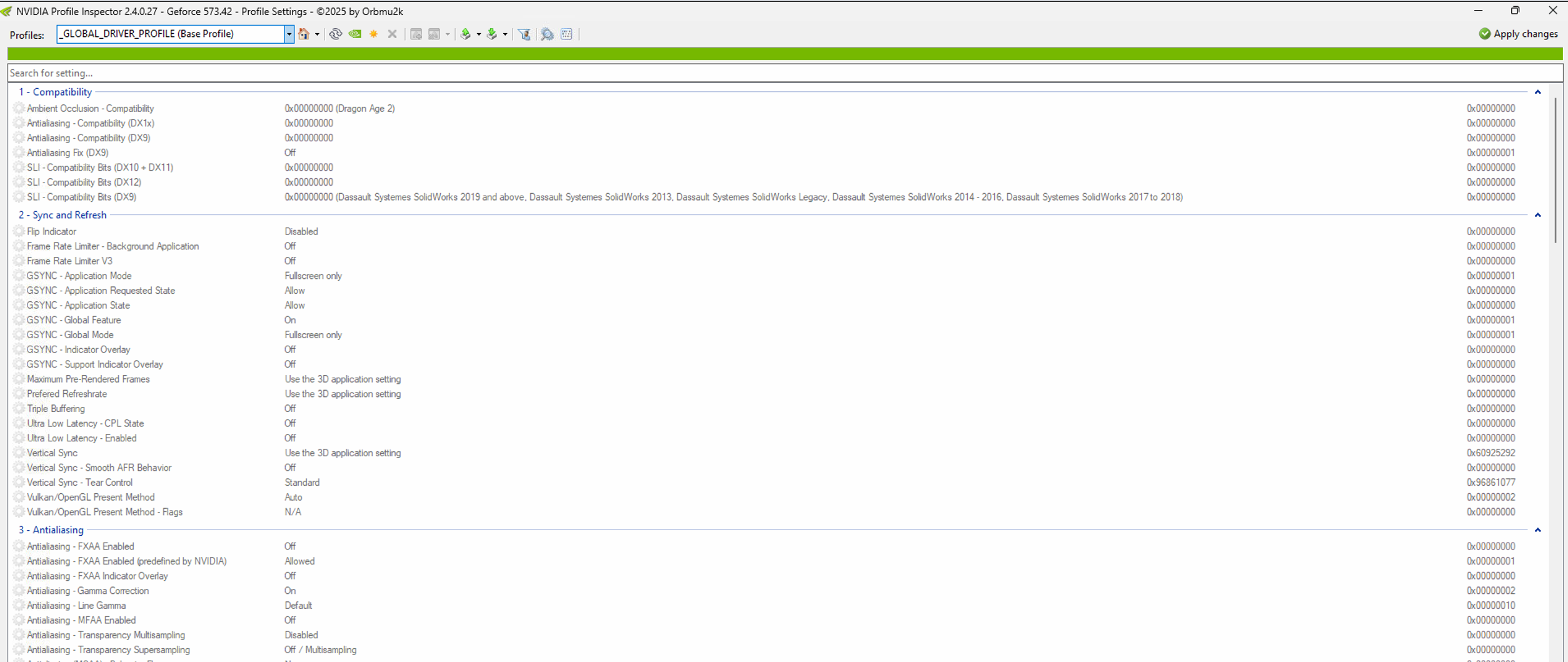
Download profile inspector https://github.com/Orbmu2k/nvidiaProfileInspector/releases , might need to run as admin
-
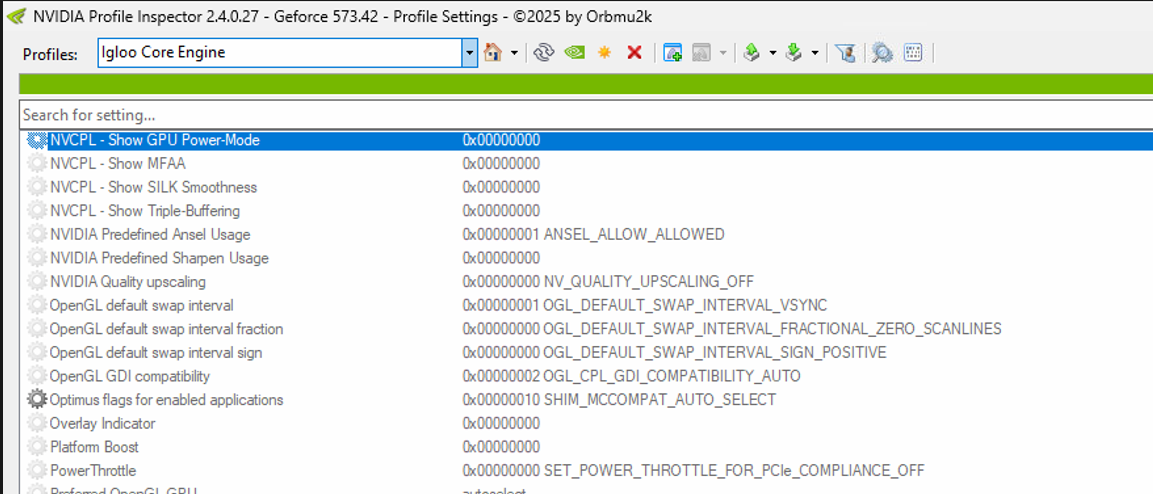
Create a new profile
-
In the meu at the top, click the create new profile icon
-
Name it Igloo Core Engine
-
-
Add the ice exe
-
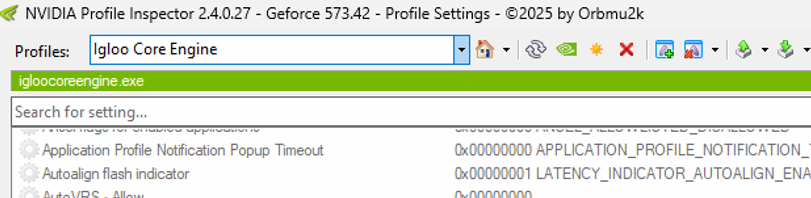
Directly under the profile dropdown is a green bar, double click to open the app selector (random UI right)
-
Browse to IglooCoreEngine.exe in the program files folder and add it
-
-
set the custom flag
-
Scroll to the very bottom of the flags
-
Set the flag as per image , you have to manually select it from the drop down such that it is no longer greyed out

-
-
Apply changes (button in top right)
-
Test
-
Leave the global profile in nvidia control panel set to base profile.
-
Launch ice and confirm the problems no longer occur , normally it’s obvious when creating a home layer then adding a grid component.
-
Notes:
-
The new custom app profile only affects ice, other apps continue to use the global settings.
-
The flag is hidden from nvidia Control Panel, you can only set it via profile inspector
-
You need to remove any custom profile settings configured for ice in the nvidia control panel window i.e. make sure ice is not in this drop down
-